
Get Started with Schedule Automation and Optimization in Field Service
Field Service provides several tools for automating and optimizing your workforce’s schedule. Learn about the benefits and differences of each method, when to use each tool, and how to set up schedule automation and optimization.
Required Editions
| Available in: both Salesforce Classic (not available in all orgs) and Lightning Experience |
| The Agentforce Field Service and Operations core features, managed package, and mobile app are available in Enterprise, Unlimited, and Developer Editions. |
 This is a Field Service managed package feature.
Optimization Journey
Implementing a system that fully automates and optimizes your workforce’s schedule is a journey that starts with understanding where you are now and visualizing how to transform scheduling operations in the future. Schedule automation and optimization aren't required for every implementation, but they can drastically improve dispatcher productivity and the cost-effectiveness of schedules.
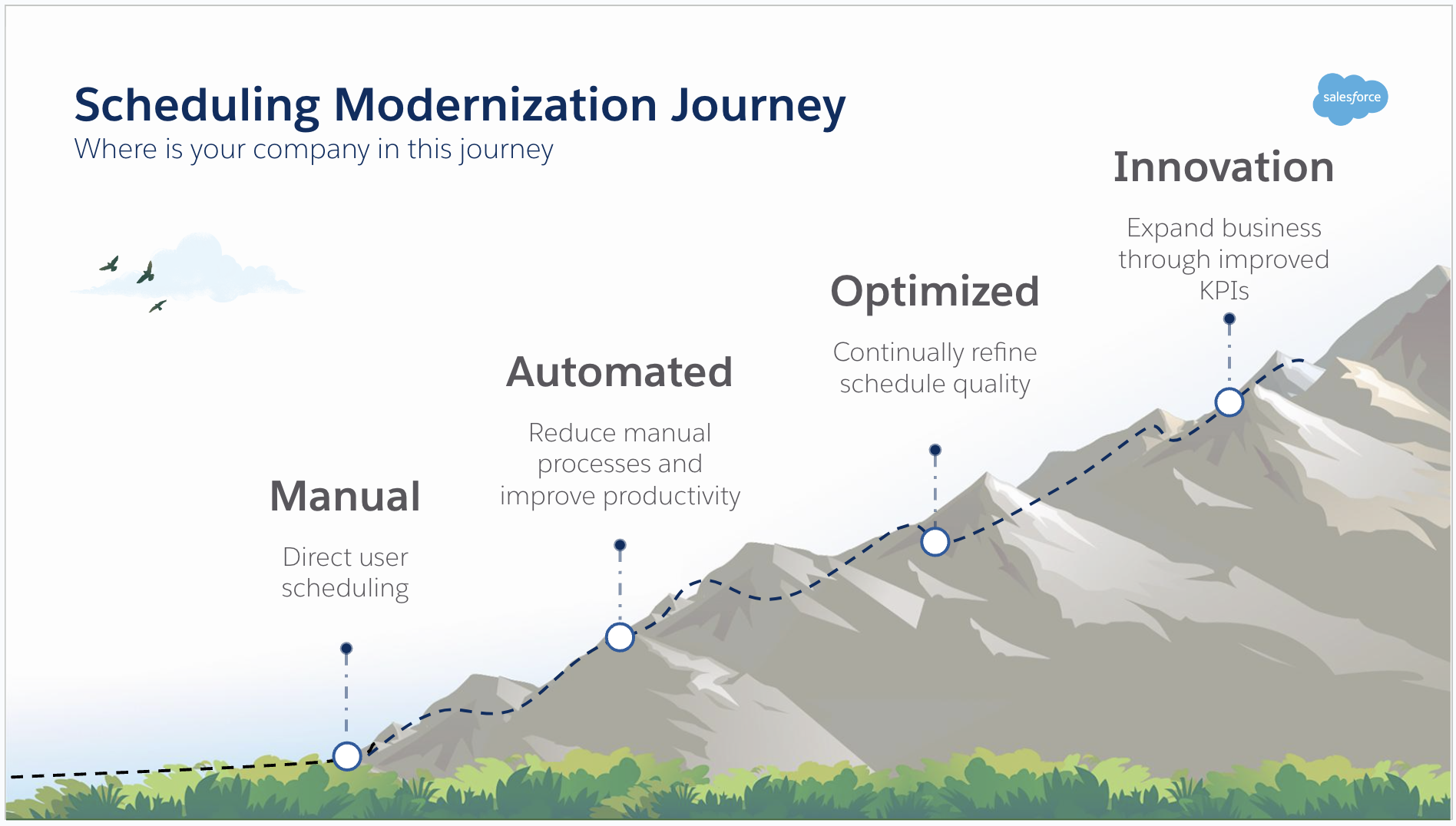
Here’s how scheduling automation can help you.
- Free up dispatchers to spend more time working with field resources and other higher-priority tasks instead of spending time manually figuring out a full-day schedule for the territory.
- Produce the most efficient schedule based on your business goals. For example, minimize travel time, schedule jobs as soon as possible, or schedule jobs to lower-cost resources. Automatically evaluate thousands of different scheduling options.
- Improve utilization of your field workforce by automatically evaluating, reevaluating, and adjusting schedules when new work is created or unplanned events arise. Field Service maintains commitments and adheres to your configured scheduling constraints and preferences.
Schedule Automation Versus Optimization
Automating the creation of your workforce’s schedule and optimizing it are two distinct phases of the schedule creation journey. Optimization is a great way to automate the schedule, but you can also automate the creation of the schedule without needing to set up any optimization processes.
Schedule automation is the process of generating a schedule for your workforce without manual intervention. Automatically creating a schedule reduces the burden on the dispatcher by using your company's scheduling rules and preferences to find suitable schedules for service appointments.
You can automate the creation of your schedule in several ways.
-
Select the Auto Schedule checkbox on the Service Appointment record.
When you manually create a service appointment, you can automatically schedule it to a resource that Field Service ranks best. To do this, define a scheduling policy in the Scheduling Policy Used field and select the Auto Schedule checkbox. You can also set these fields automatically by using triggers or flows on the creation or update of the service appointment, or set them directly on the service appointment when it’s integrated into Salesforce from another application.
-
Use the ScheduleService class for more flexibility in scheduling.
Use ScheduleService class methods to automatically schedule your appointments when they’re created or updated. With Apex code, you can define the scenarios when a service appointment must be scheduled and how to schedule it.
For example, to book an appointment through integration, you can use the GetSlots() method to retrieve available time options for scheduling a service appointment. When you call GetSlots(), you can pass a scheduling policy that doesn't include service objectives to minimize time spent evaluating and grading scheduling options, which improves performance and decreases latency. Then, use the Schedule() method to schedule the appointment to the best possible and highest-scoring service resource by using a scheduling policy that includes all your required service objectives. By using Apex, you can define different scheduling policies and customize the events in which a service appointment is automatically scheduled.
-
Use optimization processes to automatically create a schedule.
Optimization processes such as global, in-day, and resource schedule optimization not only create a schedule, but also evaluate thousands of scheduling options in the background to find an optimal schedule quickly.
Schedule optimization is the process of refining the schedule by evaluating thousands of scheduling options to find an optimal schedule. As events happen throughout the day —, for example, as new service appointments are created and schedules change —, optimization processes ensure that your schedule is continuously improved to produce an optimal schedule over time.
You can optimize your schedule in several ways, either proactively or reactively.
-
Global optimization evaluates schedules for all resources in one or more territories over a longer period of time than the other optimization methods do. With more time to evaluate more scheduling permutations, the optimizer produces better scheduling results. Depending on the amount of data and the complexity of the schedule, global optimization can take up to 2 hours to complete processing, but the result is an improved schedule over other optimization methods.
To use global optimization, trigger an optimization process with a scheduling policy that doesn’t have the In-Day Optimization checkbox selected. You can run global optimization by clicking Optimize in the Classic Dispatch Console, but it's more commonly run as a background process during low-volume periods. Global optimization can take a long time to finish, so it's best to schedule it as a background process when there’s not much activity on the schedule that can conflict with results. For example, schedule it to run once, sometime after midnight in the territory’s time zone.
For global optimization, we recommend that you choose the lowest time horizon that has the most schedule activity, allowing optimization to concentrate its resources on producing a schedule for what’s more time-critical. For example, if most service appointments must be scheduled within the next 3 days, set your optimization horizon from today to 3 days from now for the best results. Increasing the time horizon means the optimizer spends time generating a schedule that isn’t as critical as the immediate next few days. Because global optimization can be scheduled to run every night, it progressively moves through future days when it’s within the horizon date range. Automate future day schedules without global optimization by using other methods, or use a separate global optimization job for a future time period.
-
In-day optimization evaluates schedules for all resources in one or more territories in a short period of time. This optimization responds to the dynamic nature of updates that happen throughout the day, such as reschedules, cancellations, and onsite time updates. Because in-day optimization is typically run within the business day to quickly optimize the schedule, the process caps its run time to provide a rapid result. This process runs for up to 5 minutes for Enhanced Scheduling and Optimization, and up to 10 minutes if you’re not using Enhanced Scheduling and Optimization.
To use in-day optimization, trigger an optimization process with a scheduling policy that has the In-Day Optimization checkbox selected. You can run in-day optimization by clicking Optimize in the Classic Dispatch Console, or you can run it recursively throughout the day using a scheduled job. When you create an optimization job with an in-day scheduling policy, the Schedule tab provides additional options to run optimization at set intervals throughout the day to continuously optimize as your day progresses.
For in-day optimization, we recommend that you run the optimization for a time horizon of a maximum of 2 days, for example, today and tomorrow. You can run in-day optimization for more days, but because the run time for in-day optimization is limited, it’s best to prioritize what’s most critical for optimization processing. Most reschedules, cancellations, and onsite time updates that happen throughout the day affect today and tomorrow’s schedule, so it’s most efficient to focus on those days.
While in-day optimization can fix schedule exceptions and optimize schedules according to service objectives to improve efficiency, global optimization is a faster-running optimization process that yields better schedule metrics.
- Resource schedule optimization is an optimization process that evaluates and creates a schedule for a resource when last-minute changes occur, such as canceled jobs, jobs running late, scheduling conflicts (overlaps), or emergencies. While resource schedule optimization can be run programmatically to react to certain scheduling events, you typically run it from the Classic Dispatch Console. To run the optimization from the Classic Dispatch Console, select Resource Schedule Optimization from the action menu of the resource whose schedule you want to optimize.For resource schedule optimization, we recommend that you choose the lowest time horizon for the resource that you want to impact. Typically, choose one day for the best results. Use global or in-day optimization to optimize longer time periods.
- Scheduling recipes are configurable
actions that you can set to automatically perform Resource Schedule Optimization
for a given service resource when certain criteria are met. For example, create
a recipe to resolve schedule conflicts that occur when a job runs late. You can
also create a recipe to fill gaps in the schedule when an appointment is
canceled. Scheduling recipes are triggered immediately when changes are made to
the schedule, so you don't have to intervene manually.
 Note Scheduling Recipes aren't supported in Enhanced Scheduling and Optimization.
 - Fix Overlaps by Using an Automated Scheduling Flow provides the same outcome and functionality as scheduling recipes. It enables you to perform and trigger Resource Schedule Optimization from Flow based on user-defined criteria and events, such as an appointment running late. The value of this feature compared to Scheduling Recipes is that it’s configurable in Flow. Also, other event-based automation can exist, and this feature has a greater ability to integrate with current business processes and automation.
- Fix overlaps can be used to automatically resolve overlaps created in the schedule, for example, an appointment ending late. Overlapping service appointments are unrealistic as a service resource can’t perform more than one service at a time. Fix overlaps can quickly resolve overlaps to produce a more realistic schedule. Fix Overlaps can resolve schedule overlaps, but it doesn't schedule new work to a service resource or optimize a resource’s schedule according to service objectives. Fix Overlaps is a good choice when you want to resolve an overlap without disrupting the schedule too much. If you want to resolve an overlap and optimize a resource’s schedule according to service objectives and other work that’s not yet scheduled to the resource, then Resource Schedule Optimization is a better choice.
The methods described in this topic are the most common automated scheduling and optimization methods used to produce efficient schedules. For a full list of scheduling services, see Field Service Scheduling and Optimization Services.
Learn how to set up your data for success in Considerations for Effective Schedule Automation and Optimization in Field Service.
- Guidelines for Effective Schedule Automation and Optimization in Field Service
Before you use the Field Service tools for automating and optimizing your workforce’s schedule, make sure you review some key aspects and considerations.
