
Test Your Field Service Configuration with Health Check
Use the Field Service Health Check to run a suite of automated tests on your Field Service settings and configuration data. When Health Check identifies a problem, you get on-the-spot recommendations to align your Field Service configuration with our best practices.
Required Editions
| Available in: both Salesforce Classic (not available in all orgs) and Lightning Experience |
| The Agentforce Field Service and Operations core features, managed package, and mobile app are available in Enterprise, Unlimited, and Developer Editions. |
| User Permissions Needed | |
|---|---|
| To run Field Service Health Check: | Salesforce Field Service Admin Permissions |
 This is a Field Service managed package feature.
To get the most useful results from Health Check, complete setting up Field Service.
You can run two types of validations with the Field Service Health Check: general and horizon based.
- A general validation checks your org for incorrect configurations, such as out-of-date permission sets or incomplete scheduling policies.
- A horizon-based validation checks the service appointments, resources, and territory memberships for a given time frame and service territory. It makes sure that these records don't have any issues that could result in scheduling errors.
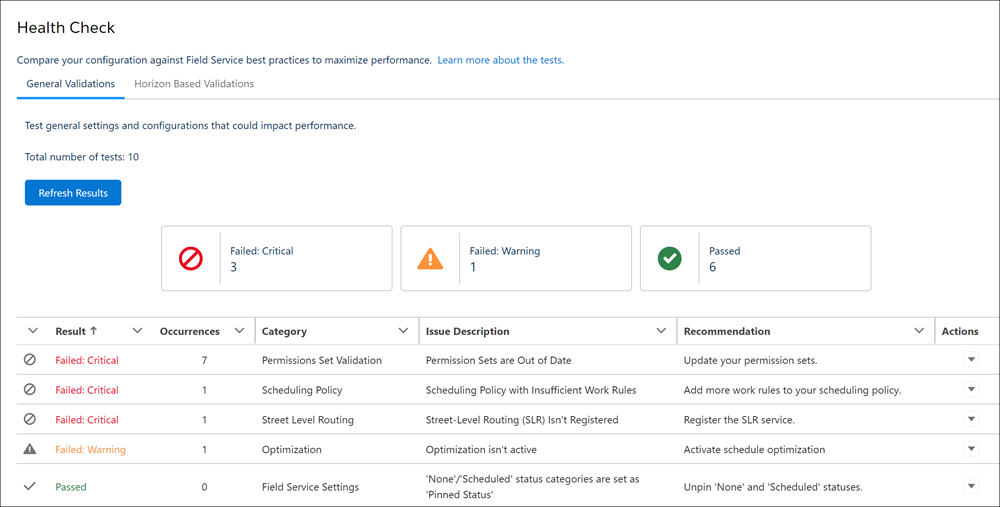
For both types of validations, results are grouped as Passed, Failed: Warning, or Failed: Critical. A Failed: Critical result can cause immediate performance degradations or system malfunction. A Failed: Warning result can impact performance or indicate a configuration that goes against our best practices.
- From the App Launcher, find and select Optimization Center. Then click Health Check.
-
Run Health Check on your Field Service configuration.
-
Under General Validations, click Run Tests to view the results of
the Field Service Health Check run.
-
Under Horizon Based Validations, enter information for the scheduling horizon that you
want to check, and then click Run Tests. Horizon-Based Validations can
take a while to finish running.
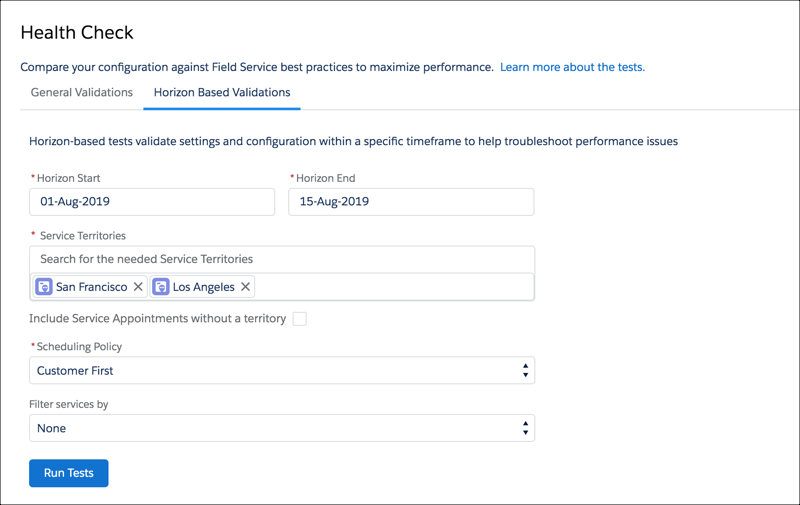
- For Horizon Start and Horizon End, select the date range to validate.
- For Service Territories, select at least one territory. You can also choose whether to
validate service appointments that aren't assigned to a territory.
 Note Select only service territories that are using Enhanced Scheduling and Optimization or only service territories that aren’t using Enhanced Scheduling and Optimization.
 - Select a scheduling policy to validate your configuration against.
- Optionally, select a filter. For example, validate only pinned appointments. You can filter validations using only boolean fields.
-
Under General Validations, click Run Tests to view the results of
the Field Service Health Check run.
-
View your results.
- To filter the results according to their status group, click the relevant group icon.
- If you make changes to your configuration, click Refresh Results.
- To get more information on failed tests, select More Info in the Actions dropdown menu.
