
Control Which Field Service Appointments Appear in the Classic Dispatch Console
Dispatchers can view and filter service appointments in the appointment list and in the Gantt chart. Learn how to control which appointments appear in these sections of the Classic Dispatch Console.
Required Editions
| Available in: both Salesforce Classic (not available in all orgs) and Lightning Experience |
| The Agentforce Field Service and Operations core features, managed package, and mobile app are available in Enterprise, Unlimited, and Developer Editions. |
 This is a Field Service managed package feature.
Control the Time Frame
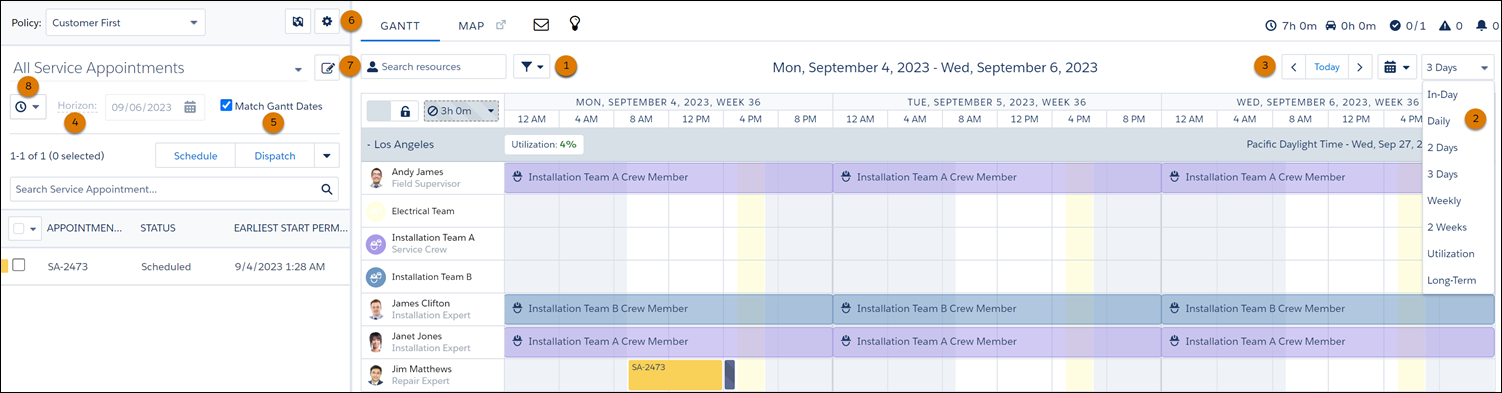
These settings control the Gantt time frame.
- Gantt filter (1):
- On the Hours tab, choose which hours of the day are shown on the Gantt, and adjust settings for the Long-Term view.
- On the Utilization tab, specify how many days are shown when the Utilization view is applied.
- Gantt resolution dropdown (2): Select how many days to show on the Gantt at once. Customize the Utilization view from the Gantt filter’s Utilization tab, and the Long-Term view from the Gantt filter’s Hours tab. You need the Longterm View custom permission to select the Long-Term view.
- Date and calendar toggles (3): Toggle between days and months.
These settings control the appointment list time frame.
- Horizon date (4): The appointment list only lists appointments with a date field that falls before the horizon.
- Match Gantt Dates field (5): If you select Match Gantt Dates, the horizon date updates to show the last day of the horizon shown on the Gantt.
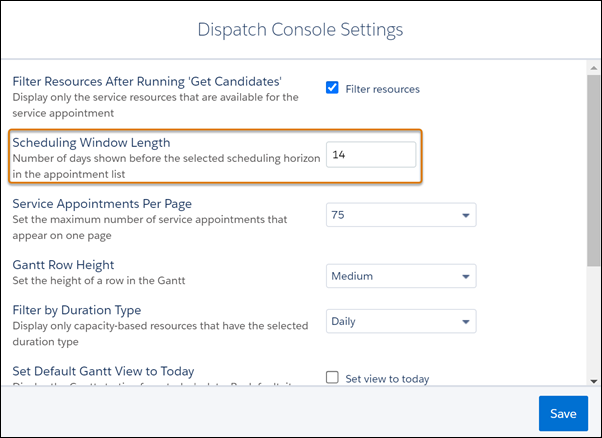
- Standard list view filter (6): To apply a standard filter, click the gear icon and select
Dispatch Console Settings. Under Scheduling Window Length, define the
number of days shown before the horizon date. The appointment list only lists appointments with
a date field that falls in that span of days before the horizon date.
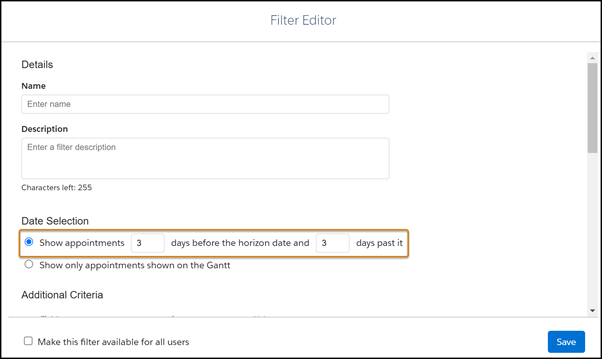
- Custom list view filter (7): To apply a custom filter, click the Manage Filters icon and
select New. Under Date Selection, define the number of days shown before
and after the horizon date. The horizon date and the custom filter settings control the
appointment list time frame. Custom filters let you specify the number of days before and after
the horizon, and that time frame is used to define which appointments are shown.
- Date field dropdown menu (8): The menu controls which appointments are visible in the
appointment list. If the value of any of the selected date fields on an appointment falls
within the specified time frame, the appointment appears in the appointment list.
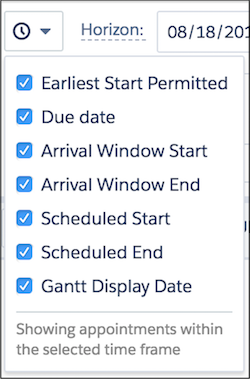
If an appointment’s dates for any selected fields among the first six don’t fall within the Gantt time frame, use the Gantt Display Date to show the appointment on the Gantt. When a service appointment’s Gantt Display Date falls within the Gantt time frame, the appointment is visible on the Gantt. For example, if a maintenance appointment must be completed within the next six months, you want to see it on the Gantt every day as a reminder.
The number of service appointments that are loaded to the Gantt depends, for example, on the Dispatch Console Settings. You can change these settings to load service appointments related to the territory. While loading service appointments you can get an error that the scheduling horizon is too long. To avoid this issue:
- Reduce the Scheduling Window Length.
- Remove service appointments that aren’t associated with a territory.
- Reduce the list of service territories.
- When creating a custom filter in the Classic Dispatch Console, make sure to add appropriate filters to the list view. In the Data Selection section of the Filter Editor, reduce the data range for showing appointments (select fewer days before and after the horizon date).

In addition, several types of filters let you refine which appointments are shown in the Classic Dispatch Console:
- The appointment list search, which filters the list to show only appointments that match your search criteria
- The resource list search in the Gantt, which filters the resource list to show only service resources that match your search criteria
- The Resources and Skills tabs in the Gantt filter, which filter the resource list to show only service resources that match your criteria
- The territory filter, reached from the map icon in the appointment list (6), which filters the Gantt and appointment list according to your criteria
- Any custom appointment list filters in place
To reduce loading time and to get more accurate results, enable the new filter appointments setting. The setting allows efficient filtering of the service appointment list in the Classic Dispatch Console when you’re working with large datasets. In the Field Service Admin app, click the Field Service Settings tab and select Dispatcher Console UI. Then, enable the Use advanced filtering for the service appointment list setting under Gantt Configurations. This setting is available only when the Enable Custom Filters setting is turned on.
