
You are here:
Optimize Today’s Field Service Schedule
Dispatchers can navigate last-minute schedule changes by rapidly optimizing their team’s schedule for one or more service territories on the day of service by manually running the optimization from the dispatcher console. You can also run in-day optimization automatically several times a day using scheduled jobs, or run jobs manually, as needed.
Required Editions
| Available in: both Salesforce Classic (not available in all orgs) and Lightning Experience |
| The Field Service core features, managed package, and mobile app are available in Enterprise, Unlimited, and Developer Editions. |
| User Permissions Needed | |
|---|---|
| To configure scheduling policies: | Custom permission set: FSL Admin Permissions |
| To run in-day optimization: | One of these custom permission sets:
|
 This is a Field Service managed package feature.
Schedule optimization in Field Service comes in a few different flavors. While global optimization is the most powerful and thorough option, it can take several hours to complete. In-day optimization is ideal for handling in-day schedule changes such as last-minute appointments that must be handled immediately or cancellations leading to gaps in the schedule. It runs for up to 5 minutes for Enhanced Scheduling and Optimization, and up to 10 minutes if you’re not using Enhanced Scheduling and Optimization, making it efficient for meeting on-demand schedule changes. You can use in-day optimization to optimize multiple days of the schedule, but it’s best suited for addressing last-minute issues by running on the current day’s appointments or at most over 2 days.
If you’re not using Enhanced Scheduling and Optimization, in-day optimization is available only if optimization is turned on.
- Create a scheduling policy from Guided Setup or by clicking New from the Scheduling Policies tab. To open Guided Setup, from the App Launcher, find and open the Field Service Admin app. Click Field Service Settings | Go to Guided Setup | Customize Scheduling Policies.
-
To configure a scheduling policy to use in-day optimization rather than the default global
optimization, select In-Day Optimization on the policy. You may need to
add this field to the scheduling policy page layout.
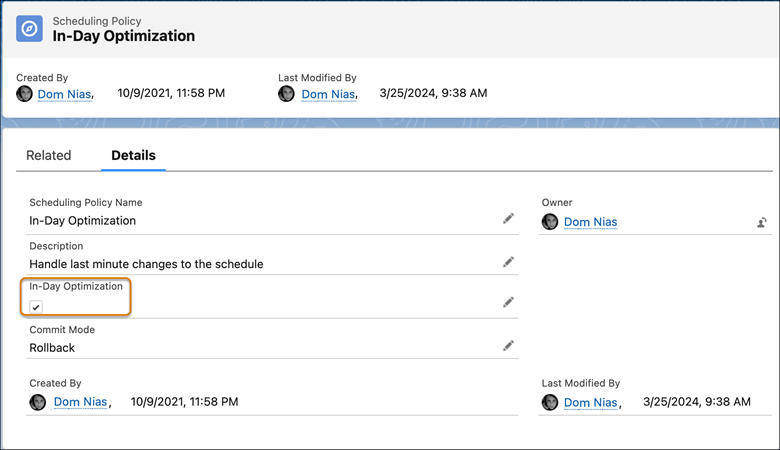
- If you selected In-Day Optimization, we recommend adding “In-Day” to the name of this policy for easy identification when creating jobs or running optimizations from the dispatcher console.
- Save the policy.
-
Optionally, exclude service appointments with certain statuses from being changed during
schedule optimization by defining criteria to pin them in place.
- From the App Launcher, find and open the Field Service Admin app, and then click Field Service Settings | Optimization | Logic.
- Scroll to In-Day Optimization, and from Pin Criteria, select the service appointment statuses to exclude from schedule optimization.
- Save your changes.
The settings apply to optimizations that dispatchers run manually or in a scheduled job. -
Optionally, define a default value to show in the Keep Scheduled Criteria field in the
Scheduled Jobs tab and in the Optimize window in the dispatcher console. This field prevents
service appointments with certain values from being dropped from the schedule during
optimization, but it enables them to be moved to a different time slot or resource.
- From the App Launcher, find and open the Field Service Admin app, and then click Field Service Settings.
- Under Optimization, click Logic.
- Scroll to In-Day Optimization, and from Keep Scheduled Criteria, select the service appointment value to show by default.
- Save your changes.
The settings apply to optimizations that dispatchers run manually or in a scheduled job. Note If a service appointment matches the criteria you define but violates a rule, it’s pinned and isn’t optimized.
 - Apply the in-day policy to scheduled jobs and define that job to run several times a day.
- Let your dispatchers know that the optimization job can result in changes to the schedule if a more optimal schedule is created as a result of running the job. And remind them that they can select the in-day policy from the Optimize window in the dispatcher console.
