
Loading
Agentforce Field Service and Operations
Table of Contents
Select Filters

          No results
          No results
          Here are some search tips

          Check the spelling of your keywords.
          Use more general search terms.
          Select fewer filters to broaden your search.

          Search all of Salesforce Help
          Prevent Overlapping Field Service Optimization Requests

          Prevent Overlapping Field Service Optimization Requests

          When initiating resource schedule optimization, in-day optimization, or global optimization, Field Service checks for other such optimization requests that are being processed simultaneously for the same territory or service resources with at least 1 day of overlap in the optimization horizon. For example, a dispatcher activates resource schedule optimization for a resource that’s part of a dataset being optimized through in-day optimization. If an overlap is detected, a message is shown and the newly initiated optimization request is aborted. Similarly, when a dispatcher tries to make changes to the Gantt, which is being processed by a background optimization request such as in-day optimization, a message is shown notifying the dispatcher that their changes can create unwanted results. The dispatcher can choose whether to continue with the manual changes or not.

          Required Editions

          Available in: both Salesforce Classic (not available in all orgs) and Lightning Experience
          The Agentforce Field Service and Operations core features, managed package, and mobile app are available in Enterprise, Unlimited, and Developer Editions.
          User Permissions Needed
          To enable optimization overlaps prevention: Custom permission set: FSL Admin Permissions
          To run Resource Schedule Optimization (RSO), in-day, or global optimization:

          One of these custom permission sets:

          • Field Service Admin Permissions
          • Field Service Dispatcher Permissions

          Package icon This is a Field Service managed package feature.

          1. In Setup, go to Field Service Settings and verify that Field Service Enhanced Scheduling and Optimization is enabled.
          2. In the Field Service Admin app, go to Field Service Settings. Select Optimization, and then select the Logic tab.
          3. Verify that Enable optimization overlaps prevention is enabled (default on).

          If Enable optimization overlaps prevention is selected and you try to run an optimization request while an overlapping optimization request is being processed, the new optimization request fails. An overlapping request occurs when there’s an overlap of optimized resources (caused by running on the same territory, or resource schedule optimization) and a time horizon overlap. A message is shown stating which request ID has overlapping service territories and which territories overlap, for easy troubleshooting. If the overlapping optimization request is running for a timeout period defined for the operation and isn't responding, the system aborts this request, and the new optimization request runs instead. The timeout for in-day and resource schedule optimization is 15 minutes. The timeout for global optimization is 5 hours if the optimization is in progress or queued, or 1 hour if the optimization request is new.

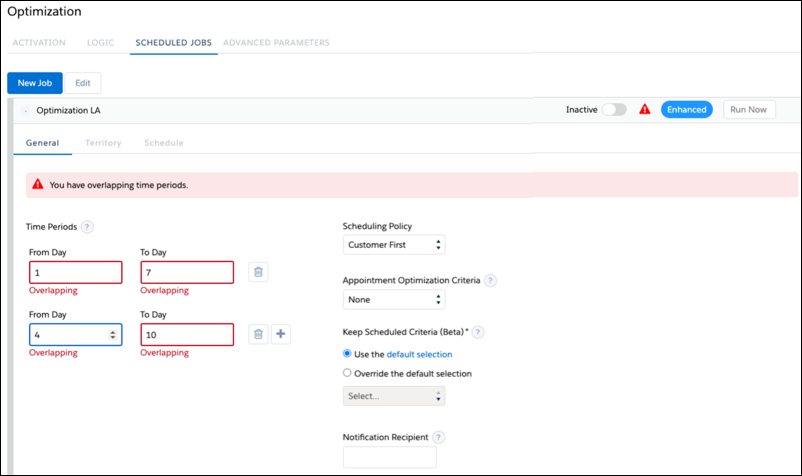
          For enhanced scheduled jobs, if you try to create a scheduled job with multiple time periods that overlap for the same service territory, the parallel requests with overlapping data can conflict and result in incorrect schedules. When using Enhanced Scheduling and Optimization, ensure that Enable optimization overlaps prevention is selected in Field Service Settings (enabled by default) to avoid saving an enhanced scheduled job with overlapping time periods.

          Enhanced Schedule Jobs
           
          Loading
          Salesforce Help | Article