
Gain Visibility into Optimizations with Field Service Optimization Insights
In Field Service, learn at a glance if a global or in-day optimization reduces travel time or improves utilization. As you refine a scheduling policy, view a snapshot of optimization results and KPI changes.
Required Editions
| Available in: Lightning Experience |
| The Field Service core features, managed package, and mobile app are available in Enterprise, Unlimited, and Developer Editions. |
| User Permissions Needed | |
|---|---|
| To create and edit Lightning pages: | Customize Application |
| To add components to optimization request pages: | One of these custom permission sets:
|
 This is a Field Service managed package feature.
Insights are available for global and in-day optimization requests that complete successfully. They aren’t supported for resource schedule optimization.

-
In Field Service Settings | Optimization, enable Optimization Insights.
Note Make sure that the Optimization Profile has access to the OAASRestInsights and OAASRestHealthCheck Apex classes.
- Edit an optimization request page in Lightning App Builder.
- From the custom managed package components, add the optimization insights components.
- Save your changes, and activate the page if necessary.
-
Submit a global or in-day optimization.
If the optimization completes successfully, insights appear on the optimization request.
There are four optimization insights components: summary (1), metrics (2), key performance indicators (3), and health check (4).
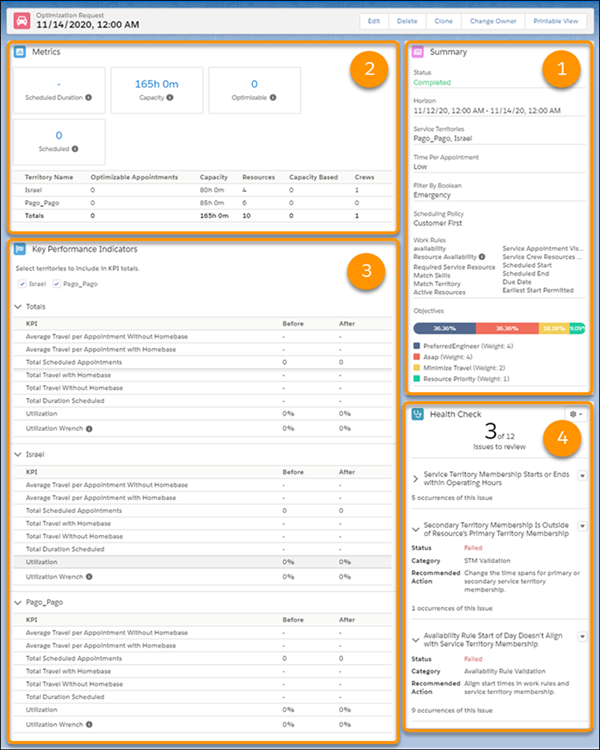
The summary component shows details about the optimization request, such as status, horizon, and territories. It displays the Time per Appointment from Field Service optimization settings, and lists Boolean filters that selected appointments in the request. As you refine a scheduling policy, the summary gives you a point-in-time snapshot of the policy, including the work rules and weighted service objectives, that produced the insights.
Metrics provide an overview of scheduling information, such as how many appointments were scheduled from the pool of optimizable appointments. Optimizable appointments are unpinned and can be moved.
The KPI component displays key performance indicators by territory before and after the optimization.
| KPI | How the KPI is Calculated |
|---|---|
| Average Travel per Appointment with Homebase | Total estimated travel time, including travel from and to the resource’s home base, divided by the count of scheduled service appointments. |
| Average Travel per Appointment without Homebase | Total estimated travel time, excluding travel from and to the resource’s home base, divided by the count of scheduled service appointments. |
| Total Travel with Homebase | Total estimated travel, including travel from and to the resource’s home base, for all scheduled service appointments. |
| Total Travel without Homebase | Total estimated travel, excluding travel from and to the resource’s home base, for all scheduled service appointments |
| Total Scheduled Appointments | Count of scheduled service appointments. |
| Total Duration Scheduled | Total duration for the scheduled service appointments. |
| Utilization | Total duration and travel time for the scheduled appointments, divided by overall resource capacity. To learn how we calculate capacity, see Considerations. |
| Utilization Wrench | Total duration for the scheduled service appointments, divided by the overall resource capacity. Utilization wrench represents total direct labor. To learn how we calculate capacity, see Considerations. |
The Health Check component summarizes the results of a suite of tests and validates your data. For example, the tests check if the appointment exceeds the available time to complete or whether the required resource has the necessary skills. Before you drill down into your KPIs, make sure that all the tests passed successfully.
- For Utilization and Utilization Wrench KPIs, capacity is the total available work time from
shifts and operating hours in primary territory memberships, including overtime. We subtract
breaks, absences, and crew allocations; we also add or subtract availability from
relocations.Note We subtract absences only if the entire absence of a resource is included in the time period of that resource's service territory membership record.
- For the Total Duration Scheduled KPI, we subtract appointments’ Scheduled Start times from Scheduled End times. For multiday appointments, we include them in the total if the appointments are completely within the horizon; for those appointments, we add the Duration fields.
- In metrics, the resource count excludes capacity-based resources and partial or full crew assignments that occur during the horizon.
- The components list metrics and KPIs by territory. For resources with secondary territory memberships, there are some nuances for allocating time to territories. For example, we allocate travel time to the territory referenced in a service appointment. We also allocate scheduled duration based on an assigned resource’s primary service territory membership.
- Optimization insights only support service appointments that have territories. Service appointments without a territory don’t affect metrics and KPIs.
