
You are here:
Monitor Field Service Schedule Optimization Requests
Keep an eye on all Field Service schedule optimization requests from the Gantt or the Optimization Requests custom tab.
Required Editions
| Available in: both Salesforce Classic (not available in all orgs) and Lightning Experience |
| The Agentforce Field Service and Operations core features, managed package, and mobile app are available in Enterprise, Unlimited, and Developer Editions. |
| User Permissions Needed | |
|---|---|
| To cancel optimization requests: | Abort Optimization Request custom permission |
 This is a Field Service managed package feature.
- From the Optimization Requests tab
- Create a custom tab for the Optimization Request
object, and customize the list view to show useful fields like Status, Start, Finish, and
Failure Reason. Click any request to view its details.
 Note Add the Failure Details field and Notes and Attachments related list to the optimization request page layout. These page elements give you a fuller view of the request.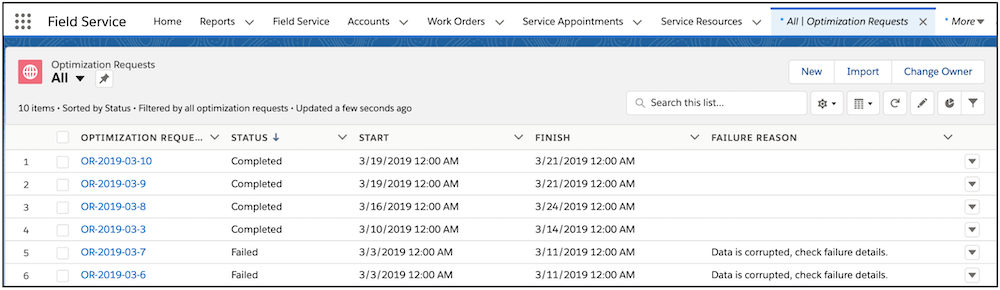
- Click an optimization request to show more information about the request, including who created, owns, and modified the request, the scheduling policy, the criteria defined to keep appointments scheduled during optimization, the number of objects to schedule, and the actual number of objects scheduled. For example, service managers can easily identify the user who initiated the global, in-day, or resource schedule optimization request or who configured the scheduled job. The Owner field in the optimization request shows the user’s name, providing insights into scheduling and optimization actions. This functionality facilitates system tracking, troubleshooting, and traceability.
- From the Gantt
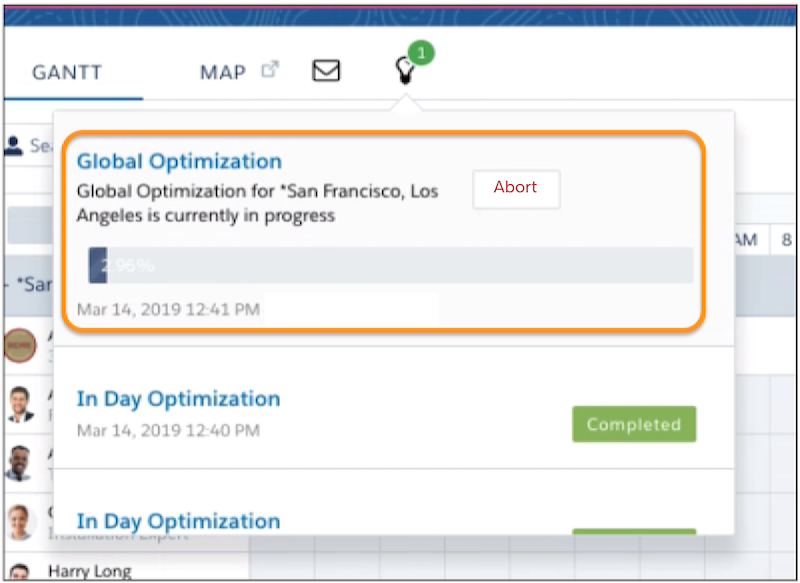
- Click the lightbulb icon at the top of the Gantt to view the status of recent optimization
requests. When a global optimization request is in progress, you can see a percentage-based
progress bar and the option to cancel the request.
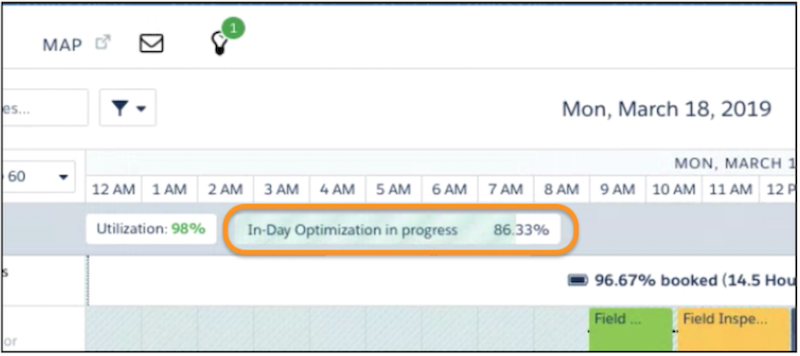
- In-day optimization progress appears below the Gantt’s time axis.
- A percentage-based progress bar isn’t available for resource schedule optimization
requests, but the resource’s row in the Gantt changes color to indicate that optimization is
in progress.

- Why did my request fail?
- Salesforce sometimes cancels optimization requests to protect the integrity of your
schedule. Here are the most common reasons a request fails.
- If a request stays in the same status for longer than the configured limit, it’s canceled. The limit varies depending on the status and the type of optimization.
If optimization runs longer than your org's session timeout value, it gets stuck in the "In Progress" status. The optimization job fails, resulting in an error when it tries to deliver the results to your Salesforce org.
To avoid failed optimizations, increase your session timeout value to at least 2 hours, or select a quicker optimization run time.
- Scheduled optimization jobs can generate one or more JSON files. The request
fails if a JSON file contains more than 6 million characters.
To check whether an optimization job exceeded this limit, go to the Optimization Requests tab. Open the request associated with the failed job, and click the value in the Optimization Data field. In the Notes and Attachments related list, open each JSON file and check its character total.
If the Optimization Data field is empty, check the Error field for details. If the Error field is empty, contact Salesforce to learn more about the failure.
- If simultaneous conflicting updates are made to the schedule while a request is open, the request is canceled. For example, this can happen when you add or update appointments or resource absences that fall into the date range and service territory being optimized.
- Resource schedule optimization fails if more than 50 service appointments are required to remain scheduled during the optimization. To change which appointments must remain scheduled, select a different category in Keep these appointments scheduled when you run the optimization. For example, if In Jeopardy is selected and more than 50 appointments are in jeopardy for the selected time period, the request fails.
To review limits and limitations related to schedule optimization, see Field Service Limits and Limitations.
