
Enable Multiday Field Service Appointments
Some Field Service industries have service appointments that span multiple days, for example, utility infrastructure repairs and installations. With multiday service appointments you can schedule service appointments that span resources' nonavailability without rule violations.
Required Editions
| Available in: both Salesforce Classic (not available in all orgs) and Lightning Experience |
| The Agentforce Field Service and Operations core features, managed package, and mobile app are available in Enterprise, Unlimited, and Developer Editions. |
| User Permissions Needed | |
|---|---|
| To customize the Field Service managed package: | Customize Application |
| To use the Long-Term Gantt view: | Longterm View custom permission |
 This is a Field Service managed package feature.
- From the App Launcher, find and open the Field Service Admin app, and then click the Field Service Settings tab.
- Click Scheduling | General Logic.
- In the Multi-day service appointment field field, select Is MultiDay.
- In Setup, add the Is MultiDay field to your service appointment page layout and save your changes.
- From Setup, enter Permission Sets in the Quick Find box, then select Permission Sets under Users.
- Click Field Service Dispatcher Permissions.
- In the Apps section, click Custom Permissions.
- Click Edit.
-
Add the Longterm View custom permission to the Field
Service Dispatcher permission set. This permission lets dispatchers select the
Long-Term view in the Gantt, which displays up to 6 months at a time. The
Long-Term view displays up to 1000 service appointments. The Long-Term view
comes with filtering options, including the option to show only multiday
appointments. Customize your Long-Term view settings from the Gantt filter’s
Hours tab.
 Note The Long-Term view replaces the Multiday view, which displays 5 weeks at a time but doesn’t include filtering options.
 - Click Save.
-
To indicate that a service appointment must span multiple days, select
Is Multiday on the appointment.
The length of the multiday appointment is based on its duration and the assigned resource’s availability.

You need to schedule a multiday service appointment that lasts 10 hours. Given your service resources’ travel and time constraints, the Classic Dispatch Console finds the best service resource for the job. In this example, Alan Reed is the service resource who’s most available for this service appointment.
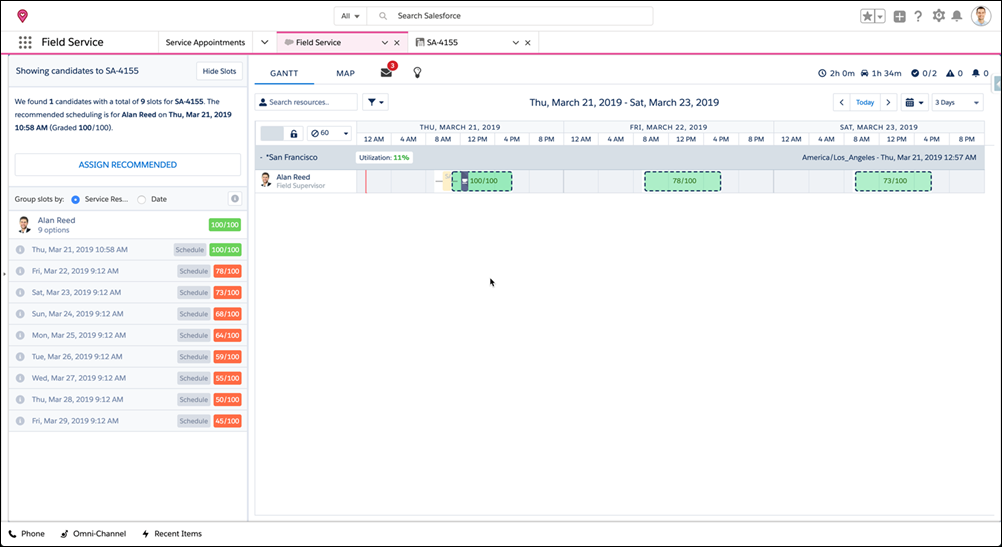
The Classic Dispatch Console automatically takes your service resources’ travel and break times into account to optimize your multiday appointments.
Considerations for Multiday Scheduling
Keep these considerations in mind when you implement multiday scheduling in your org.
This is a Field Service managed package feature.
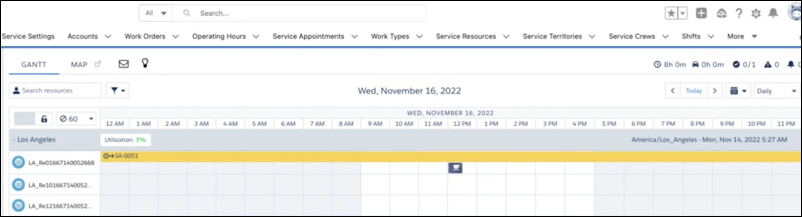
- Lunch breaks are shown on the Gantt as an overlap with the multiday service
appointment when using Enhanced Scheduling and Optimization.
- Multiday scheduling is supported in all Enhanced Scheduling and Optimization services (for example, scheduling, Get Candidates, or global optimization), except Appointment Booking. This means you can't query available timeslots for a multiday service appointment.
- If a multiday service appointment has a defined arrival window, scheduling and rescheduling isn't supported.
- On multiday service appointments, the Scheduled Start and Scheduled End times must fall within the assigned resource’s time slots in their operating hours.
- Multiday scheduling doesn’t consider customer availability (visiting hours) listed on the work order.
- Multiday work calculations are run when the assigned resource changes or the service appointment Duration, Scheduled Start, or geolocation changes. This behavior isn't supported when using Enhanced Scheduling and Optimization.
- Manually adjusting the Scheduled Start time or Scheduled End time of a multiday service appointment isn't supported if you're using Enhanced Scheduling and Optimization. If a dispatcher changes a multiday service appointment's duration on the Gantt to the next day, the appointment's Scheduled Start and Scheduled End times remain unchanged.
- If you drag and drop a multiday service appointment, or manually change its Scheduled Start (when you're not using Enhanced Scheduling and Optimization), the appointment’s Scheduled End isn’t automatically extended beyond the due date. The appointment can be manually moved beyond the Due Date, but its Duration remains unchanged.
- To prevent the scheduling optimizer from proposing time slots that don't fully respect resources' availability, configure a TimeSlot Designated Work work rule.
- When scheduling multiday service appointments, the time between the Scheduled Start
and Scheduled End includes the duration of the job as well as travel time from and
to the assigned resource's home base for each day of the appointment. The duration
of any Break type Resource Absence records is also included if the Service Resource
Availability work rule is set to create breaks for the service resource.Note To change the travel time logic, update the Travel From Home and Travel To Home fields on the Service Resource Availability work rule. These fields let you allocate a number of minutes at the day’s start and end for the resource’s travel at their own expense. If they’re left blank, the schedule automatically includes calculated travel time. For example, enter 60 in each field if resources must be present at the site at the start of the day. This way, the schedule doesn’t include travel time for resources whose home base is less than an hour from the site.
- When you're using Enhanced Scheduling and Optimization, and the Sliding and Reshuffling
option is enabled:
- When you try to schedule a multiday service appointment, other service appointments can only slide to earlier or later in the day. They can’t be reshuffled or dropped.
- When you try to schedule a high-priority service appointment, multiday service appointments can’t be reshuffled or dropped, even if they have a lower priority.
- Enhanced Scheduling and Optimization doesn't properly handle multiday work that starts or ends during nonworking hours at a time when travel at the resource's expense is allowed. Such cases can result in incorrect overlapping violations and inaccurate travel times.
- A service resource can’t be assigned to any other appointment during a multiday service appointment.
- When you’re not using Enhanced Scheduling and Optimization, multiday service appointments that overlap with other appointments don’t trigger the Fix Overlaps action.
- Multiday service appointments can’t be assigned to capacity-based service resources.
- Multiday service appointments can’t span more than eight weeks (calendar days).
- The combination of multiday scheduling and complex work isn’t supported. If a multiday service appointment has a scheduling dependency, its Scheduled End date isn't calculated when the appointment is scheduled. We recommend that you don’t create dependencies between multiday appointments.
- When you’re not using Enhanced Scheduling and Optimization, you can only schedule one multiday service appointment at a time.
- When you’re not using Enhanced Scheduling and Optimization, the resource utilization calculation for multiday service appointments factors in the duration of the appointment that’s scheduled for each day. When you’re using Enhanced Scheduling and Optimization, the calculation ignores multiday service appointments altogether.
