Loading
Agentforce Field Service and Operations
Table of Contents
Select Filters

          No results
          No results
          Here are some search tips

          Check the spelling of your keywords.
          Use more general search terms.
          Select fewer filters to broaden your search.

          Search all of Salesforce Help
          Schedule Appointments Without Travel

          Schedule Appointments Without Travel

          Optimize your mobile workers’ schedules for increased productivity by marking service appointments as offsite when jobs can be done remotely, even if an address is specified. For example, remote technical assistance, filling out reports, or renewing health and safety certifications can be done from anywhere. No travel time is added to the schedule if a service appointment is marked as offsite or has no address, or if a resource absence has no address. Enhanced Scheduling and Optimization must be enabled.

          Required Editions

          Available in: both Salesforce Classic (not available in all orgs) and Lightning Experience
          The Agentforce Field Service and Operations core features, managed package, and mobile app are available in Enterprise, Unlimited, and Developer Editions.
          User Permissions Needed
          To mark an appointment as offsite:

          Edit on service appointment

          AND

          Edit on the Offsite Appointment field

          Package icon This is a Field Service managed package feature.

          1. In Setup, go to Field Service Settings and make sure that Field Service Enhanced Scheduling and Optimization is enabled.
          2. To mark an appointment as offsite, select Offsite Appointment on the service appointment record. For orgs created in Spring '23 and earlier you must add the Offsite Appointment field to the Service Appointment page layout.
            Note
            Note
            • If the Service Resource Availability work rule is configured with Travel From Home or Travel To Home at the expense of work time, and the last appointment of the day is an offsite appointment, scheduling an appointment at any time of the day results in a resource availability rule violation. This rule violation occurs because the appointment's travel time is calculated after the offsite appointment.
            • If the Service Resource Availability work rule is configured to have a fixed gap (minimum break time between service appointments), the Offsite Appointment setting is ignored on the service appointment record, such that travel time to the appointment is still calculated and displayed on the Gantt.
            • If there's no address on the service appointment or resource absence, or if the service appointment is marked as offsite, the travel time is updated based on the last known location. If the resource absence overlaps with the shift end, optimization uses the resource's home base location to calculate the travel time. If an offsite appointment is the last appointment of the day and is scheduled to end at the same time or after the shift's end time, it’s assumed that the appointment is performed at the resource's home base. Travel time from the previous appointment is calculated to the home base location.
            • Scheduling appointments isn't supported for the day if two resource absences without addresses occur back-to-back at the end of the day. However, if an end-of-day resource absence follows two overlapping resource absences, the overlapping absences are ignored. In this case, the resource's home base is used to calculate travel time, and scheduling is allowed.
          Example
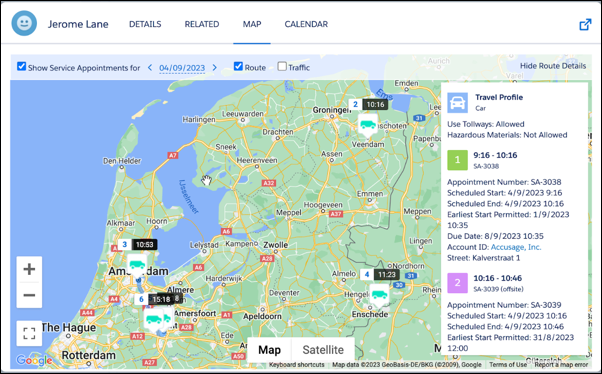
          Example Before you send out a technician to a remote location, you try to resolve the customer’s issue by remote troubleshooting. Mark the appointment as offsite before booking the appointment so that no travel time is calculated for that appointment.

          A screenshot of the service resource map showing two service appointments marked as offsite

          The service resource map view shows the two appointments on the right side of the map marked as offsite, as no travel is calculated to and from these appointments.

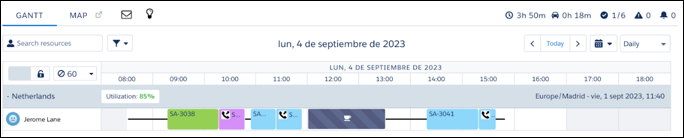
          Do you want the technician to perform administrative tasks at the end of the day? Before scheduling the appointment, mark the appointment as offsite.

          A screenshot of the service resource map that showing two service appointments marked as offsite

          To highlight the offsite appointments, consider using an icon by populating the Gantt Icon field on the appointment with a URL pointing to an image. If an offsite appointment is the last appointment of the day, travel to the homebase is calculated.

           
          Loading
          Salesforce Help | Article