
You are here:
Work Rule Type: Count Rule
Use a Field Service Apex Count work rule to restrict appointment scheduling based on assignments, hours worked, or a custom value. It’s a great way to prevent overloading your workers or their vehicles.
Required Editions
| Available in: both Salesforce Classic (not available in all orgs) and Lightning Experience |
| The Agentforce Field Service and Operations core features, managed package, and mobile app are available in Enterprise, Unlimited, and Developer Editions. |
 This is a Field Service managed package feature.
Use Case
A healthcare company can configure a nurse practitioner's operating hours availability to be on-call continually for 24 hours but use a Count work rule to cap daily scheduled appointments at 8 hours. This limit safeguards the clinician from being overworked and ensures compliance with labor regulations. You can also use the Count work rule to restrict the total number of service appointments assigned to a service resource or even count and limit a custom attribute on a service appointment. For example, a commercial waste management company can use a Count work rule to limit the number of service appointments assigned to a garbage truck, ensuring the truck’s total cargo capacity isn’t exceeded. You can then create a Units/Space Consumed attribute on the Service Appointment object and define the number of units or cargo space each service appointment waste pickup job consumes (or removes) from the truck's capacity when assigned to the truck.
Settings
A work rule of this type contains the following settings.
| Field | Description |
|---|---|
| Time Resolution | The duration for which the defined count limit applies and is reset for a service resource. The available resolution is Daily. |
| Count Type | What the rule counts: assignments, durations, or a custom field value. |
| Count Object | Object used in the count. If the rule counts assignments or durations, the object is a service appointment. If the rule counts a custom value, select the object that has the custom field: service appointment, work order, or work order line item. |
| Custom Field | Custom field name. |
| Default Limit | Default count limit. |
| Resource Property | API name of a numeric custom field on a service resource, enabling you to set a specific limit for each resource. If this field is null, for any service resource, the system uses the default limit specified in the Count work rule record. |
Create a Count Work Rule

To create a Count Rule, manually enter API names for the Service Resource limit and Service Appointment attributes on the Count Rule record type page layout. Alternatively, use the Count Rule custom Lightning Web Component (LWC) UI for a guided experience. To add this LWC to the Count Rule record page layout and get assistance with populating these fields by showing all available metadata to select from, go to the Lightning record page editor and drag the countRule component (found under Custom - Managed in the component list sidebar) onto the page. Save the Lightning record page and then use the UI to create the Count rule.
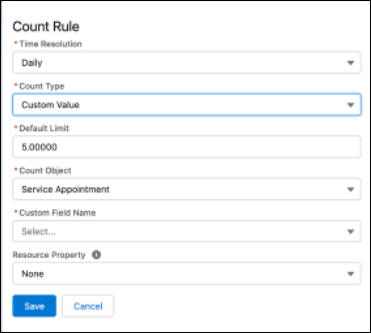
Add the work rule to a scheduling policy from the Customize Scheduling Policies page in Guided Setup or by using the Scheduling Policy Work Rule related list. When you use this scheduling policy, the work rule ensures that scheduling and optimization considers service resources as eligible for work assignments only up to their specified limit.
When a manual schedule change causes a limit to be exceeded, the Gantt shows rule violations on all appointments that contribute to the count. Violations include rule names, so use meaningful names.
For example, a dispatcher wants to create schedules that respect how many solar panels workers can deliver and install. A custom field on work orders represents the panel quantity for each installation. Because workers drive different vehicles, a resource property indicates how many panels a worker can transport. To set limits for large versus small trucks, add workers to relevance groups based on truck size and create rules using those groups.
Considerations When Using Enhanced Scheduling and Optimization
Pay attention to these considerations if you’re using Enhanced Scheduling and Optimization.
- In a policy, you can add up to ten rules that count custom field values. You can also add more rules that count assignments and durations.
- If a resource has reached a count limit, scheduling actions still consider the resource’s availability for appointments in which the Count work rule doesn’t apply. For example, when an appliance installer has reached their vehicle’s item limit, scheduling can still consider them for other jobs such as maintenance.
- The Count work rule uses midnight as the Start of Day even if it’s customized to a different value. Service appointments can be scheduled on two different days for service resources who work shifts that span over midnight. If a resource’s work capacity for the first day is fully consumed before midnight and they have available capacity for the second day, the engine doesn’t schedule a new appointment after midnight unless it’s consecutive with an appointment from the first day. For example, a resource works from 8:00 PM to 5:00 AM and can be assigned a maximum of four appointments per day. On the first day, they’re already scheduled for four appointments between 8:00 PM to 10:00 PM. Even though a new appointment can be scheduled at 12:00 AM, the engine doesn’t schedule the appointment then, because it only looks to schedule appointments consecutively to avoid creating a gap in the schedule between 10:00 PM to 12:00 PM.
- Multiday work isn’t supported with Count work rules.
- You can set up Count work rules for crews. Count work rules don’t apply to individual service resources while they’re part of a crew.
- If you use the Count work rule on a custom field, the limitation considers the order of scheduled appointments, ensuring that your workers don't exceed the set limit at any point throughout the day. For example, you have a custom field that checks the capacity of your workers’ vehicle, and the Count work rule is set to 10. Throughout the day, a driver picks up five units, picks up another eight units, and then drops off four units. The Count work rule registers this violation on the second service appointment and on all the following appointments that day. The total count value at any time during the day can’t be negative.
- The Count work rule doesn’t apply to capacity-based resources.
Considerations When Not Using Enhanced Scheduling and Optimization
Pay attention to these considerations if you aren’t using Enhanced Scheduling and Optimization.
- In a policy, you can add up to ten rules that count custom field values. You can also add more rules that count assignments and durations.
- If a resource has reached a count limit, scheduling actions still consider the resource’s availability for appointments in which the Count work rule doesn’t apply. For example, when an appliance installer has reached their vehicle’s item limit, scheduling can still consider them for other jobs such as maintenance.
- The Count work rule uses midnight as the Start of Day even if it’s customized to a different value.
- Multiday work isn’t supported with Count work rules.
- Complex work isn’t supported with Count work rules.
- You can use Count rules with relevance groups that consist of service territory members, but not with relevance groups that are based on service appointments.
- You can set up Count work rules for crews. Count work rules don’t apply to individual service resources while they’re part of a crew.
- The Count work rule doesn’t apply to capacity-based resources.
