
Create Relevance Groups
Use relevance groups to apply work rules and service objectives to certain groups of appointments or service territory members. You can apply different logic based on types of work and service resources within one scheduling policy. For example, use relevance groups to enforce your company policy on breaks and travel time for full-time versus part-time employees. Relevance groups can also use data insights from across your Salesforce org to improve scheduling. For example, use relevance groups to prioritize technicians with specific skills for high-priority accounts, or assign resources based on asset criticality or customer sentiment.
Required Editions
| Available in: both Salesforce Classic (not available in all orgs) and Lightning Experience |
| The Agentforce Field Service and Operations core features, managed package, and mobile app are available in Enterprise, Unlimited, and Developer Editions. |
 This is a Field Service managed package feature.
You can base a relevance group on any standard or custom Boolean (true or false) field for service appointments or service territory members. All Boolean fields from the Service Appointment and Service Territory Member objects are available for selection in the Relevance Group dropdown. When you create a work rule or service objective, select a field to limit the scope of the rule or objective.
To use relevance groups, add the relevance group Visualforce pages to your work rule and service objective page layouts.
- In the layout editor, open a work rule or service objective page layout—for example, the Match Boolean work rule page.
- Select Visualforce pages, and drag one of the following pages onto
the detail page layout. We recommend giving it its own section for clarity.
- Work rules: Vf001GroupOnWorkRules
- Service objectives: Vf002GroupOnObjectives
- Save your changes.
You can apply a work rule or service objective to a subset of service territory members or service appointments. Select the limiting Boolean field on the work rule or service objective detail page.

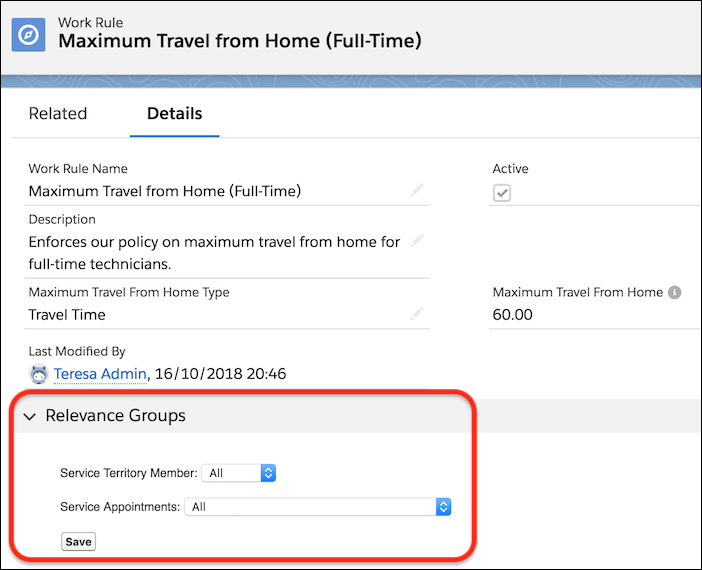

- Add the appropriate Visualforce page to the Maximum Travel From Home work rule page layout.
- On the service territory member object, create two checkbox fields:
- Part-Time
- Full-Time: A formula field that updates to false when Part-Time is true
- Create a Maximum Travel From Home work rule that reflects your travel time policy for part-time employees. For Service Territory Member, select Part-Time.
- Create another Maximum Travel From Home work rule that reflects your travel time policy for full-time employees. For Service Territory Member, select Full-Time.
- Add both rules to a scheduling policy. When the policy is applied, part-time and full-time employees are evaluated based on the requirements outlined in the respective work rules.
Relevance groups must be mutually exclusive. If two work rules with relevance groups overlap, the more restrictive rule is used. If Service Resource Availability work rules use relevance groups, any rule overlaps will lead to an error.
For an example use case on how to combine the ASAP objective with Relevance Groups to prioritize scheduling service appointments for high-value customers, see Use the ASAP Objective With Relevance Groups.
Guidelines for Applying Work Rules
Before you create and use relevance groups to apply work rules to certain groups of appointments or territory members, review some guidelines.
- You can have multiple variations of work rule records of the same work rule record type (except for the Designated Work and Service Appointment Visiting Hours record types) included in your scheduling policy.
- Work rule records, except for the Designated Work and Service Appointment Visiting Hours
record types, can point to a set of resources or appointments that they must apply to, via
the Relevance Groups feature.
Designated Work and Service Appointment Visiting Hours work rule record types are all-or-nothing rules. These rules are either included or not included, and the scheduling engine interprets Designated Shifts, Designated Time Slots, and Appointment Visiting Hours accordingly.
- Work rules for certain record types can be in a policy multiple times and, if needed, can
apply to the same resources or appointments at least once (additive). These record types
include:
- Count Rule (for example, one rule to limit hours, and one rule to limit work items)
- Extended Match (for example, one rule to limit by postal code, and one rule to limit by product line)
- Match Boolean
- Match Fields
- Match Time
- Resources or appointments mustn’t be covered (relevance group criteria met) by multiple
variations of these record types at the same time.
- Match Skills
- Match Territory
- Maximum Travel From Home
- Required Resources
- Service Crew Resource Availability
- Service Resource Availability
- Working Territories
- Each resource must be covered (relevance group criteria met) by only one Service Resource Availability work rule at the same time.
- Resources mustn’t be covered (relevance group criteria met) by the Match Territory work rule and the Working Territories work rule record type at the same time.
For some work rule types, such as the Service Resource Availability work rule, Match Territory work rule, and Working Territories work rule, service territory members must only meet the relevance group criteria for a single instance of these rules. If a service territory member meets the relevance group criteria for more than one rule of these types, issues can occur. A service resource must belong to a Service Resource Availability work rule if such is defined.
For all other types of work rules, such as the Match Time work rule, Count work rule, and Extended Match work rule, you can have several variations of these rules that apply to the same resources via relevance group criteria. For example, you can create a Count work rule that applies to a set of resources and limits the hours of work they are assigned in a day, and another Count work rule that applies to the same set of resources and limits the number of appointments they are assigned in a day.
These work rules are supported for service appointments or service territory members.
| Work Rule | Supported When You’re Not Using Enhanced Scheduling and Optimization | Supported When You’re Using Enhanced Scheduling and Optimization |
|---|---|---|
| Count Rule | Service territory members Service appointments |
Service territory members Service appointments |
| Excluded Resources | Service territory members Service appointments |
Service Appointments |
| Extended Match | Relevance Groups isn’t supported | Service territory members Service appointments |
| Match Boolean | Service territory members Service appointments |
Service territory members Service appointments |
| Match Fields | Service territory members Service appointments |
Service territory members Service appointments |
| Match Skills | Service territory members Service appointments |
Service territory members Service appointments |
| Match Territory | Service territory members Service appointments |
Service territory members Service appointments |
| Match Time | Service territory members Service appointments |
Service appointments |
| Maximum Travel from Home | Service territory members Service appointments |
Service territory members Service appointments |
| Required Resources | Service territory members Service appointments |
Service appointments |
| Service Appointment Visiting Hours | Service territory members Service appointments |
Relevance Groups isn’t supported |
| Service Crew Resources Availability | Service territory members Service appointments |
Service territory members |
| Service Resource Availability | Service territory members | Service territory members Service appointments (applicable only for the use of overtime) |
| Time Slot Designated Work | Service territory members Service appointments |
Relevance Groups isn’t supported |
| Work Capacity | Relevance Groups isn’t supported | Relevance Groups isn’t supported |
| Working Territories | Service territory members Service appointments |
Service territory members Service appointments |
Guidelines for Applying Service Objectives
Before you create and use relevance groups to apply service objectives to certain groups of appointments or territory members, review some guidelines.
- You can have multiple service objectives of the same objective record type included in your policy and use Relevance Groups to apply these objectives to different sets of service territory members or service appointments.
- If you have multiple service objectives of these objective types in your policy, make sure
service territory members and service appointments don't meet the Relevance Group criteria
for multiple objectives of the same type twice.
- ASAP
- Minimize Gaps
- Minimize Overtime
- Minimize Travel
- Preferred Resource
- Same Site
- You can create and apply, via Relevance Groups, multiple objectives of the Resource Priority type to the same service appointments twice, assuming the Resource Priority Field input is configured to point to different fields on the service resource. For example, you can have two objectives of this objective type in your policy, both applying to the same service appointments via Relevance Groups criteria. One objective named Primary Priority can point to a Priority numerical field on the Service Resource record, and another objective Secondary Priority can point to a numerical Tenure field on the Service Resource record.
These service objectives are supported for appointments or service territory members.
| Service Objectives | Supported When You’re Not Using Enhanced Scheduling and Optimization | Supported When You’re Using Enhanced Scheduling and Optimization |
|---|---|---|
| ASAP | Service territory members Service appointments |
Service appointments |
| Group Nearby Appointments | This objective isn’t supported. | This objective isn’t supported. |
| Minimize Gaps | This objective isn’t supported. | Service territory members |
| Minimize Travel | Service territory members Service appointments |
Service territory members |
| Minimize Overtime | Service territory members Service appointments |
Service territory members Service appointments |
| Preferred Resource | Service territory members Service appointments |
Service appointments |
| Resource Priority | Service territory members Service appointments |
Service appointments |
| Same Site | This objective isn’t supported. | Relevance Groups isn’t supported. |
| Skill Level | Service territory members Service appointments |
Service territory members Service appointments |
| Skill Preference | This objective isn’t supported. | Service territory members Service appointments |
