
You are here:
Optimize a Single Field Service Resource’s Schedule
In Field Service, when last-minute developments occur like canceled jobs, lateness, or emergencies, optimize an individual service resource’s schedule to design the best schedule for them.
Required Editions
| Available in: both Salesforce Classic (not available in all orgs) and Lightning Experience |
| The Agentforce Field Service and Operations core features, managed package, and mobile app are available in Enterprise, Unlimited, and Developer Editions. |
| User Permissions Needed | |
|---|---|
| To see Resource Schedule Optimization on the Gantt: | Resource Schedule Optimization custom permission |
 This is a Field Service managed package feature.
As changes to a service resource's schedule occur throughout the day, gaps or overlaps in the schedule can occur. Resource Schedule Optimization is a handy tool to automatically fix the service resource's schedule and fill any gaps with other work.
-
Optionally, exclude service appointments with certain statuses from being changed during
resource schedule optimization.
- From the App Launcher, find and open the Field Service Admin app, and then click Field Service Settings | Optimization | Logic.
-
Scroll to Resource Schedule Optimization and in the Pin Criteria field select which
statuses pin service appointments during optimization.
Service appointments with a selected status aren’t scheduled, unscheduled, or rescheduled during resource schedule optimization. Scheduled service appointments in a pinned status can’t move to a different service resource or to a different time. Unscheduled service appointments in a pinned status remain unscheduled. We recommend leaving the Dispatch status deselected so dispatched work can be moved if a previous job runs late or emergency work is needed.
-
Optimize a service resource’s schedule.
- From the Classic Dispatch Console, click the action menu of the resource whose schedule you want to optimize.
-
Click Resource Schedule Optimization.
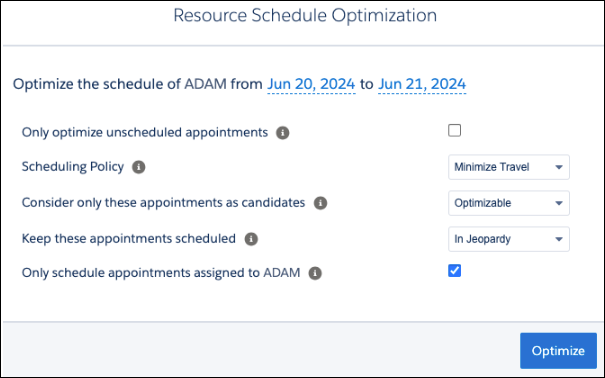
-
Define the scope of your optimization. Service appointments are scheduled only
within the dates you select, but candidate service appointments can come from outside
the time frame.
 Note Resource Schedule Optimization loads unscheduled service appointments that meet the time and candidates criteria, based on the specific database work rules configured in the scheduling policy. Service appointments without a territory are always loaded regardless of the work rule configuration. For example:
- Match Territory work rule—If the service resource is a primary or relocation member covering only the Manhattan service territory, service appointments from other territories aren’t loaded.
- Working Territories work rule—If the service resource is a primary, secondary, or relocation member covering Manhattan, Brooklyn, and Queens during the resource schedule optimization period, appointments from other service territories aren’t loaded.
- Match Skills work rule—If the service resource has only Install and Repair skills, service appointments requiring any other skill aren’t loaded.
- Match Boolean work rule—If specific service appointments require a service resource who’s a contractor (Boolean property "Is Contractor" is true), but the checkbox for the assigned service resource is deselected (the Boolean property is false), these appointments aren’t loaded.
- Maximum Travel from Home work rule—If a service resource covers a radius of 50 KM from their home base, service appointments located beyond this radius aren’t loaded. Service appointments with no location are also loaded.
- Extended Match work rule—If you have a custom criteria set that matches a service appointment field to a related list on the service resource, appointments with a requirement not supported by the resource aren’t loaded. You can’t use relevance groups with Extended Match work rules, and a scheduling policy can have up to five Extended Match work rules.
- Match Fields work rule—If you have a custom rule that matches a service appointment field with a service resource field, appointments with a requirement not supported by the resource aren't loaded.
- If you select Only optimize unscheduled appointments, only unscheduled service appointments are considered, and all scheduled service appointments are pinned (unmovable). If the setting is deselected, all service appointments within the time frame that meet the criteria are considered during optimization.
- Select a scheduling policy that meets your needs for the optimization request.
- In Consider only these appointments as candidates, set the criteria to determine which appointments resource schedule optimization evaluates to optimize or schedule to a resource. This doesn’t mean that only appointments that are currently assigned to the resource and meet this criteria are moved or rescheduled. Appointments that don’t meet this criteria but are assigned to the resource can also be moved, unless they are pinned or in a pinned status.
- In Keep these appointments scheduled, select which service appointments must remain on the schedule during resource schedule optimization. The optimization can move and reschedule the service appointments marked to keep scheduled. If the resulting schedule doesn’t include all the service appointments marked to keep scheduled, resource schedule optimization fails. To optimize, give these appointments a much higher priority than the other appointments or try to run optimization on more days. Any appointment in this keep-scheduled group needs to also be an optimizable appointment. This means that appointments to keep scheduled must be a subset of the appointments indicated in the Consider only these appointments as candidates criteria. Keep in mind that when you're not using Enhanced Scheduling and Optimization, resource schedule optimization fails if more than 50 appointments must remain scheduled.
- Select whether only service appointments scheduled to the resource are considered in the optimization process. If you don’t select the checkbox, unscheduled service appointments, appointments scheduled to the resource, and appointments scheduled to other resources are considered during optimization. When using Enhanced Scheduling and Optimization, if you select to only schedule appointments to the resource, both unscheduled service appointments and appointments scheduled to the resource are considered. When not using Enhanced Scheduling and Optimization, only service appointments scheduled to the resource are considered, such that this checkbox overrides Only optimize unscheduled appointments.
- Click Optimize.
You can also set up scheduling preferences to automatically run resource schedule optimization in response to common scheduling events, like appointment overlaps or cancellations. To learn how to fix schedule overlaps, if you’re using Enhanced Scheduling and Optimization, see Fix Overlaps by Using an Automated Scheduling Flow. If you aren’t using Enhanced Scheduling and Optimization, see Create Scheduling Recipes for Common Events.
- Complex work information that’s not fully available in the optimization data is considered excluded from resource schedule optimization. For example, a partial chain of a scheduling dependency is excluded.
- Resource schedule optimizations can’t run in parallel for the same service resource on the same time interval.
- You can’t run resource schedule optimization on capacity-based resources.
- To customize the scope of data considered by Resource Schedule Optimization (such as by using the resourceDayOptimization method of the OAAS class), while also providing a tailored user experience within the Classic Dispatch Console that accepts custom user inputs and initiates an optimization request in the background, see Create Custom Actions for the Field Service Classic Dispatch Console. You can create an action to display a custom user interface that can then call your custom Apex code (a customized resource schedule optimization request).
