
You are here:
Create and Manage Field Service Scheduling Policies
Scheduling policies in Salesforce Field Service define the rules and objectives (scheduling priorities) for assigning work to service resources. These policies optimize resource allocation by considering factors such as resource skills, job proximity, and urgency, to make sure the right person is assigned to the right job efficiently. By considering scheduling preferences such as minimizing travel time, scheduling as early as possible, and prioritizing preferred resources, scheduling policies improve operational efficiency and customer satisfaction.
Required Editions
| Available in: both Salesforce Classic (not available in all orgs) and Lightning Experience |
| The Field Service core features, managed package, and mobile app are available in Enterprise, Unlimited, and Developer Editions. |
 This is a Field Service managed package feature.
To further increase the effectiveness of scheduling policies, you can optimize towards various industry-specific KPIs by incorporating data from outside Field Service in your Salesforce org as well as data from external sources. For example, you can configure service objectives and work rules in your scheduling policy to reference asset data for preventative maintenance use cases, pipeline data for sales support, marketing data for campaign alignment, and customer engagement data for personalized service. In this way, you can transform your scheduling policies into strategic tools to drive revenue, improve customer retention, optimize costs, enhance customer satisfaction, and achieve broader business goals beyond basic efficiency. For an example use case on how to combine the ASAP objective with Relevance Groups to prioritize scheduling service appointments for high-value customers, see ASAP Service Objectives.
Scheduling policies are made up of two elements:
- Work rules help you refine the list of candidates for a service appointment. You can use work rules to set specific criteria and filter out service resources that don’t meet your needs.
- Service objectives reflect your business’s scheduling priorities. You can weight each objective to indicate its level of importance.

Standard Scheduling Policies
Field Service includes four standard scheduling policies. You can customize these policies or create your own.
| Scheduling Policy | Description |
|---|---|
| Customer First | Balances great customer service with travel minimization. Appointments are graded first by the customer’s selection of a preferred employee and then by the ability to schedule the appointment as soon as possible. Travel minimization is the second priority. |
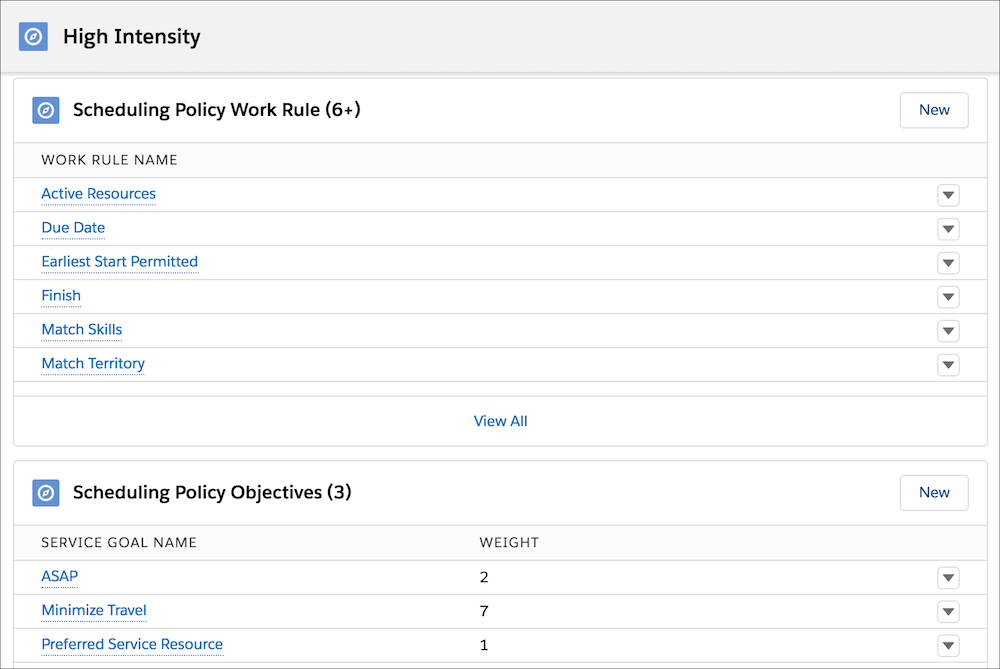
| High Intensity | Typically used in times of high service volumes, like a storm scenario, where your need for employee productivity is higher priority than customer preferences. |
| Soft Boundaries | Identical to the Customer First policy, but allows the sharing of employees between territories to enhance service coverage. |
| Emergency | Used with the Emergency Chatter action to dispatch emergency service appointments. |
Manage Scheduling Policies
Create and manage scheduling policies from Guided Setup or the Scheduling Policies tab. To open Guided Setup, from the App Launcher, find and open the Field Service Admin app. Click Field Service Settings | Go to Guided Setup | Customize Scheduling Policies. Check your page layout settings before you begin; sometimes fields need to be added to your layout.
Outside of Guided Setup, you can view a policy’s work rules and weighted service objectives in its related lists.
Apply a Scheduling Policy
You can apply a scheduling policy to your scheduling process in several ways.
| Action | Steps |
|---|---|
| Select a policy for scheduled optimization jobs | From the App Launcher, find and open the Field Service Admin app, and then click the Field Service Settings tab. Then, click Optimization | Scheduled Jobs. Update the Scheduling Policy field on any scheduled job to list your preferred policy. |
| Select a default scheduling policy for scheduling from the dispatcher console | From the App Launcher, find and open the Field Service Admin app, and then click the Field Service Settings tab. Click Dispatcher Console UI and update the Default scheduling policy field. |
| Select a default scheduling policy for the Book Appointment and Candidates actions | From the App Launcher, find and open the Field Service Admin app, and then click the Field Service Settings tab. Click Global Actions | Appointment Booking and update the Default scheduling policy field. |
| Select a policy in the dispatcher console appointment list | The Policy field in the appointment list shows the default dispatcher console scheduling policy, but can be updated before a dispatcher optimizes the schedule. |
Scheduling Policy Fields
Scheduling policies have the following fields. Sometimes they need to be added to your page layouts.
| Field Name | Description |
|---|---|
| Commit Mode | Define what happens when a dispatcher or scheduling operation makes a change to the schedule that conflicts with an ongoing global, in-day, or resource schedule optimization process. Select Always Commit or Rollback. See Handle Conflicts During Optimization. |
| Description | Description of the policy. |
| Fix Overlaps | (Checkbox) If this option is selected, any existing appointment overlaps are addressed during in-day or global optimization. The way the overlap is addressed depends on:
Fix Overlaps in global optimization and in-day optimization addresses only overlaps between service appointments and ignores overlaps with Resource Absences. If Fix Overlaps isn’t selected, overlaps are left as is. When you're using Enhanced Scheduling and Optimization, the fix Overlaps option isn't relevant, because overlaps are always resolved if the overlapping service appointments aren’t pinned. |
| In-Day Optimization | (Checkbox) If this option is selected, the scheduling policy uses in-day optimization rather than global optimization. Policies that use global optimization run for several hours, while in-day policies run for up to 5 minutes for Enhanced Scheduling and Optimization and up to 10 minutes if you’re not using Enhanced Scheduling and Optimization. This approach makes it ideal for dispatchers to handle last-minute changes. Dispatchers select in-day optimization scheduling policies when optimizing their team’s schedule for one or more service territories on the day of service. You can also schedule to run in-day optimization automatically several times a day by using a scheduled job with an in-day optimization scheduling policy. |
| Scheduling Policy Name | Name of the policy. If you select In-Day Optimization, we recommend adding “In-Day” to the name of this policy for easy identification when creating jobs and when optimizing from the dispatcher console. |
- Guidelines for Setting Up a Scheduling Policy
To automate a schedule, you must first configure a scheduling policy that reflects your business's scheduling requirements and preferences. Learn how to create a scheduling policy. - Fine-Tune the Scheduling Policy
In scheduling policies, you set weights to service objectives. These weights represent the importance of each objective when the engine generates an optimal schedule. You can fine-tune the weights through an iterative tuning process to set weight values in your scheduling policy that closely align with your business KPIs.
