
Schedule Appointments from the Classic Dispatch Console
You can schedule service appointments from the Field Service Classic Dispatch Console by using the mass schedule action or by dragging them onto the Gantt.
Required Editions
| Available in: both Salesforce Classic (not available in all orgs) and Lightning Experience |
| The Agentforce Field Service and Operations core features, managed package, and mobile app are available in Enterprise, Unlimited, and Developer Editions. |
 This is a Field Service managed package feature.
You can schedule an appointment from the Classic Dispatch Console in several ways, depending on what you’re doing and how much control you have. When you use any scheduling tool, scheduling considers the work rules defined in the scheduling policy. You can select any scheduling policy in the top-left dropdown list to help you find the best schedule.
Drag an Appointment from the Appointment List or the Gantt
Schedule an unscheduled appointment by dragging it from the appointment list into any service resource’s row on the Gantt.
Reschedule a scheduled appointment by dragging it to a free time slot on the Gantt.
If the assignment causes a rule violation (for example, if the resource doesn’t possess the required skill), the appointment is marked with a yellow triangle. Hover over the appointment to view its details and rule violations.
Customize the drag settings from the Field Service Admin app.
- From the App Launcher, find and open the Field Service Admin app, and then click the Field Service Settings tab.
- Click Dispatcher Console UI.
- In the Time intervals when dragging on Gantt field, enter the minutes segment. For example, if you enter 15, you can drag an appointment into slots starting at 0, 15, 30, and 45 minutes after the hour.
- Save your changes.
Schedule Appointments by Using the Scheduling Action
You can use the Schedule action in several ways.
- To schedule one or more appointments in the appointment list (mass schedule), select the appointments and click Schedule above the appointment list search field. The button doesn’t show Reschedule if you select an appointment that’s already scheduled. Appointments are scheduled or rescheduled in priority order. A progress bar appears in the bottom-right corner during the scheduling process. When scheduling is completed, click View Service Appointments to review the details.
- Click a service appointment in the appointment list to show a mini view of the appointment. At the bottom of the mini view, click Schedule or Reschedule. If no candidates are available, you can bypass the scheduling policy’s rules by dragging an appointment or by selecting a different scheduling policy.
- Right-click a service appointment on the Gantt and select Reschedule to find a better time for your appointment.
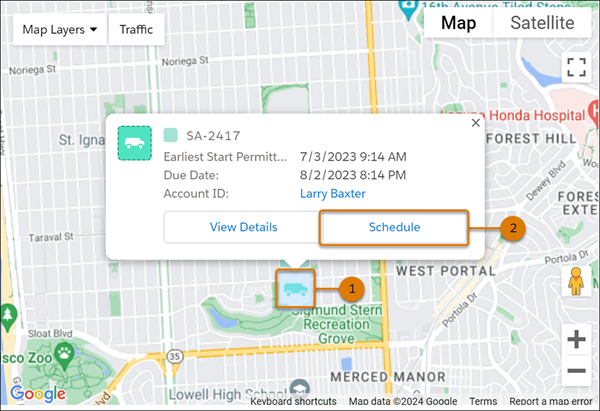
- Schedule an appointment directly from the Classic Dispatch Console map. First, pop out the map by
clicking
 on the Map tab, and then click an appointment icon (1) to show its details. Click
Schedule (2) to schedule the appointment.
on the Map tab, and then click an appointment icon (1) to show its details. Click
Schedule (2) to schedule the appointment.

- When you’re using Enhanced Scheduling and Optimization, if sliding or reshuffling is enabled, you can schedule critical appointments even when the Gantt seems to be full. Depending on the Sliding and Reshuffling option selected in Field Service Settings, you can use the Schedule action on an appointment to slide scheduled appointments to the left (earlier) or right (later) and make room for a new appointment. If you select Sliding and Reshuffling, the Schedule action can also move preexisting appointments to other days or, if there’s no availability, to another resource to schedule the appointment. Also, if you select Schedule over lower priority appointment for an appointment, the Schedule action can drop a lower-priority appointment from the schedule.
- If a multiday service appointment has a defined arrival window, scheduling and rescheduling isn't supported.
