
You are here:
Set Up Crew Management
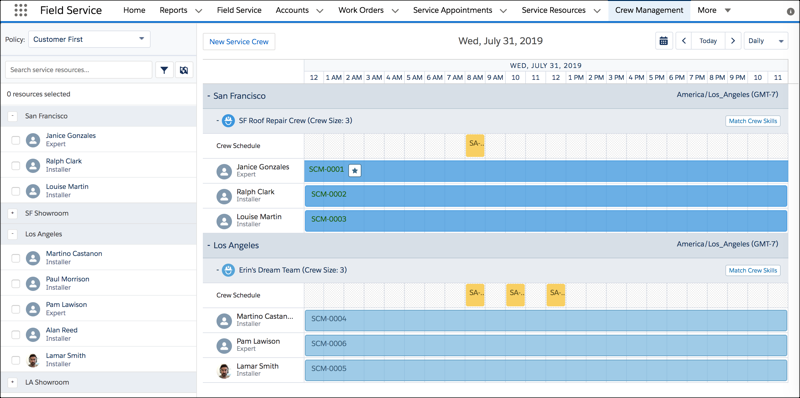
Give Field Service admins and dispatchers access to a drag-and-drop service crew management tool where they can easily create service crews and update service crew membership.
Required Editions
| Available in: both Salesforce Classic (not available in all orgs) and Lightning Experience |
| The Agentforce Field Service and Operations core features, managed package, and mobile app are available in Enterprise, Unlimited, and Developer Editions. |
| User Permissions Needed | |
|---|---|
| To create Visualforce tabs: | Customize Application |
| To set Visualforce page security and create permission sets: | Manage Profiles and Permission Sets |
| To assign permission sets: | Assign Permission Sets |
 This is a Field Service managed package feature.
-
Decide which users need access to the crew management tool. Ensure that each
user has at least one of these permission sets:
- FSL Admin Permissions
- FSL Dispatcher Permissions
-
Add the crew management tool to your org in one of two ways:
- Create a Visualforce tab named Crew Management for the FSL.CrewManagement page.
- Embed the Crew Management custom Lightning component in a Lightning page. Because the component includes a detailed chart, give it plenty of space on the page.
-
Create a permission set with access to the following elements, and assign it to
the relevant users.
- Crew Management tab, if you created one
- FSL.CrewManagement Visualforce page
- FSL.CrewsResourceLightbox Visualforce page
- FSL.CrewsSaLightbox Visualforce page
- FSL.CrewsWorkorderLightbox Visualforce page
- FSL.CrewsWorkorderLineItemLightbox Visualforce page
- FSL.CrewManagement Apex class
You’re all set! For help using crew management, see Manage Field Service Crew Membership.
Did this article solve your issue?
Let us know so we can improve!
