View a Field Service Resource’s Daily Travel Route
The scheduling optimizer uses street-level routing to schedule your mobile worker’s day
appropriately. On the day of service, the Field Service mobile app’s geocoding feature tracks the
actual route taken. You can see both the planned and actual routes together on the resource map
view.
Required Editions
Available in: both Salesforce Classic (not available in all orgs) and Lightning
Experience
The Agentforce Field Service and Operations core features, managed package, and
mobile app are available in Enterprise, Unlimited, and Developer
Editions.
To navigate to a service resource’s map, start from the Classic Dispatch Console resource list. Click
Details in a resource’s action menu, and then click the
Map tab. You can also view a service resource’s scheduled appointments on
the main Classic Dispatch Console map by selecting the service resource in the Map Layers settings.
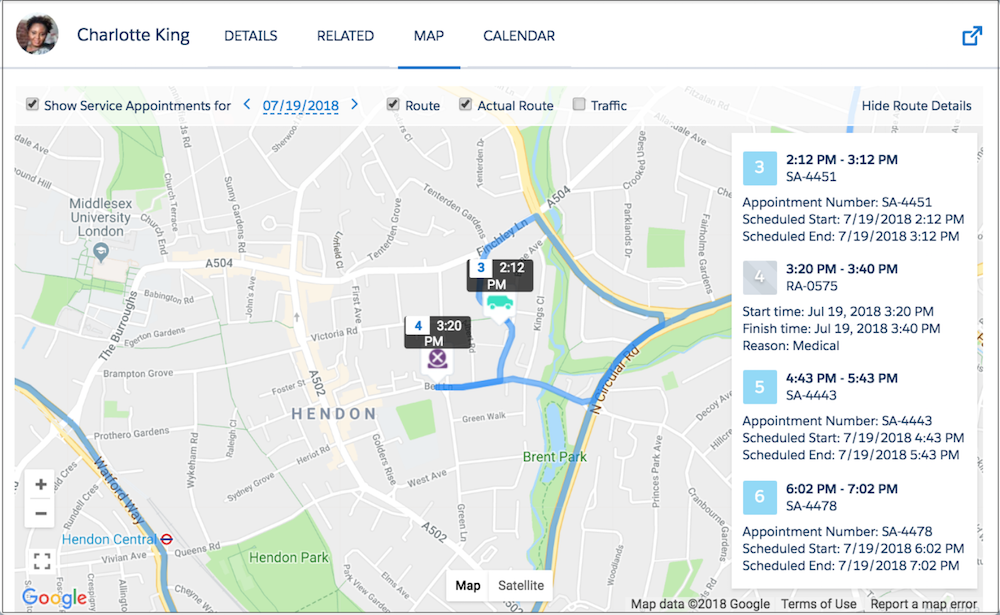
At the top of the map, select which date to show, and choose one or more types of data to
display: Route (shown in blue), Actual Route (shown
in pink), and Traffic. The actual route can be shown only if history
tracking is set on the service resource’s Last Known Location field and geolocation tracking is
turned on for them. See Field History Tracking.
A truck icon signifies an appointment. An X icon signifies a resource absence with a valid
address, meaning its latitude and longitude can be calculated.
Note To show or hide resource absences on the map, from the App Launcher, find and open the Field
Service Admin app, and then click Field Service Settings. Then, click Dispatcher Console UI | Gantt Configurations and select or deselect Show absences on resource
map.
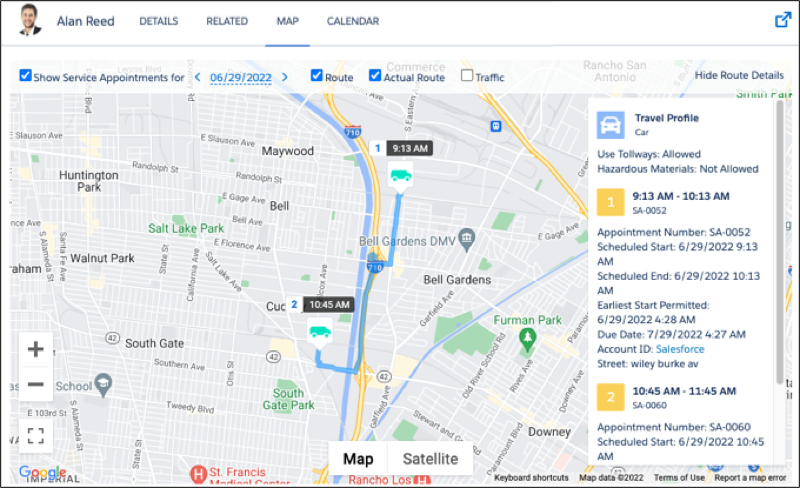
On the right-hand side of the map, you can show or hide the route details pane. The pane shows
the travel profile with details such as the vehicle type and the route according to the selected
travel mode. For example, quickly see whether the route includes the use of toll roads or whether
hazmat considerations exist. The travel profile is shown when you’re using Enhanced Scheduling
and Optimization and a travel mode is assigned to that territory or territory member. To zoom in
on an appointment, hover over the appointment number in the pane and click Center on
Map.
NoteIf a service resource has more than 23 stops in a period of 24 hours
(including starting point, ending point, appointments, and absences), the resource map shows
only the first 23 stops on the route and displays an error. This is a Directions API limitation.
We use three kinds of cookies on our websites: required, functional, and advertising. You can choose whether functional and advertising cookies apply. Click on the different cookie categories to find out more about each category and to change the default settings.
Privacy Statement
Required Cookies
Always Active
Required cookies are necessary for basic website functionality. Some examples include: session cookies needed to transmit the website, authentication cookies, and security cookies.
Functional Cookies
Functional cookies enhance functions, performance, and services on the website. Some examples include: cookies used to analyze site traffic, cookies used for market research, and cookies used to display advertising that is not directed to a particular individual.
Advertising Cookies
Advertising cookies track activity across websites in order to understand a viewer’s interests, and direct them specific marketing. Some examples include: cookies used for remarketing, or interest-based advertising.