
You are here:
Customize the Field Service Classic Dispatch Console Map
Control the information shown on the Classic Dispatch Console map. By default, the map shows markers for all service resources whose appointments are loaded in the Gantt or appointment list.
Required Editions
| Available in: both Salesforce Classic (not available in all orgs) and Lightning Experience |
| The Agentforce Field Service and Operations core features, managed package, and mobile app are available in Enterprise, Unlimited, and Developer Editions. |
 This is a Field Service managed package feature.
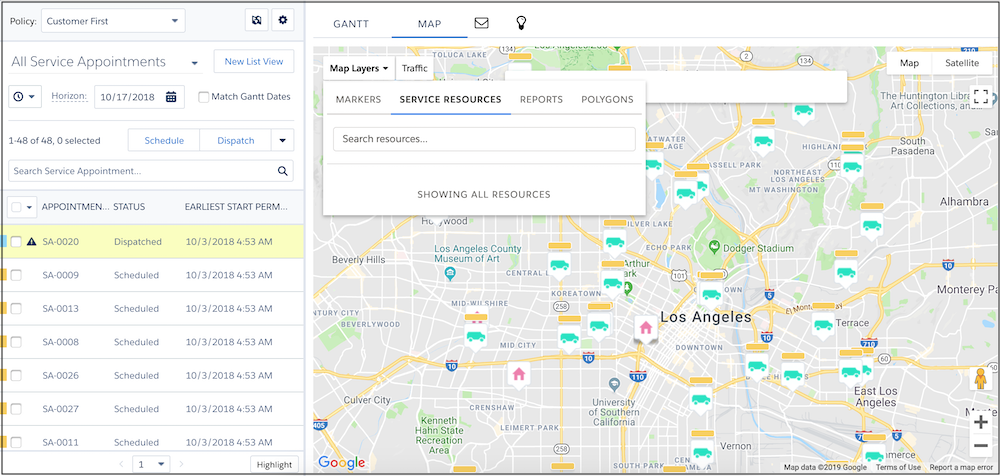
To navigate to the Classic Dispatch Console map, from the App Launcher, find and open the
Field Service app, and then click Field
Service. Then, click the Map tab. To pop out the map and
drag it anywhere within the Classic Dispatch Console, hover over the Map tab from the Gantt and
click  .
.
If you can’t see the map, ask your admin to enable sending geolocation and map data to Google and Apple from Field Service Settings in Setup.

The Classic Dispatch Console map can appear different than the map displayed on service territory member detail pages because of a difference in geocoding granularity. As a rule, the Classic Dispatch Console map is more accurate.
By default, the map center is Los Angeles. This default can't be changed.
Choose What Information is Shown
Click Map Layers, which opens on the Markers tab. Select the information to display for selected service resources:
- Live Positions: When a service resource updates a service appointment’s status from their mobile device, their coordinates are automatically recorded. Live Position shows the latest coordinates saved in the system.
- Homebase: The selected service resource’s home base, set on their detail page.
- Service Appointments: All service appointments that are assigned to the selected service resource and shown in the appointment list.
- Service Territories: The resource’s service territories.
Choose Which Service Resources are Shown
Click Map Layers, then click the Service Resources tab. Use the search to select one or more service resources whose information you want displayed on the map.
Display Report Data
Click Map Layers, then click the Reports tab. Select reports containing geolocation fields that you want to be displayed on the map. This way, you can view location-based standard or custom objects as separate map layers.
Only tabular reports in the Field Service Reports folder appear in the Reports tab. By default, the markers’ icons on the map are styled as the object type in the first column in the report. Up to 10 additional columns are visible inside the marker’s info window.
Up to 500 total report markers can be displayed on the Gantt map at one time. If a report has more than 500 markers, consider adding more filters.
When you use reports in the Classic Dispatch Console map, all report limitations apply. See Reports and Dashboards Limits and Allocations.
Manage Map Polygons
Click Map Layers, then click the Polygons tab. Choose which polygons are displayed, customize their color-coding, and create polygons. You can also create and manage polygons from the Map Polygons tab in your Salesforce environment.
View Traffic Conditions
Click Traffic at the top of the map to show traffic conditions.
- Customize Icons and Colors for Reports
Give your reports contrast on the Gantt map by customizing their icons and colors. You can map any tabular report that has geolocation fields.
