Loading
Salesforce now sends email only from verified domains. Read More
Service
Table of Contents
Select Filters

          No results
          No results
          Here are some search tips

          Check the spelling of your keywords.
          Use more general search terms.
          Select fewer filters to broaden your search.

          Search all of Salesforce Help
          Create Quick Text Messages

          Create Quick Text Messages

          Create custom predefined messages to insert into emails, chats, tasks, events, and more. Quick text can include merge fields, line breaks, and special characters.

          Required Editions

          View supported editions.
          User Permissions Needed
          To create quick text messages: Create on quick text
          To create a quick text folder: Create on quick text
          To share a quick text folder: Owner of the folder OR Manage access on the folder
          To manage and share all quick text folders: View Setup and Configurations AND Modify All Records on quick text
          1. From the App Launcher, search for and select Quick Text to open the quick text tab.
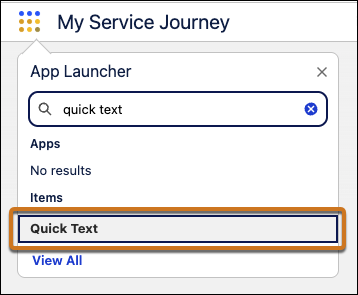
            App Launcher with "quick text" entered into the search field
          2. Optionally, create shareable folders to organize your quick text messages and create unique sets of messages for different business units or groups of users, like service and sales. You can create up to four levels of folders: one root folder and up to three subfolders.
            1. Click New Folder.
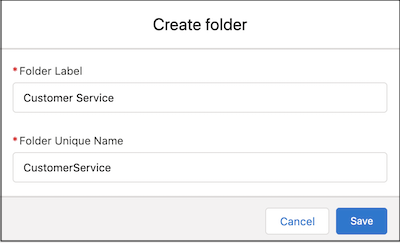
              New folder window
            2. Name your folder and save it.
            3. Repeat these steps until you have all the folders you need. You can also create more later, or designate users to create them.
          3. Click New Quick Text to create your first quick text message. If prompted, select a record type for the new message to customize access to it. Then click Continue.
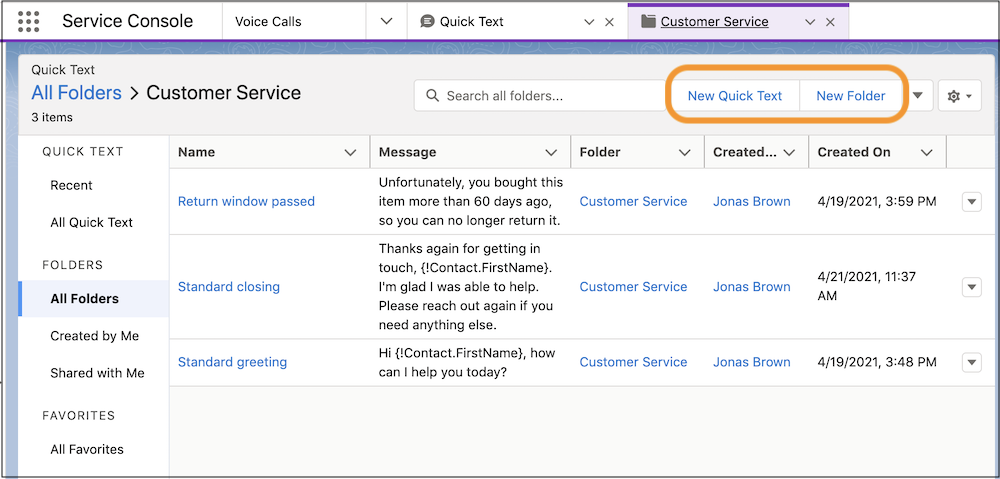
            Quick Text tab with New Quick Text button highlighted
          4. Add information about the quick text message.
            Setting Description
            Quick Text Name Enter a name that helps users understand when to use the message.
            Message

            Enter the message that you want users to be able to insert into their communications. You can include line breaks, lists, special characters, merge fields, and up to 4,000 characters.

            Merge fields, like a contact name, help you personalize your communications with customers. Quick text supports the Salesforce Merge Language (SML) used in Salesforce Classic email templates, not the Handlebars Merge Language (HML) used in Lightning Experience email templates.

            Folder

            Optionally, select a folder. This field is visible if:

            • Share and organize quick text in folders is enabled
            • The Folder field is added to the Quick Text record page layout

            Users need access to the folder you select in order to view its quick text messages. You can group quick text messages into folders—for example, designating them as service or sales—and assign access accordingly.

            Category

            Select a category that indicates the message’s purpose. Categories can be customized from the Quick Text object settings in the Object Manager in Setup.

            In orgs created before Spring ’18 that enabled quick text in Salesforce Classic, this field is required and a default Category is provided. In orgs created after Spring ’18, this field is optional.

            Channel

            Select the channels in which you want the message to be available. If you don’t specify a channel, the message can’t be used. Depending on which features are enabled in your org, these channels might be available.

            • Email—for Email actions
              Note
              Note Quick text saved in the Email channel for your use is available as a text shortcut in the Outlook and Gmail integrations with Inbox. Shared quick text isn’t available in the integrations.
            • Event—for Event actions
            • Internal—works with internal fields, like on the Change Status action. This channel isn’t supported in Lightning Experience, though it appears in the list.
            • Knowledge—for Knowledge articles in Lightning Experience
            • Chat—works with Chat in the Service Console
            • Messaging—works with Messaging in the Service Console
            • Phone—for the Log a Call action
              Note
              Note In Salesforce Classic apps, quick text is supported with Case Feed Log a Call actions in console apps.
            • Portal—works in an Experience Cloud site or a customer portal. This channel isn’t supported in Lightning Experience, though it appears in the list.
            • Social—for social posts
            • Task—for Task actions
            Include in reply recommendations Visible only if Einstein Reply Recommendations is turned on. Select this option to let Einstein recommend the message to support reps in the Einstein Replies console component.
            Include in selected channels Leave this option selected. It makes the message available in the channels you selected.
          5. If you use merge fields, click Preview to review the message with data from records that you choose.
          6. Click Save.
           
          Loading
          Salesforce Help | Article