
You are here:
Enable Quick Text
Enable quick text for your org so that your users can insert predefined messages into customer conversations and records. Optionally, customize your quick text categories to make each message’s purpose clear.
Required Editions
| View supported editions. |
| User Permissions Needed | |
|---|---|
| To enable quick text and customize quick text settings: | Customize Application |
If you’re using Lightning Experience, quick text is automatically enabled. Any quick text settings that were configured in Salesforce Classic also apply in Lightning Experience.
If you enable quick text in Salesforce Classic, you can’t disable it. Quick text is automatically enabled in Salesforce Classic orgs where Chat is enabled.
- From Setup, in the Quick Find box, enter Quick Text Settings and select Quick Text Settings.
-
Click Enable Quick Text.
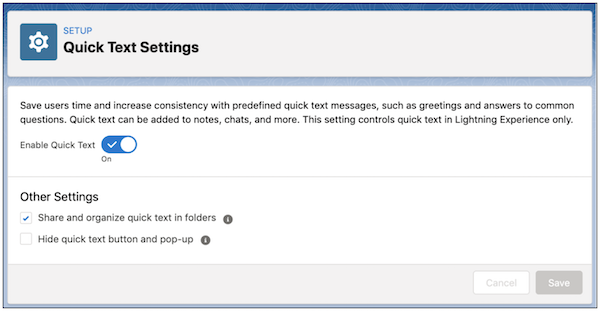
- Optionally, select Share and organize quick text in folders (available only in Lightning Experience). Folders help you create unique sets of quick text messages for different business units or groups of users. You can create up to four levels of folders to organize quick text messages.
- Optionally, select Hide quick text button and pop-up (available only in Lightning Experience). By default, buttons are displayed to help users discover and work with quick text. In rich text fields, a button is displayed in the toolbar. In plain text fields, a popup button is displayed. If these buttons cause your users a disruption, you can hide them.
- Click Save.
-
Optionally, customize the categories used to organize quick text messages.
Categories help users find the right message more quickly. Your default quick text
categories are Greetings, FAQ, and
Closings.
- From Setup, in the Object Manager, select Quick Text.
- Click Fields & Relationships, then click Category.
-
Customize the values listed in the Category Picklist Values section, and save
your changes.
 Note In orgs created before Spring ’18 that enabled quick text in Salesforce Classic, the Category field is required and a default category is provided. In orgs created after Spring ’18, this field is optional.
After enabling quick text, give users access to quick text by updating their permissions and setting up quick text folders.
Did this article solve your issue?
Let us know so we can improve!
