
You are here:
Insert and Use Quick Text
Stop retyping the same message over and over, and save time. Use quick text to insert predefined messages on any standard or custom objects in Knowledge articles, Chats, Log a Call actions, emails, events, tasks, and social posts. After inserting a quick text message into a message field, you have the chance to tailor the text to your situation before sending it.
Required Editions
| View supported editions. |
| User Permissions Needed | |
|---|---|
| To insert quick text: | Read on quick text |
Each quick text message in your org is associated with one or more communication channels, like Chat or Email. If a quick text message isn’t associated with a particular channel, you can’t use it in that channel. For example, only messages assigned to the Email channel can be inserted into emails.
-
Select the field where you want to insert a quick text message. Here’s a list of the fields
where you can insert quick text.
Quick Text Channel Associated Object or Action Supported Fields Email Email Message (used in Email actions) - HTML Body
- Text Body
Event Event - Description
Internal (Salesforce Classic only) Works with internal fields. Knowledge Knowledge (used in Lightning Knowledge articles) - Fields with the data type Rich Text Area
Chat Live Chat Transcript (used in chats) - Body
- Supervisor Transcript Body
Phone Task (used in Log a Call actions) - Comments
Portal (Salesforce Classic only) Works in Experience Cloud sites or customer portals. Social Social Post - Message
Task Task - Comments
 Note In Lightning Experience, quick text is available for Log a Call actions on various objects. In Salesforce Classic apps, quick text is supported with Case Feed Log a Call actions in console apps.
 -
Launch the quick text browser by clicking the quick text button in the toolbar
 .
If you don’t see the button, your admin has opted to hide it. If you’re using a U.S. or U.K. keyboard, you can enter a keyboard shortcut in the message field to open the browser:
.
If you don’t see the button, your admin has opted to hide it. If you’re using a U.S. or U.K. keyboard, you can enter a keyboard shortcut in the message field to open the browser:- Salesforce Classic
- macOS or Windows: ;;
- Lightning Experience
- macOS: Cmd and . simultaneously
- Windows: Ctrl and . simultaneously
-
Find the message you want to insert. Here, we’re inserting a quick text named Solar Panel
Apology into the body of an email.
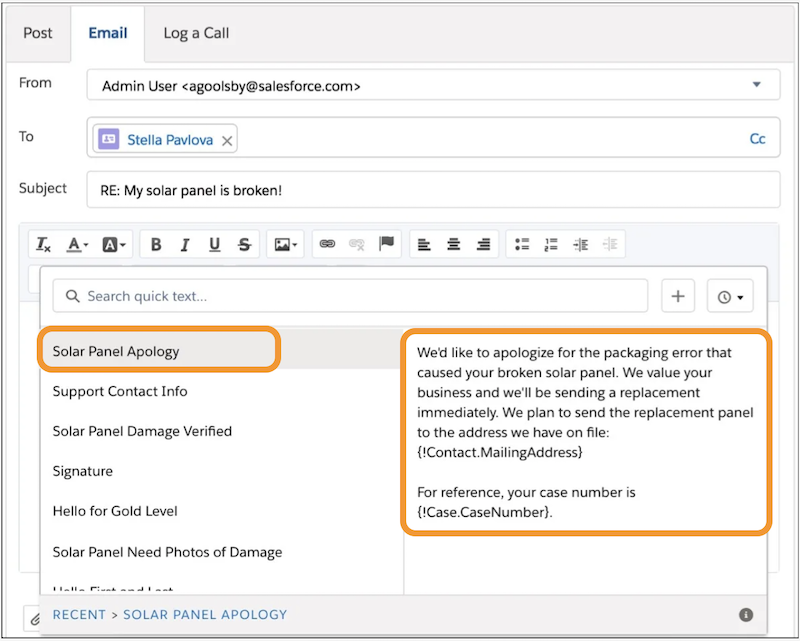 Note If you don’t see any quick text messages in the quick text browser, your admin may need to share the folders containing the messages with you.
 -
To select a message, click or highlight it and press Enter.
If the message you select contains merge fields, they’re resolved when you add the message. If a merge field doesn’t apply to the record you’re working with, it resolves blank. For example, quick text with the Case.CaseNumber merge field resolves correctly in a case’s Log a Call action. However, that same merge field resolves blank when inserting quick text on a work order’s Log a Call action.
- Before sending or saving your message, modify the text if you need to.
