
You are here:
Give Service Reps Access to Reply Recommendations
Give service reps access to Einstein Reply Recommendations by assigning them a permission set.
Required Editions
| View supported editions. |
| User Permissions Needed | |
|---|---|
| To assign permission sets: | Assign Permission Sets |
| To view object permissions: | View Setup and Configuration |
| To edit object permissions: | Manage Profiles and Permission Sets AND Customize Application |
| To view and manage apps: | View Setup and Configuration AND Customize Application |
- Decide which service reps should see reply recommendations during chats and messaging sessions.
- Assign the Einstein Reply Recommendations User permission set to the service reps you identified. The permission set is included with the Service Cloud Einstein add-on license.
- Give the service reps read access to the quick text folder containing your published replies. Optionally, divide replies into multiple folders. For example, create a folder of replies for each support tier and configure folder access so Tier 1 service reps only receive recommended replies from the Tier 1 folder, Tier 2 service reps from the Tier 2 folder, and so on.
- Share Use Reply Recommendations in the Lightning Service Console with your service reps so they know what to expect.
Reply recommendations appear in the Einstein Replies component. There’s no need to add it to your page layouts—if Einstein Reply Recommendations is enabled, the component appears automatically on the Chat and Messaging console pages for users with the Einstein Reply Recommendations User permission set. Until replies are published to quick text and the predictive model is activated, the component indicates that there are zero replies available.
To customize the Einstein Replies component, open the Chat and Messaging pages in the Lightning App Builder and update its settings on each layout.
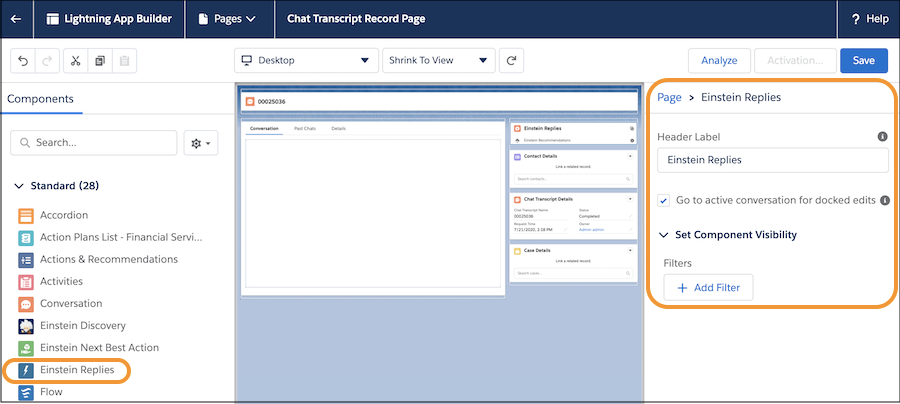
| Setting | Purpose |
|---|---|
| Header Label | Customize the component header. Leave it blank to use the default “Einstein Replies” header. |
| Go to active conversation for docked edits | (Not selected by default) Control what happens when the Einstein Replies component is docked and a user clicks Edit on a recommended reply. If this option is selected, clicking Edit sends the user to the active conversation window so they can edit and send the reply. Otherwise, clicking Edit keeps the user on the current tab. The reply appears in the message field for editing as expected, but the user may have to navigate to the conversation to see it. |

- From Setup, enter App Manager in the Quick Find box and select App Manager.
- Click the dropdown next to the Service Console app where you want to add the Einstein Replies component, and click Edit | Navigation Items.
- Select Einstein Replies from the Available Items list, and add it to the Selected Items list.
- Click Save.
Now it’s time to activate your model!
