
You are here:
Einstein Service Replies
Increase customer satisfaction and reduce service rep handling time with AI-generated replies. Einstein Service Replies for Chat follows a Messaging Session or Live Chat conversation as it unfolds and then drafts and recommends fluent, courteous, and relevant replies for your service reps to review, edit, and post. Or, they can draft and send emails based on recommended knowledge articles, directly from the Case page.
Service Replies Setup Checklist
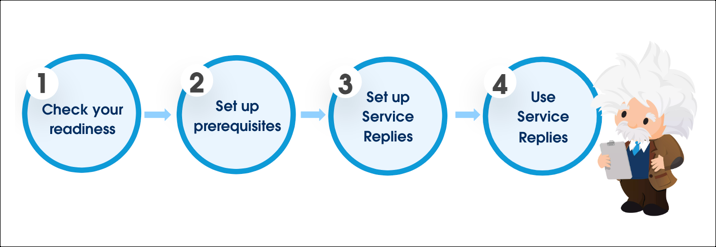
See best practices to set up Service Replies and what to expect during your rollout.
| Step | Where to learn more |
|---|---|
Step 1. Check your Einstein readiness. See whether you meet the license and edition requirements. If you aren’t sure, contact your Salesforce account executive to get started. |
Salesforce.com: Salesforce Einstein Pricing and Readiness Guide |
Step 2. Set up Service Replies. To get started, turn on replies. You can use Service Replies in messaging, chat, and email conversations. To ground Service Replies for Chat in your Knowledge base or uploaded files, assign an Agentforce Data Library. For Service Replies for Email, Article Recommendations helps you find articles that are most relevant to your customer queries. Service reps can then select and draft an email from the recommendations. Then, give your service reps a permission set so they can use replies. |
Set Up Service Replies for Chat |
Step 3. Customize Service Replies for Chat in Prompt Builder. Determine how Einstein drafts replies when you customize the Service Replies prompt templates in Prompt Builder. Specify what information Einstein includes, or adjust the voice and tone so that responses fit your business needs. |
Service Replies Prompt Templates |
Step 4. Get acquainted with Service Replies in the console. For chat and messaging sessions, see how service reps select, edit, and post replies. Einstein even shows you whether replies are based on conversation context or grounded in your data. For email, see how service reps select an article for Einstein to draft a reply and then edit and send it to customers all from the case page. |
|
Step 5. Share insights from your data. Based on data from your Salesforce org, share insights with your team with generative AI Feedback Data reports and the Audit Trail. |
Share Insights from Einstein Generative AI Audit Data |
