With Einstein Reply Recommendations, you can show service reps common replies in 16
languages during chat and messaging sessions: Arabic, Chinese-simplified, Chinese-traditional,
Dutch, English, French, German, Italian, Japanese, Korean, Polish, Portuguese, Russian, Spanish,
Thai, and Turkish.
To build the Einstein Reply Recommendations model:
Customize Application
View and Enable Your Available Languages
Follow the steps in Set Up Reply Recommendations for Enable Reply
Recommendations and Build Your Recommendation Model. Replies are based on a model that Einstein
generates by analyzing your closed chat transcripts. Einstein requires at least 1,000 closed
chat transcripts per language to deliver replies in that language. If you have insufficient
closed chats in all languages or if the chats are too short, you’re alerted when you try to
build the model.
Note If you already have a Reply Recommendations model, you must upgrade to the Hyperforce platform. Upgrades will take place on a rolling basis
starting June ‘22. During the upgrade Einstein trains and activates a new Reply
Recommendations model without any downtime or interruption to service rep experience, and
everything works as usual. Along with the retrained model, you receive a new batch of reply
templates to review, polish, and publish.
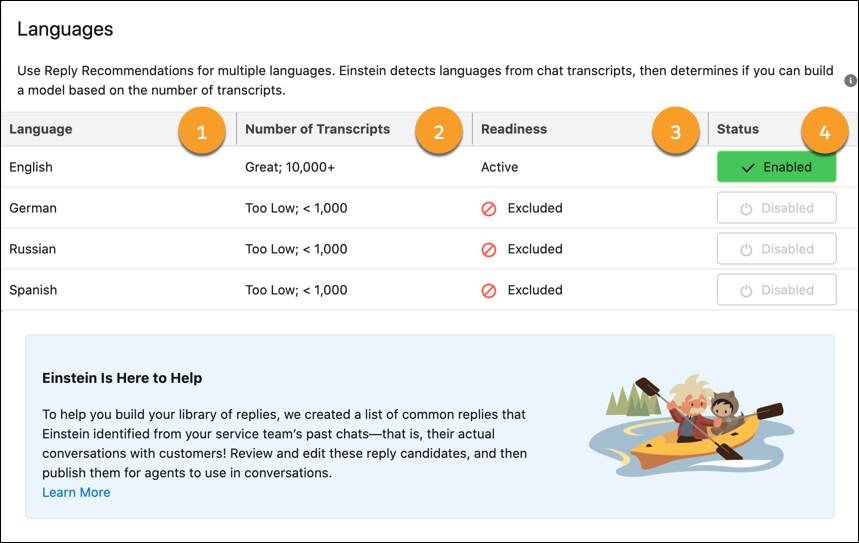
All languages detected by Einstein are listed in the Languages section of the setup page.
The Languages section shows the languages detected (1), the number of transcripts detected in
that language (2), whether the model is ready to activate (3), and the model status (4).
We use three kinds of cookies on our websites: required, functional, and advertising. You can choose whether functional and advertising cookies apply. Click on the different cookie categories to find out more about each category and to change the default settings.
Privacy Statement
Required Cookies
Always Active
Required cookies are necessary for basic website functionality. Some examples include: session cookies needed to transmit the website, authentication cookies, and security cookies.
Functional Cookies
Functional cookies enhance functions, performance, and services on the website. Some examples include: cookies used to analyze site traffic, cookies used for market research, and cookies used to display advertising that is not directed to a particular individual.
Advertising Cookies
Advertising cookies track activity across websites in order to understand a viewer’s interests, and direct them specific marketing. Some examples include: cookies used for remarketing, or interest-based advertising.