
You are here:
Service Replies for Email in the Console
Service Replies for Email generates an email response based on knowledge articles relevant to your case. Simply draft, edit, and send emails from the Case page in the Lightning Service Console.
Required Editions
| View supported editions. |
| User Permissions Needed | |
|---|---|
| For service reps to view, edit, and send knowledge grounded responses: | Allow users to share articles via public URLs |
| To send article content in emails: | Edit on cases AND Read on knowledge articles |
| To share internal articles externally: | Share internal Knowledge articles externally, under Administrative Permissions |

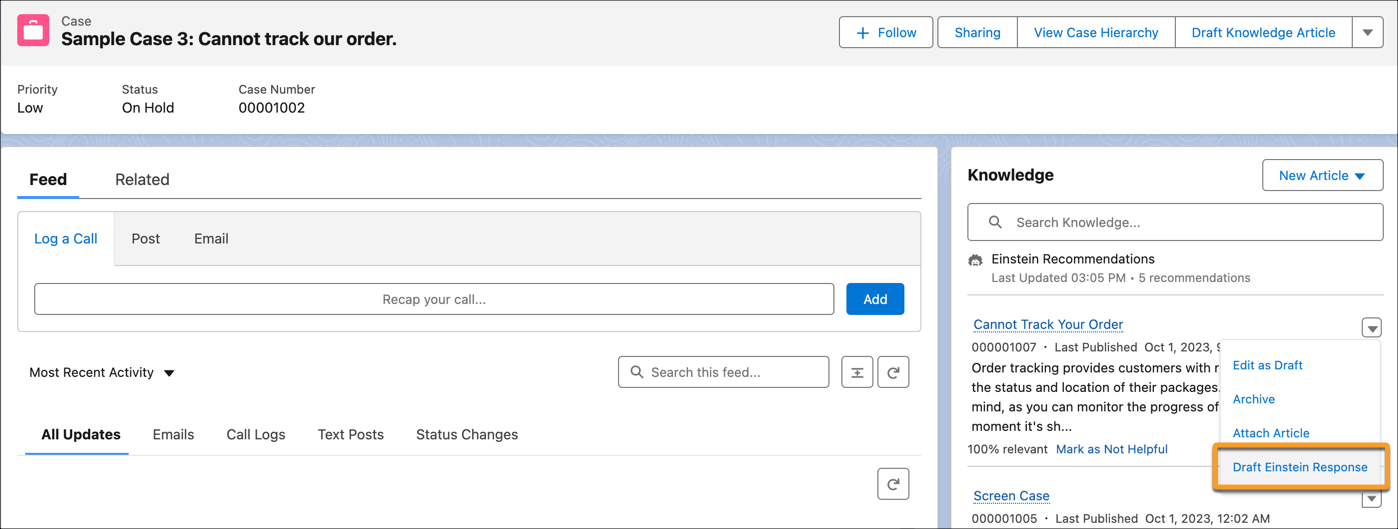
To draft a response based on a Knowledge article, select Draft Einstein Email from the relevant article’s dropdown menu.
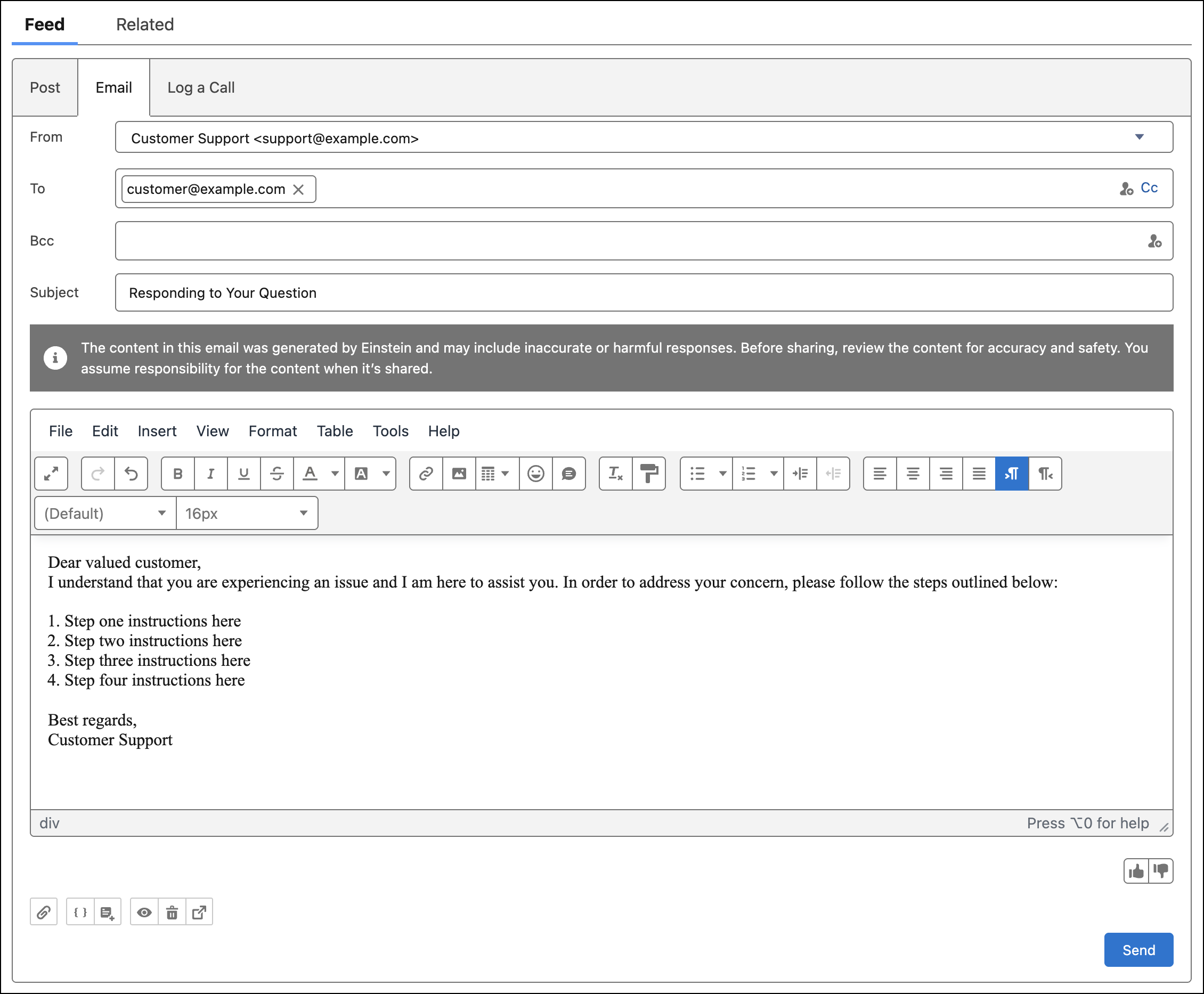
A draft is created in the email composer where you can review, edit, and send it. The draft merges the recipient's name from the associate case.
If you use an outside email composer, and the Lightning Email Composer isn’t active, a plain text draft appears in a pop-up window. Copy the text into the email composer, and then format and send it.
Draft Service Email Replies from Multiple Articles
You can draft email responses by using up to three knowledge articles that are relevant to a case. However, make sure that each selected article has less than 131K characters.
On the Case page, review the recommended articles in the Knowledge section and select up to three articles that are relevant to the case. If no relevant articles are listed, search for them manually.
Click Draft Einstein Email from Multiple Articles from the relevant article’s action menu. Select up to three articles that are relevant to the case, and then click Draft Email.
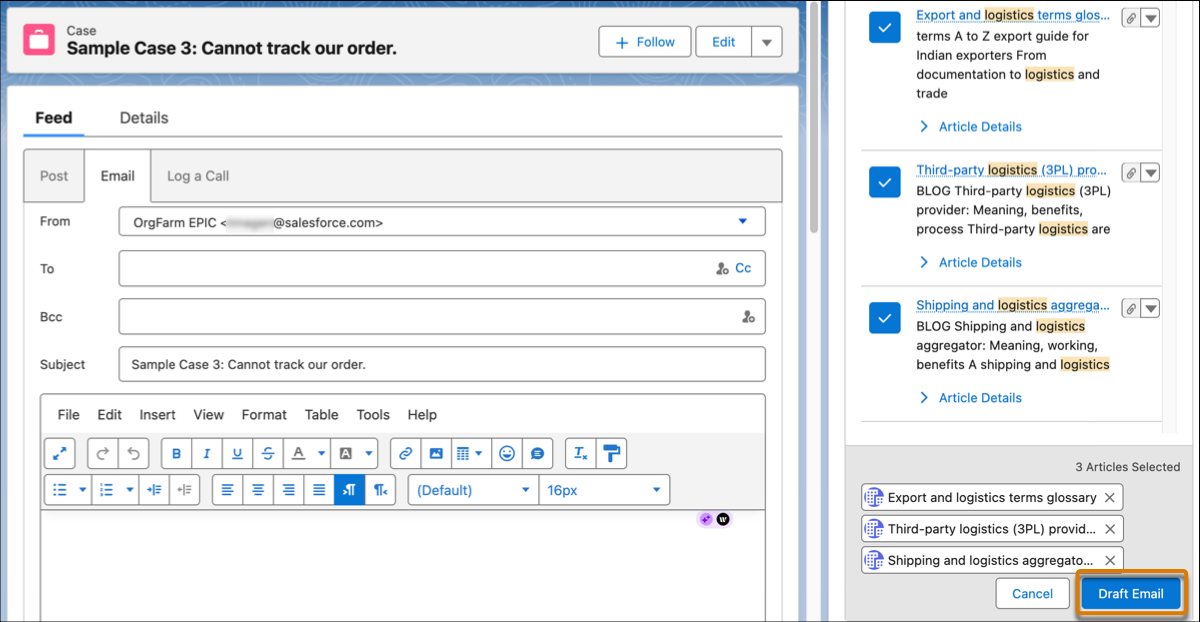
A draft is created in the email composer, where you can review, edit, and send it. The draft merges the recipient's name from the associated case.
Einstein Service Replies for Email supports Dutch, English, French, German, Italian, Japanese, Portuguese (Brazilian), Portuguese (Portugal), Spanish (Mexico), Spanish (Spain), and Swedish. Einstein drafts email replies in the case language field. If the case language field is empty, Einstein detects the language based on case fields and then drafts email responses accordingly. Otherwise, replies are drafted in the user locale’s language. To use knowledge grounded replies in multiple languages you need at least one knowledge article in the language you want to use.
