
You are here:
Escalation Actions
Escalation actions specify when the case escalates and what happens when the case escalates. An escalation rule can reassign the case to another support rep (user) or support queue (queue). An escalation rule also can send notification emails to the new assignee, to the current case owner, and to other recipients.
Required Editions
| View supported editions. |
Let’s break down the parts of an escalation action and go over best practices for each step:
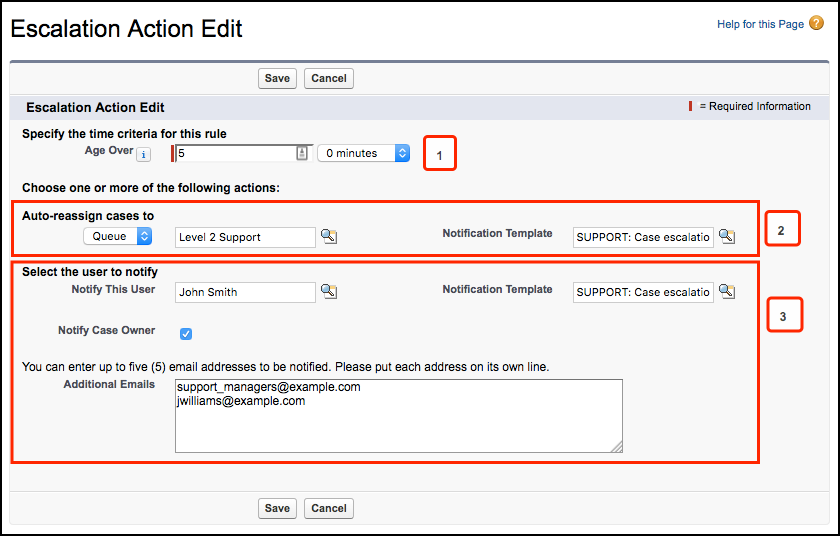
- Age Over
- Salesforce escalates the case if the case hasn’t
been closed within this time period [1]. For example, escalate the case if it hasn’t been
closed within five hours.
This time is calculated from the date field set in the Specify how escalation times are set field in the rule entry. No two escalation actions can have the same number in this field.
The Age Over field is required, because escalation rules are time-based.
- Auto-Reassign Cases
- When a case escalates, Salesforce can reassign
the case to a different user or queue [2].
- Queue or User—Select a user or queue to reassign the case to. When a case is reassigned, the queue or user becomes the new case owner. Companies typically reassign cases to a queue instead of a specific user. For example, if Level 1 support doesn’t resolve a case within 24 hours, the case is reassigned to the Level 2 support queue.
- Notification Template—Select a notification template to use to send a notification email to the assignee.
If you select a Notification Template, then Salesforce sends a notification email to the new case owner. The template controls which fields are included in the notification email. For example, the email template might include the case number, case contact, account name, and case reason so that the new case owner can quickly understand the situation.
- Notify Users
- When a case escalates, Salesforce can send a
notification email so that a user, the current case owner, or other email recipients know that
the case is escalating [3].
- Notify This User—Select a user to notify. For example, you might want to notify the support manager.
- Notify Case Owner—Send an email to the current case owner to remind them that the case is escalating. Select this checkbox when you want to notify the case owner but haven’t reassigned the case.
- Additional Emails—You can send notification emails to other people when a case is escalated. Enter up to five email addresses, each on a separate line. For example, you can set up an escalation rule to notify support managers or executives so that they know that a case is escalating.
- Notification Template—If you select Notify This User, Notify Case Owner, or Additional Emails, then you must select a notification template to send a notification email to the user, case owner, or additional recipients. The template controls which fields are included in the notification email.
