
You are here:
Safety Cloud Integrations
You can integrate Safety Cloud with other systems to help manage various aspects of your event, such as event attendance, testing, and communications. System integrations are optional. You can generate a Health Verification without any integrations.
Required Editions
| Available in: Enterprise and Unlimited Editions |
Safety Cloud supports integration with these systems.
- Event management and registrations systems such as RainFocus
- COVID-19 vendor testing systems such as eMed, ixlayer, and Senneca
- Email marketing systems such as Marketing Cloud Engagement
Safety Cloud comes with named credentials and Auth Providers for ixlayer, eMed, Senneca, and RainFocus.

Managing Safety Cloud Integrations
You can use the Named Credentials feature in the Setup UI for authorization to the integrated systems.
Safety Cloud supports these authorizations with named credentials.
- API Key
API Key authorization involves a one-use system password. If you use an API key, you must set the password to the API key of the system using the API Key credential.
eMed, ixlayer, RainFocus, and Senneca use this authorization method.
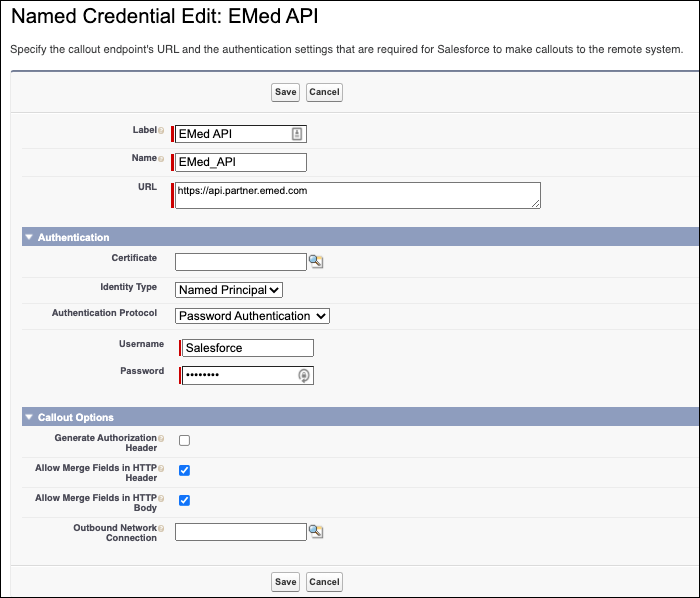
- Username & Password
Username and password authorization requires the username and password provided to you by the integration with which you’re integrating. The username and password enables communication between Safety Cloud and the system with which it’s integrating.
If you use a username and password authorization, you must change the URL field to the API endpoint of the integration.
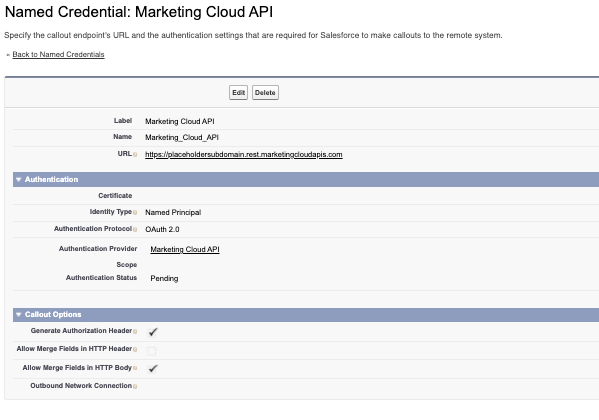
- OAuth
OAuth authorization uses an authentication provider. QAuth is used in parallel with the Named Credentials. You can define authentication providers with the Auth.Provider from the Setup UI.
For more information, see Authentication Providers.
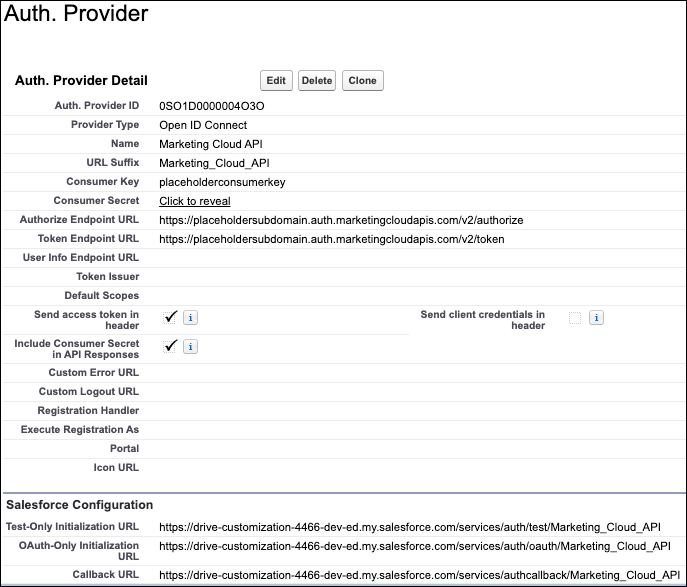
How Safety Cloud Communicates with Integrated Systems
Safety Cloud comes with default Apex classes, which you can schedule to retrieve data from supported testing vendors for events such as eMed, ixlayer, Senneca. You can schedule these classes to run at any interval to create Health Verifications from the returned values.
Example of scheduling a provided integration class
eMed
System.schedule('Scheduled Job 1', '0 30 * * * ?', new
safetycloud.ScheduleEMedGetResults());
Senneca:
System.schedule('Scheduled Job 1', '0 30 * * * ?', new
safetycloud.ScheduleSennecaBatch());
ixlayer:
System.schedule('Scheduled Job 1', '0 30 * * * ?', new
safetycloud.ScheduleIXLayerImport());
Integration Data Mapping
After integrations are authenticated and returning data, there are options to customize how fields get populated on Health Verifications from the response.
You can use the Integration Field Mapping Custom Metadata type to configure how values from an integration response get mapped to fields on a Health Verification record.
To configure the Integration Field Mapping custom metadata records, follow these steps.
- From Setup, in the Quick Find box, enter Custom Metadata Types, and then select Custom Metadata Types.
- Find the Integration Field Mapping Custom Metadata Type, and select
Manage Records.
A list of preconfigured field mappings that come with Safety Cloud are displayed.
- To create a mapping, click New.
Field values to set:
- Label: Name of the custom label can be anything. Used for identification, not functional.
- Integration Field Mapping Name: Name of the integration field mapping can be anything. Used for identification, not functional.
- Active: Boolean active/inactive integration field mapping
If inactive, this field isn’t mapped to a Health Verification.
- Description: A short description of this field
- Data Type: Specifies how the data from the external system lives in Salesforce
- Data Type Format: Format of how this Date field exists in
Salesforce.
Currently only used for Date formatting
- Destination Object: The object that contains the field to be mapped
from the external system.
Currently only Health Verifications are supported, but custom logic could be written for other objects.
- Destination Field Name: Which field the data from the external
system maps to.
The Destination Field Name is the API name of a field on the Health Verification. The value specified in the Source Field Name populates this field.
- Source Field Name: The Source Field Name points to the name of a
field (key) in the JSON response returned by the external system.
The value in that field is stamped on the Health Verification field specified in the Destination Field Name.
Here’s a snippet of a JSON file from an external system that contains a sample test result for a person attending an event. For example, you can store the date of this person’s test. Use this format to query the JSON file.
with.results.results.time_xHere’s an example.
{
   "this":"succeeded",
   "with":{
      "results":[
         {
            "id":"fvM8aPYkWf3s41jsueYsW",
            "partnerID":"Kp4MBkcnRh5HZFCMV54Zf",
            "clientID":"fy1a4km2OQvgT4kiTEEMA",
            "profile":{
               "firstName":"dbbfefa577e8b8ad8eee368d5e9797549601cbbad66ce5a8aa026675aba082c7",
               "lastName":"f4b24fed0274a31618ac1b665ee162af331b4b70fdff74f3f9ddedc94b4da745",
               "email":"91f904ab85aaacce6f5e7471a469dd4baeb555a07bfe0f930bdd138273b3b129",
               "dob":"a386c6a859ed6be3d648414f8a67b357c4f18162ae0176cc3b3eaaa3f8a8904b"
            },
            "state":"sf004",
            "results":[
               {
                  "time_x":"2022-01-21T17:30:15.797Z",
                  "procedureID":"sample",
Ensure That Safety Cloud and Integrated Systems Speak the Same Language
Integrated systems must speak the same language for them to work together.
Safety Cloud includes utility classes and mappings, which are defined as prebuilt connectors for supported systems. If you want to create your own mappings, you must build and test them.
The results from a Health Verification record have been standardized. The current mapping for the Health Verification record includes these fields.
- Health Verification Method and Source
- First Name
- Last Name
- Test Result
- Date and Time of test
- Test ID and External ID.
Additional mapping isn’t supported.
Test Your Safety Cloud Integrations
To test your integrations, using an Extract Transform Load (ETL) platform of your choosing, convert test results from another system into Health Verifications. Use this pattern.
- Poll the same results from any vendor.
- Map the vendor's system to a Health Verification object.
- Insert the record, and run any automation on it.
- Create Auth Providers and Named Credentials
Safety Cloud comes with named credentials and Auth Providers for ixlayer, eMed, Senneca, and RainFocus.
