
You are here:
Customize the Grounded Service Replies Prompt Templates
Add custom instructions to the prompt without building a template from scratch by creating a version of the standard Service Replies prompt templates.
Required Editions
| Available in: Lightning Experience |
| Available in: Enterprise and Unlimited editions with the Einstein for Service add-on. |
| User Permissions Needed | |
|---|---|
| To create and manage prompt templates in Prompt Builder: | Prompt Template Manager permission set |
| To create and manage retrievers: | Data Cloud permission set |
| To run prompts with Einstein Search: | Data Cloud User permission set |
For Grounded Service Replies template types, the LLM also incorporates information from knowledge articles or uploaded files in the assigned Agentforce Data Library to draft responses. See Agentforce Data Library.
To customize the Draft Service Replies with Grounding we recommend you edit the standard prompt templates and save a new version. In the standard prompt template we’ve added the key pieces of a successful prompt, including instructions for the LLM, data resources, and relevant inputs like the conversation transcripts. You can still add and test your own instructions if you save a new version of the template.
-
From Setup, in the Quick Find box, search for and select Prompt
Builder. If you have Agentforce Data Library set up and active, under Prompt
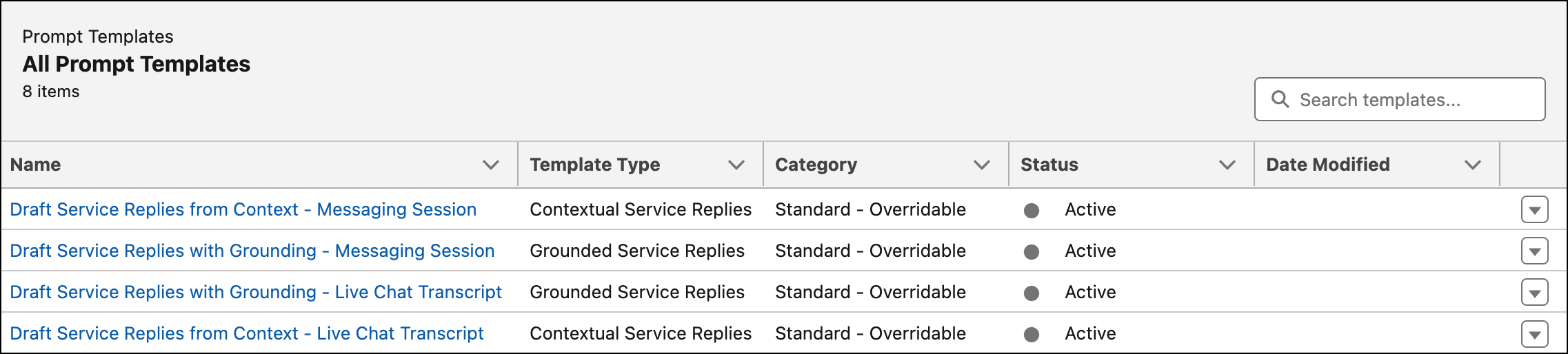
Templates are two Service Replies prompt templates with the Grounded Service Replies template
type:
- Draft Service Replies with Grounding - Live Chat
- Draft Service Replies with Grounding - Messaging Session
-
To edit the standard prompt template, select it and you're redirected to the Prompt
Template Workspace. Click Save As. A new version of the prompt template
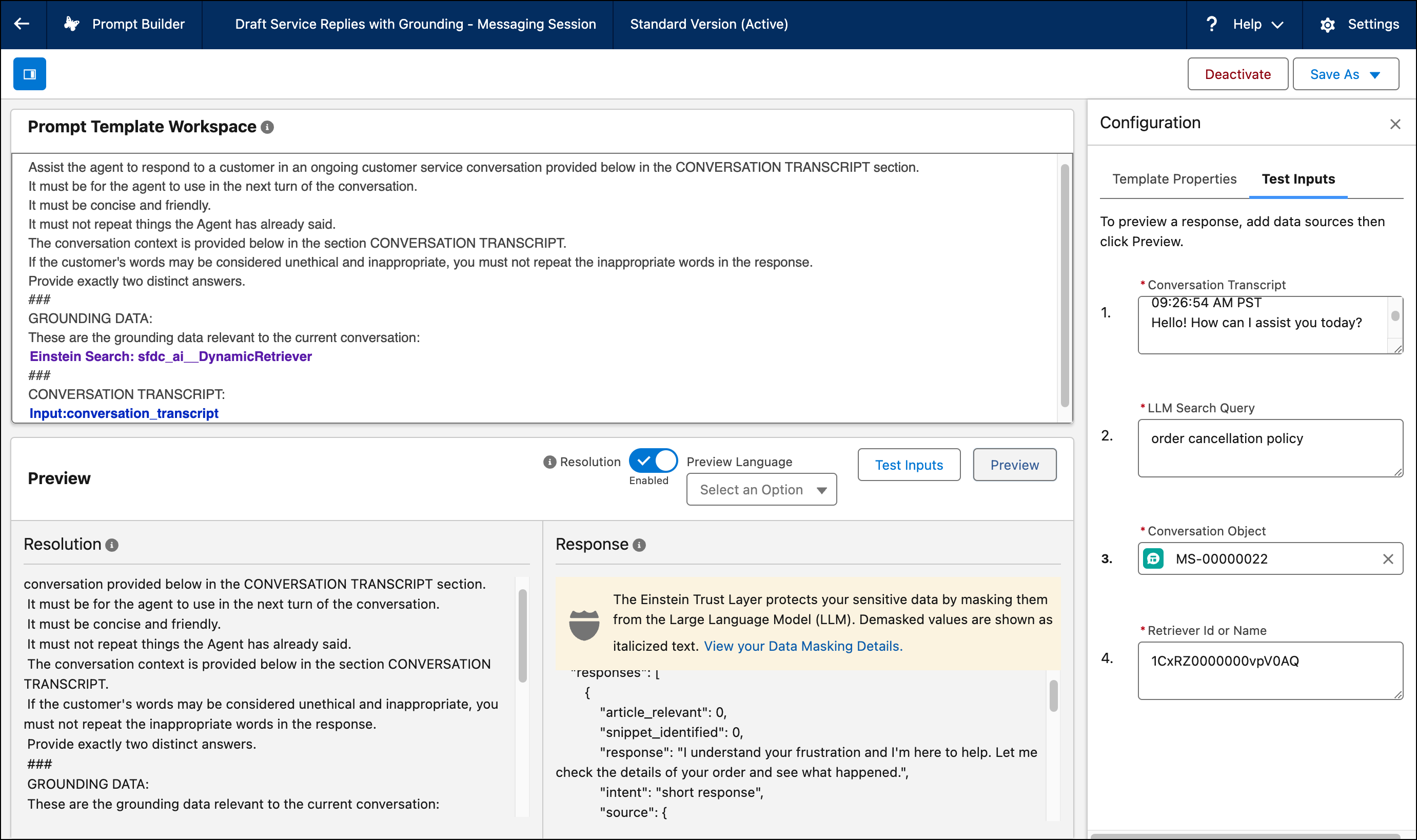
opens in the workspace. For Grounded Service Replies template types, the standard prompt template user instructions also include the task for the LLM, text from the conversation transcripts, and any response limits. In addition it references the Agentforce Data Library assigned to Service Replies for grounding via the dynamic retriever.
-
To test the Draft Service Replies with Grounding prompt templates, you need the
conversation transcript, LLM search query, conversation object, and the retriever ID. From the
Test Inputs tab, enter the conversation transcript and search for the Messaging Session or Live
Chat conversation object. For the LLM search query, you can enter any text or enter the LLM
Search Query returned by the Draft Service Replies from Context prompt template.
 Tip To test a query that is most similar to runtime results, open a Draft Service Replies from Context prompt template. Enter the conversation transcript and conversation object you want to test with the Grounded Service Replies prompt template. Click Preview and, in the response copy the output for search_query. Paste the search_query output into the LLM Search Query test input for the Grounded Service Replies prompt template.The retriever is already created and activated in Einstein Studio. To get the retriever ID or name, go to the retriever setup in Einstein Studio.
 - Click Preview to see how your changes to the prompt template impact the LLM response. See Review, Revise, and Repeat: Ensure That a Prompt Template Is Effective.
-
When you’re satisfied with the outputs, click Activate.
If there are multiple available templates, Service Replies uses the most recently modified active template version when recommending responses to users.
