
You are here:
Manage Shift Scheduling
Help your planners manage employee shifts efficiently. Scheduling tools—get candidates, batch assign, and mass shift update—help them find the right support reps for shifts based on scheduling rules, constraints, and objectives that you define.
Required Editions
| View supported editions. |
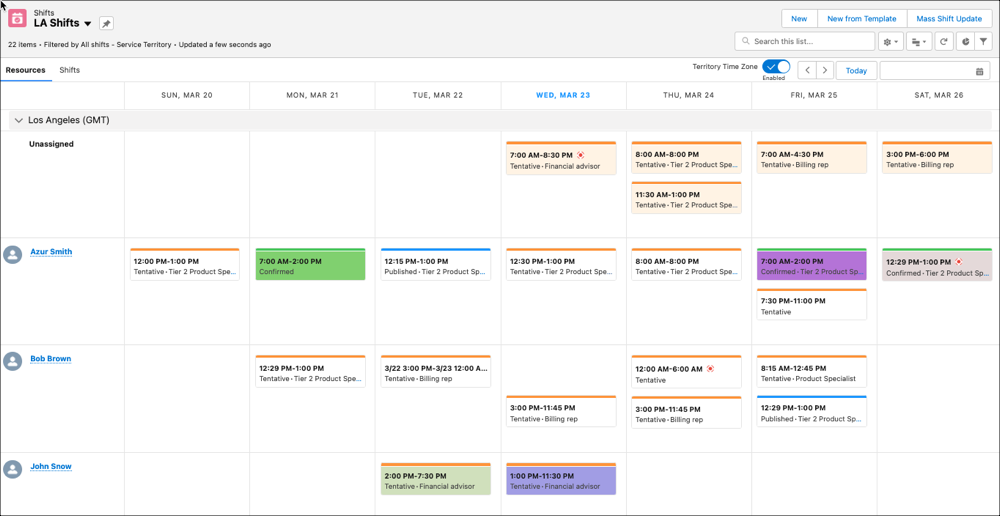
To get started, your planners create shifts for the coverage required in your contact centers. They view upcoming shifts in the Shift Manager scheduler view by job profile or assigned service resource, and match support reps to shifts with the scheduling tools.
To narrow the list of shift candidates, the scheduler first applies scheduling rules. To be considered for a shift, a service resource must pass all the defined rules.
- The Match Territory rule identifies service resources whose operating hours and service territory are aligned with the shift’s time range and service territory.
- A Match Skills rule finds service resources with all skills that are listed on the shift’s job profile.
- An Availability rule finds candidates who are available to work the shift. It eliminates service resources who are assigned to other shifts during the same time or who have a planned absence. It also filters out candidates whose operating hours in their primary or secondary territory don’t cover the shift’s hours.
- (Workforce Engagement only) If you’re using an Omni-Channel queue-based routing workflow, the Match Queue rule identifies suport reps who are members of the right queues. When you set up scheduling in Workforce Engagement, you create job profile-to-queue mappings. The scheduler looks at the shift’s job profile, finds the associated queues, and considers only those support reps who are members of those queues.
From the pool of candidates defined by rules, the scheduler then considers rules that limit how many shifts or hours a resource can work. For example, you can define a Work Limit rule that restricts part-time employees to a maximum of 25 hours per week. A Limit Non-Standard Shifts rule can restrict weekend shifts per month. A Rest Time in Minutes rule makes sure that support reps get some downtime between shift assignments.
You can also define scheduling objectives that reflect your business goals. For example, to distribute assignments evenly among support reps, add Balance Shifts and Balance Non-Standard Shifts objectives. To consider support reps’ preferences for when they want to work, create a Maximized Preferences objective.
Using objectives, the scheduler scores candidates to indicate how well they match the proposed shift. For example, if the rules narrow the candidate pool of 100 support reps to 10 support reps, scheduling scores the remaining 10 candidates using the Balance Shift objective. If support reps 1 and 2 don’t have many shifts assigned during the objective’s time frame, they’re given a higher grade. Support reps 3 through 10 have many shifts during that period, so they’re given a lower grade and less likely to be assigned to the shift.
When you define multiple objectives, grades for each objective are weighted equally. For instance, if you have three objectives, each grade is weighted as 33%. The total of the support rep's three grades is the suport rep’s final score.
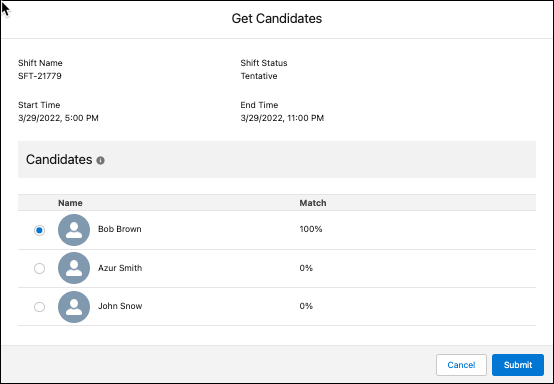
When you hover over a shift and use get candidates, the grade appears as a percentage. Batch assignment and mass shift update assign the candidate that’s the best match based on support rep scores.
- Shift Scheduling Considerations and Limits
Review considerations and limits for the shift scheduling tools. - Preparing for Shift Scheduling
Before your planners can create shifts and assign them, configure Salesforce for shift scheduling. - Create Shifts
Create shifts for particular dates and times when you need coverage and then assign those shifts to support reps. - Shift Segments
Shift segments show team leads and support reps a granular breakdown of activities assigned during a shift. - Save Time with Shift Scheduling Tools
The scheduling tools—get candidates, batch assign, and mass shift update—help planners assign the right support reps where and when they’re needed. - Manage and View Shift Schedules
View upcoming shifts as a planner or a support rep. Planners can switch to the schedule view to see weekly shifts grouped by service territory or job profile in a calendar. - Service Resource Preferences
Show support reps that you care about their well-being, both in and outside of work. Service Resource Preferences allow support reps to specify daily operating hours that they prefer to work. These preferences are considered when a team lead assigns shifts using the scheduling tools. - Time Sheets and Time-Off Requests
Gain oversight into support reps’ time sheets and time-off requests. Approve or deny submissions from an individual support rep’s service resource profile or from the Time Sheets or Resource Absences tabs.
