
You are here:
Manage and View Shift Schedules
View upcoming shifts as a planner or a support rep. Planners can switch to the schedule view to see weekly shifts grouped by service territory or job profile in a calendar.
Required Editions
| View supported editions. |
| User Permissions Needed | |
|---|---|
| To view, create, and update a shift: | Shift Scheduling Planner OR Workforce Engagement Planner OR View, create, and edit on Shifts, Job Profiles, Service Territories, Service Resources, Service Territory Memberships |
| To view a shift assignment: | Shift Scheduling Agent OR Workforce Engagement Agent |

Manage Shift Schedules
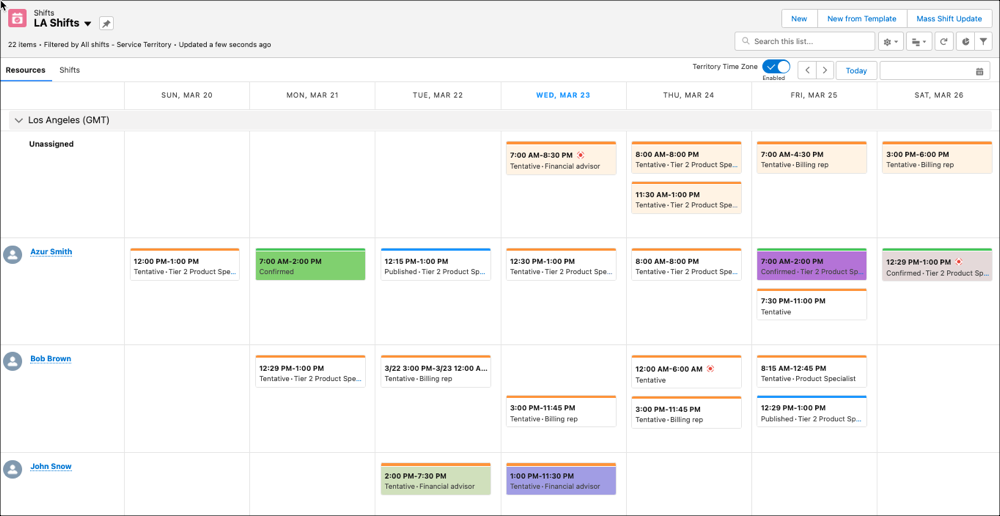
To plan and assign upcoming shifts, switch to the schedule view. Planners can see weekly shifts grouped by service territory or job profile in a calendar.
- From the App Launcher, click Shifts.
-
Navigate to a list view other than the Recently Viewed list view.
Because the All Shifts list view can have a huge number of shifts, we recommend that you create a custom list view. For example, create a list view that filters by service territory and other criteria. Click the dropdown menu next to the list view name, and select the list view that contains the shifts that you want to see.
-
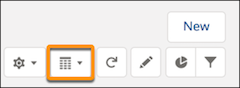
To show shifts in the schedule view, click
 and select
  .
.
- To see a weekly calendar of shifts assigned to each job profile, click the Shifts tab.
- To see a weekly calendar of shifts assigned to each service resource, click the Resources tab.
The schedule view shows your shifts. A red pain icon indicates that the shift is non-standard. You can use colors to identify or highlight shifts. A horizontal color stripe on each shift also indicates shift status. You can't customize the status color-coding. The status colors are:- Tentative—orange
- Published—blue
- Confirmed—green
Keep these considerations in mind when you work with shifts.
- When you use get candidates, batch assignment, or mass shift update, the scheduling logic uses the time zone of the service territory. In the schedule view, to see shift assignments in the time zone of the resource, turn on Territory Time Zone. Turn it off to see the schedule in your time zone.
- On the Shifts tab, you can’t use the quick search box to filter.
- When you create custom list views, you can define logical expressions that filter your
shifts; for example,
1 AND 2where 1 isService Territory equals New Yorkand 2 isJob Profile equals Financial Advisor. The NOT operator isn’t supported when you define filter logic for shifts. If your filter logic uses NOT, we recommend adjusting the filter type instead, for example by using thedoes not containoperator. - You can create a shift from the schedule view by hovering in an empty space and clicking + New Shift.
View Your Shift Schedule
How support reps view shift assignments depends on whether they’re using Shift Scheduling or Workforce Engagement.
In Workforce Engagement, support reps can see their shift assignments in Agent Home. In Shift Scheduling, a support rep can view assigned shifts from their Service Resource record.
- Open Service Resources in the App Launcher.
- Click to open your service resource.
- Click Related.
- Open the Shifts related list.
