
You are here:
Customize the General Branding for Your Chat Window
Select the colors and font used in your chat window to reflect your company’s brand identity.
Required Editions
| View supported editions. |
| User Permissions Needed | |
|---|---|
| To set up Embedded Chat: | Customize Application AND Modify Metadata |

Legacy Chat will be retired on February 14, 2026. To avoid service interruptions to your end users, switch to enhanced Chat (formerly Messaging for In-App and Web). Enhanced Chat offers many of the legacy Chat features that you love plus asynchronous conversations that can be picked back up at any time. Learn about migrating in Help and Trailhead.
Before you start, get the color codes for your company’s brand from the team that maintains the website. You can specify branding colors by entering their Hex code or RGB code, or by selecting a color in the color palette.
To customize the branding of your chat window:
- From Setup, enter Embedded Service in the Quick Find box, then select Embedded Service Deployments.
- Find the deployment that you want to work with, click the down arrow to the right and select View.
- In the Embedded Service configuration page, go to the Branding section and click Edit.
-
Select the colors that you want to show in the chat window.
Enter the color using the Hex code. To enter an RGB code or to select a color from the palette, open the color palette by clicking the down arrow in the color field.
- Select the font that you want to use in the chat window.
- Click Finish.
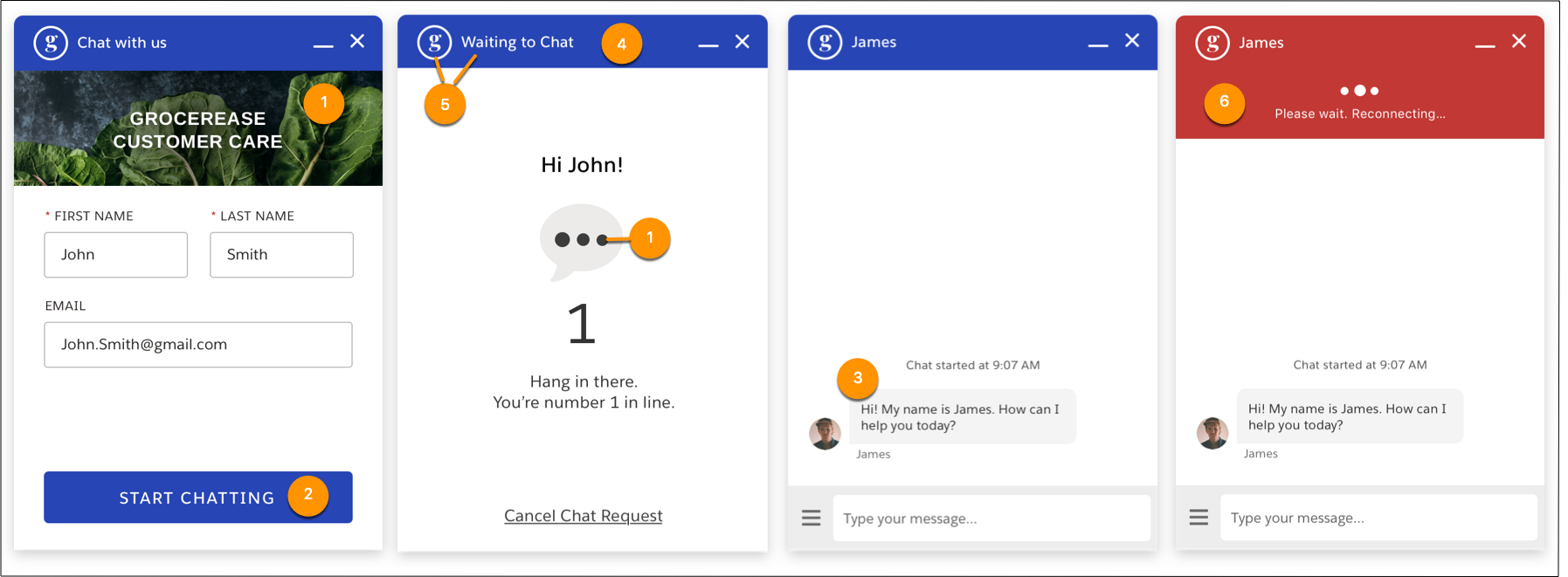
The screenshots show how the branding elements appear in the chat window.
| Brand Element | Description |
|---|---|
| Brand Primary | Sets the color of the:
By default, the color is set to hex #222222 (Night Black). In the screenshots, brand primary elements are indicated by [1]. |
| Brand Secondary | Sets the color of the:
By default, the color is set to #005290 (Nimbostratus Blue). In the screenshots, brand secondary elements are indicated by [2]. |
| Contrast Primary | Sets the color of the:
By default, the color is set to #333333 (dark gray). The background color is white. In the screenshots, contrast primary elements are indicated by [3]. |
| Header | Sets the color of the:
By default, the color is set to hex #222222 (Night Black). In the screenshots, the header element is indicated by [4]. |
| Header Text | Sets the color of the:
By default, the color is set to #222222 (Night Black). In the screenshots, the header text element is indicated by [5]. |
| Header Alternate | Sets the color of the:
By default, the color is set to #cb2b19 (red). In the screenshots, the header alternate is indicated by [6]. |
| Font | Sets the font used in the chat widget. The following fonts are supported in mobile browsers for both iOS and Android: Georgia, Times New Roman, Arial, Courier New The following fonts are supported in mobile browsers for iOS only: Trebuchet MS, Verdana, and Lucida Console  Note If you select a font that isn’t available for a chat visitor’s mobile browser, the
browser’s default font is displayed. |
- Customize Chat Window Branding for a Experience Site
Select the chat window colors and font to reflect your company’s brand identity on an Experience Cloud site.
