
You are here:
Work with Service Assistant
Get to know how your service reps use the Service Assistant component on the Case record page.
Required Editions
| View supported editions. |
Component Overview
When the Service Assistant component is added to the case record page, Service reps use the component to draft service plans and execute the plan steps. Check out this video to learn how service reps use the component to resolve cases. For additional details, review the information that follows. To open the video in full-screen, click here.
The Service Assistant component is available to service reps if they have the Service Planner user permission set. The component is hidden from service reps without the permission set.
Also, in order to use the component, the case must meet your Service Plan Eligibility Criteria. If the case doesn't meet the criteria and the service rep has the permission set, the component shows a message that the case isn’t eligible for a service plan.
Service reps work with the component in three operational states: Summary State (1), Plan State (2), and Redraft Plan State (3).
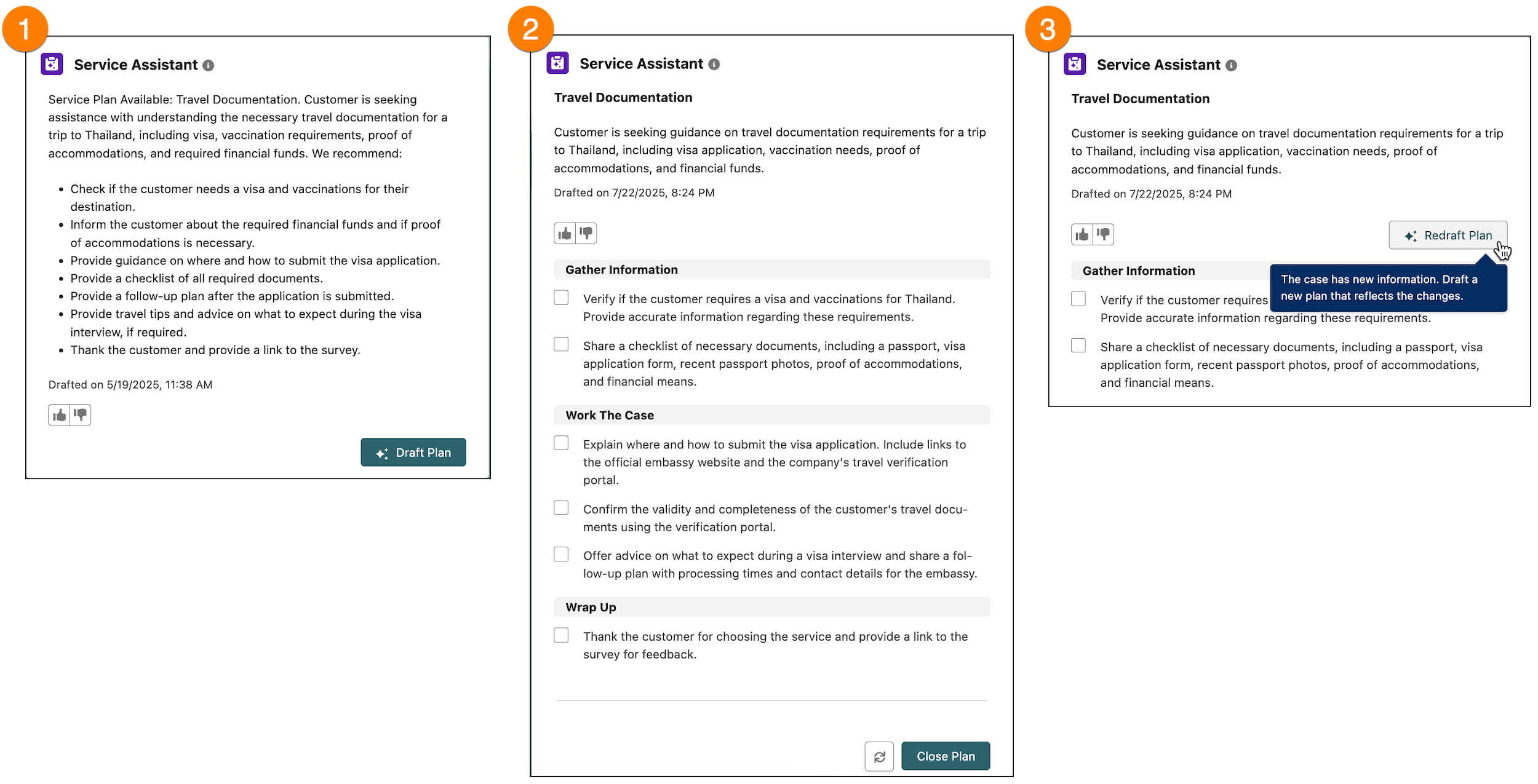
Summary State
In the summary state, service reps receive an overview of the case so they don’t have to read through the case feed. Here’s an example of the summary state and a few details about what occurs in this state.
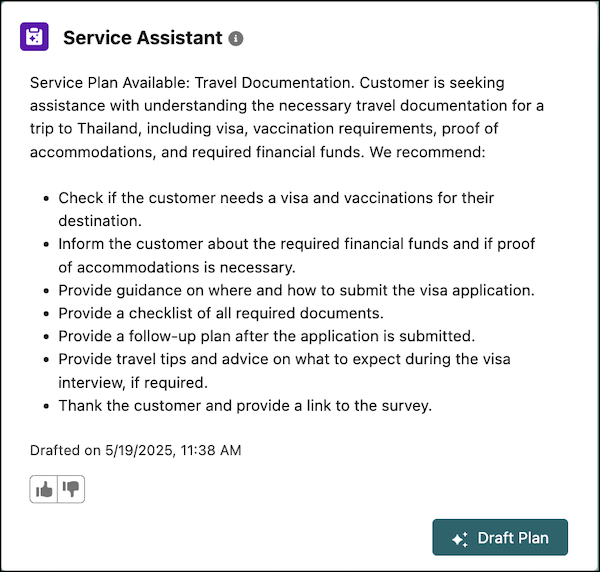
Case Summary
- When the case record page is opened and the case meets the eligibility criteria, the component summarizes the case and provides a high-level overview of what they can do to resolve the case, known as summary steps.
- The component shows the date and time for the creation of the summary and summary steps.
- Service reps can rate the accuracy and helpfulness of the summary by using the Feedback component.
- If a service plan summary isn't provided or you see a message that a summary can't be provided, make any edits to the Subject or Description field. Then, click the Sync button or refresh the Case record page. For example, add extra periods to the description.
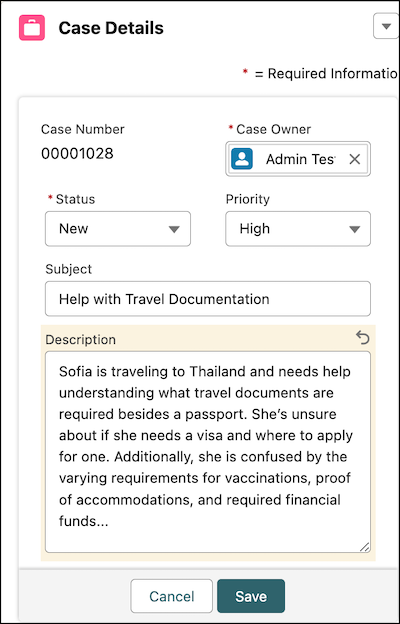
Drafting a Service Plan
- Service reps click Draft Plan to create a service plan.
- The component enters the drafting state where the Draft Plan button is read-only.
- If the Service Assistant agent is deactivated in the summary state, an error message appears, and the Draft Plan button becomes read-only.
Plan State
In the plan state, service reps draft a service plan and execute the steps. Here’s an example of the plan state and a few details about what happens in this state.
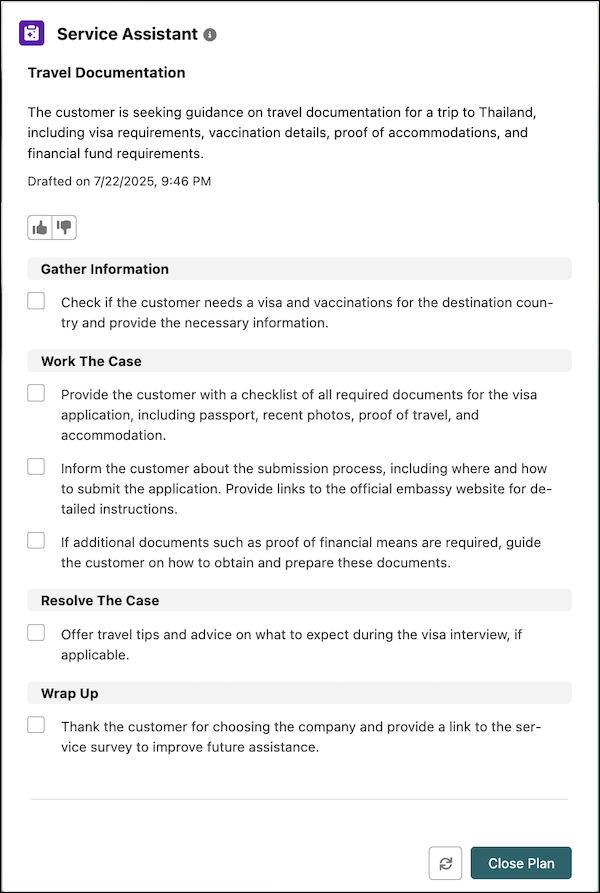
Redraft Plan State
In the redraft state, service reps click the Redraft Plan button to receive a new service plan with the latest case information. Here’s an example of a redraft plan state and a few details about what occurs in this state.
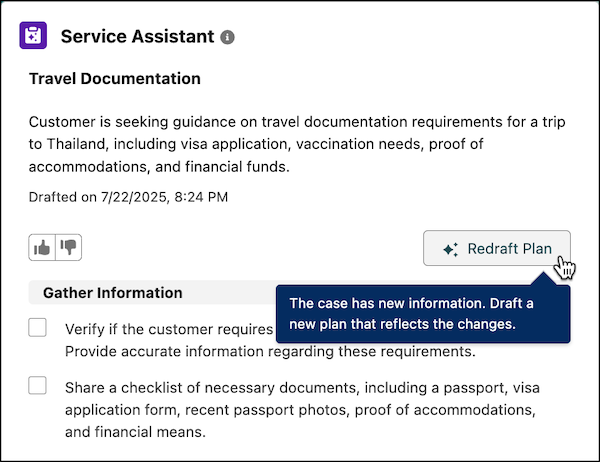
Considerations for Working with Service Assistant
In addition to the general functionality of the component, here are a few considerations to keep in mind.
- Service Assistant can’t generate service plans for cases that have no topic assigned, little to no case information, and cases that are outside the scope of the set Service AI Grounding configuration.
- For steps that are created from Knowledge articles, citations for the source knowledge article aren't included.
- For steps that are created from Knowledge articles, the information is summarized. The exact words from the article aren’t repeated.
- Service Assistant can suggest steps that aren't based on your grounding sources (topics,
knowledge, and Service AI grounding). Suggested steps are indicated in the service plan with
*. Here are examples.
- * Review transactions for fraud.
- * Verify there are sufficient account funds.
- If you’ve enabled the support setting Show Closed Statuses in Case Status Field, the setting operates in a different ways within the component based on these scenarios.
| Scenario | Service Assistant Component Functionality |
|---|---|
| Cases are present before you’ve set up your eligibility criteria, and the case is marked Closed. | The component shows the default message for a closed case in the component. If you attempt to generate a service plan, the component returns an error message, and the Sync and Draft Plan buttons are read-only. |
| New cases match your eligibility criteria, and the case is closed before a case summary is generated. | The component returns an error message, and the Sync and Draft Plan buttons are read-only. |
| A case is closed after a case summary is generated, but a plan isn’t yet generated. | The component remains in the summary state with the Draft Plan button read-only. |
