
You are here:
Set Up the Draft Service Plan Email Prompt Template
Set up the Draft Service Plan Email prompt template to draft email updates for in-progress cases with service plans.
Required Editions
| View supported editions. |
| User Permissions Needed | |
|---|---|
| To create and configure the Draft Service Plan Email prompt template: | Agentforce Default Admin permission set AND Customize Application OR System Admin AND Einstein Service Email Assistant User permission set AND Prompt Template Manager permission set AND Service Planner Builder permission set |
You can setup the Draft Service Plan Email prompt template to have service reps draft Case progress updates that includes information from the service plan.
Setup of this prompt template is optional. The prompt template is available in Prompt Builder and is ready to use as is or you can modify it for your needs. The template contains a data action that automatically adds this information into the draft email:
- A summary of the issue.
- The completed steps.
- The next steps for the case.
- From Setup, in the Quick Find box, enter Prompt Builder, and then select Prompt Builder.
-
Under All Prompt Templates, select Draft Service Plan Email.
You’re redirected to the Prompt Template workspace.
- From the workspace, click Save as a New Template.
- From the Save As a New Template window, name the template Draft Service Plan Email. This is a suggested name. You can modify the name to your preferences.
- Click Save As.
- Optional: From the prompt editor, customize the template to fit your needs. Customization tips are provided below.
- From the workspace, click Activate. If you customized the template, click Save and then click Activate.
- Assign your service reps the Einstein Service Email Assistant User and Prompt Template User permission sets. The Service Planner User (agent user) doesn’t require additional permissions.
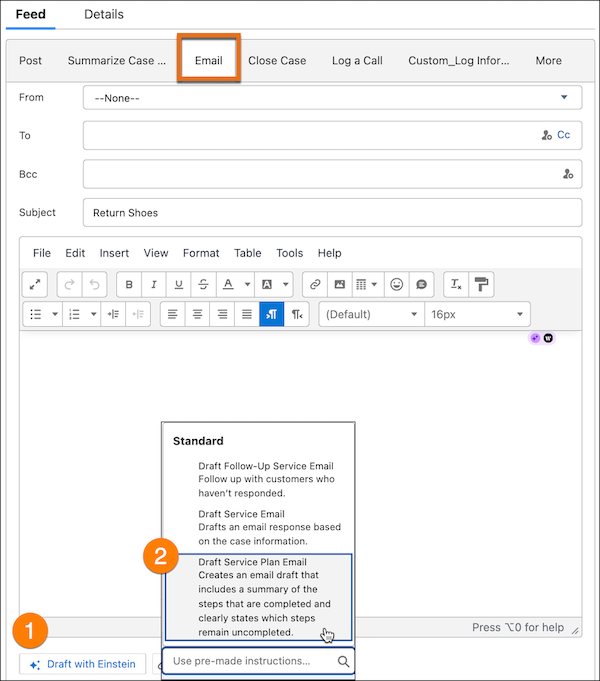
When your setup is complete, the Draft Service Plan Email prompt template is accessible in the Email tab of the Case feed using the Draft with AI feature. In order draft an email with service plan information, at least on step in the plan must be marked as complete.
Tips for Customizing the Prompt Template
Customizing the template is based on your company’s needs. For example, you can edit the template to:
- Request additional information from the customer based on if the service plan
- Send a closing resolution email outlining the issue and resolution steps from the service plan
In addition to the information from the service plan included in the draft email, you can edit the template to include more data from merge fields, flows, and Apex classes. Editing the template allows you to personalize service plan emails with details such as:
- Order and shipping details to keep customers informed
- Contact instructions for postcase support
- Links to help articles or FAQs for self-service options
- Tips for preventing similar issues in the future
- Expected resolution timelines for better transparency
- Suggestions for additional services or products
- A customer satisfaction survey link to gather feedback
