
You are here:
Extend Service Assistant
Learn about the optional features that extend Service Assistant’s capabilities.
Required Editions
| View supported editions. |
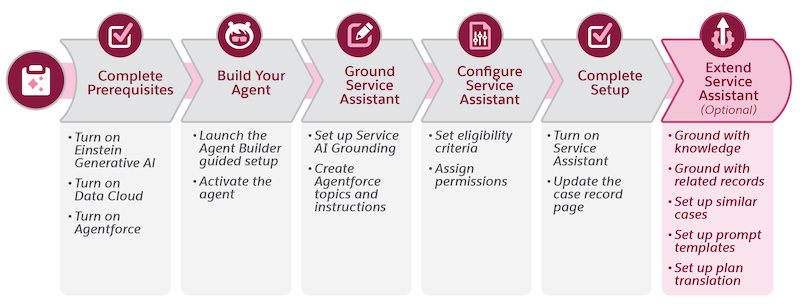
Service Assistnat supports several optional features that extend its capabilites and provide more detailed case reoslution guidance tha topics and instructions alone. Features includes knowledge articles and messaging and voice record groudning, surfacing quick actions in plan steps, automating emails and summaries with prompt templates, showing a list of similar cases, and plan translation.
Each optional feature requires specific permissions that are in addition to the mandatory Service Assistant Permission. All permissions are listed in Permissions and Licensing and each feature setup.
The following sections summarize each feature, its capabilities, and show examples. For full details, review the feature’s reference guide linked in each section.
- Make Service Plans More Accurate with Knowledge Grounding
- Streamline Case Resolution with Messaging and Voice Record Grounding
- Make Service Plans Actionable with Quick Actions
- Provide Additional Context with Similar Cases
- Add Service Plan Data to Case Communications
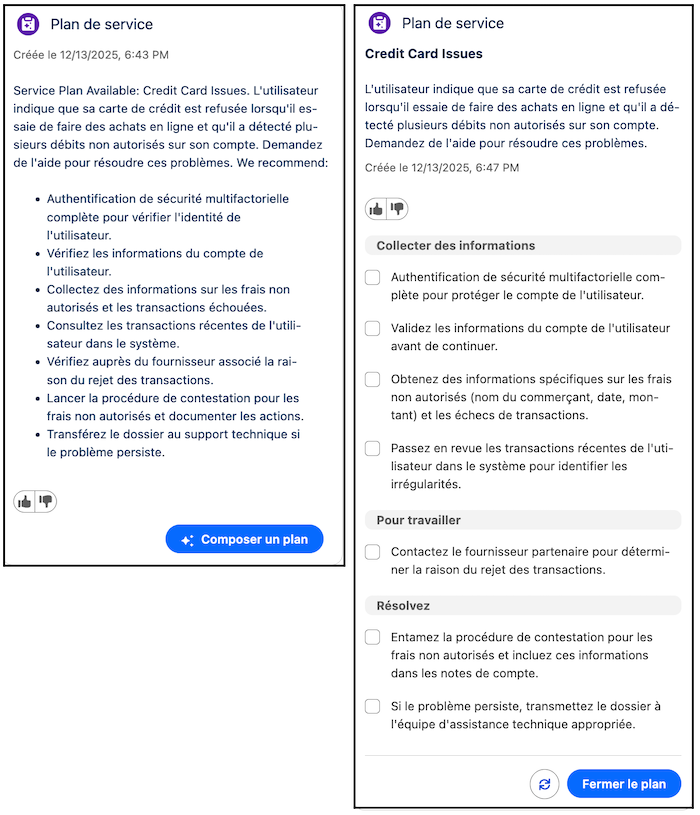
- Work Cases Faster with Translated Service Plans
Make Service Plans More Accurate with Knowledge Grounding
Reference Guide: Grounding with Knowledge | Setup Steps: Set Up Knowledge Grounding and Troubleshoot Knowledge Grounding.
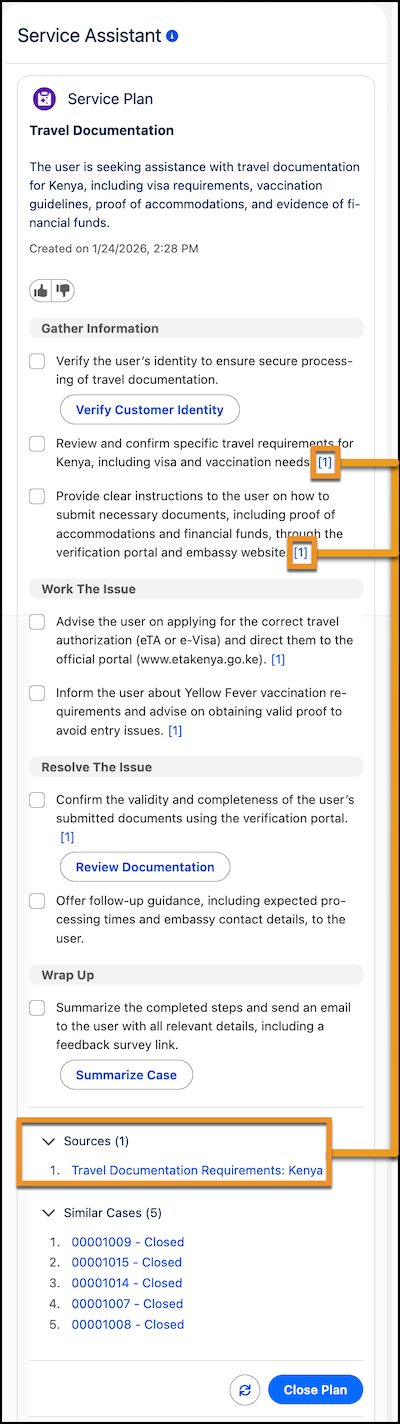
Service Plans can include specific information derived directly from your company’s knowledge article to ensure steps are accurate and aligned with current policies. Steps created from knowledge articles are indicated by a citation number at the end of the step, such as [1]. Steps can be created from multiple knowledge articles and are indicated in the format [1][2]. These citation numbers correspond to the specific article listed in the Sources section at the bottom of the component. The listed article contains a hyperlink for direct access.
Knowledge grounding is achieved through Agentforce Data Libraries, which indexes your knowledge base into chunks. When a plan is drafted, Service Assistant searches for and retrieves the most relevant information to fill any information gaps from your topics and instructions with more specific details, such as troubleshooting steps. Keep in mind that Service Assistant doesn’t have any automatic preference for creating service plans from topics or knowledge. They’re considered equally. However, if your knowledge base contains clear, detailed, and well-organized information, it’s more likely that plan steps are created from your knowledge articles than from topics.
Setting up knowledge grounding is optional. While Agentforce Data Libraries support multiple data types, Service Assistant exclusively supports the knowledge data type. Additionally, custom permissions are required for the ServicePlanner User to incorporate knowledge data into a plan and for service representatives to view knowledge-based steps.
Streamline Case Resolution with Messaging and Voice Record Grounding
Reference Guide: Grounding with Related Records | Setup Steps: Set Up Record Grounding
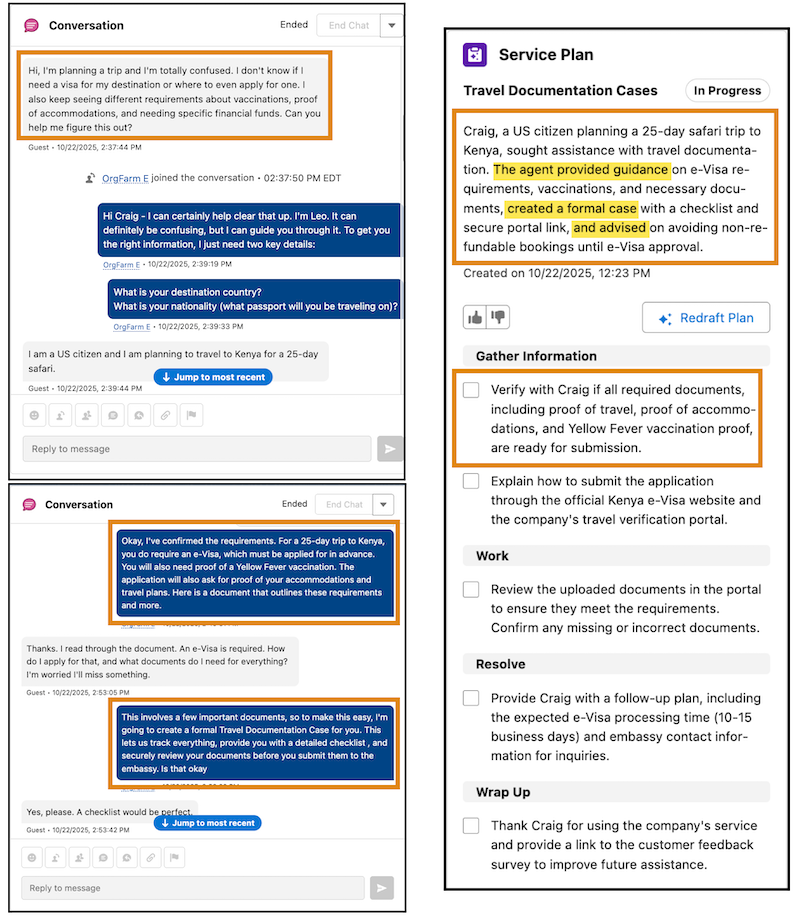
When a Case is created from a Messaging Session or a Voice Call, Service Assistant analyzes the transcriptions of the records to use as a grounding source. As a result, the case summary, summary steps, and drafted service plan include key details from the conversation.
Specifically, the case summary and summary steps state what occurred in the conversation and what resolution steps were completed. In addition, the drafted service plan starts the plan steps from where the conversation left off. The record grounding provides service reps with more context-specific and streamlined resolution guidance in the service plan.
Grounding with messaging and voice records is optional. The ServicePlanner User requires a custom permission set that grants access to messaging and voice records attached to the case. The Service Assistant Admin and service reps don’t require additional permissions. However, service reps must have record-level access to open and view the records attached to the case
Make Service Plans Actionable with Quick Actions
Reference Guide: Grounding with Quick Actions | Setup Steps: Set Up Quick Actions
In Service Assistant, quick actions work together with topics to help create a service plan. Topics create the high-level steps of a service plan. Meanwhile, quick actions show as buttons for service reps to launch work flows and complete tasks directly within a plan step, like sending an email or closing a case. For the specifics on how these resources work together, see Quick Actions in Service Assistant.
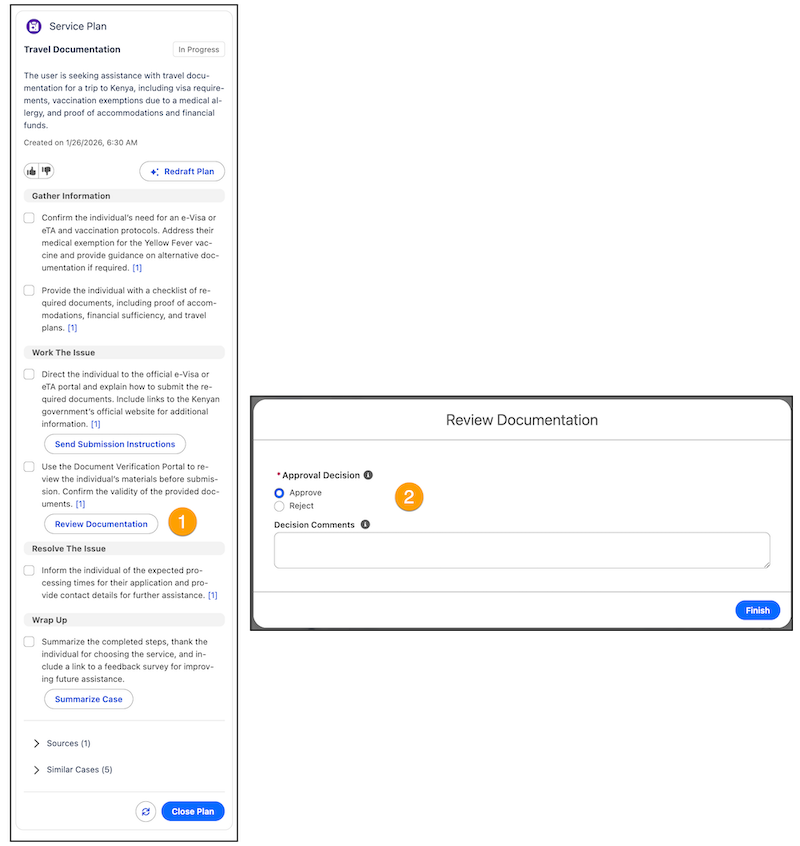
You set up standard and custom quick actions on the Buttons, Links, and Actions Setup page for the Case object. Meanwhile, you configure and manage all your quick actions for Service Assistant via the Quick Actions Manager in the Agentforce Builder. The Quick Actions manager is available only for Service Assistant.
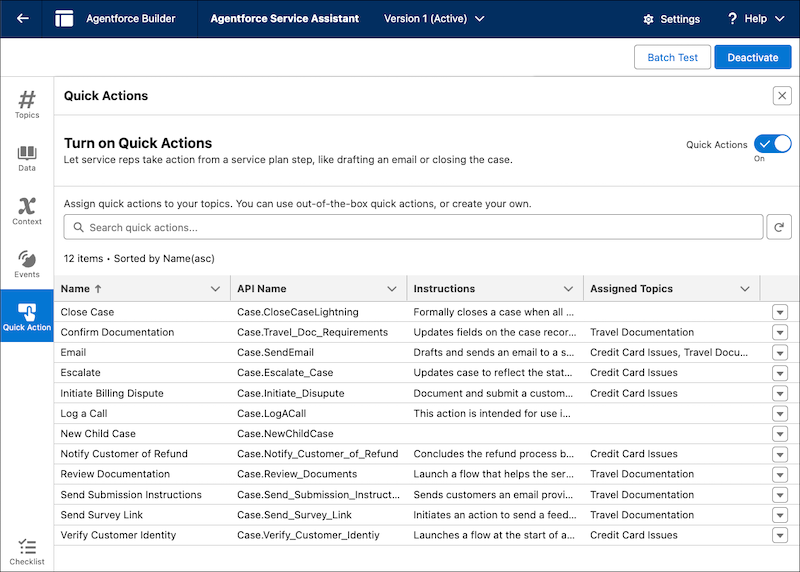
All your Case object quick actions (stand and custom) show in the Quick Actions manager automatically when they're added to your Case Layout. The manager provides you a two-step setup process for integrating your quick actions with Service Assistant. You select what quick actions you want available in Service Assistant and then add them to your topics. Then you provide an instruction for each quick action.
Quick action instructions are clear and direct statements that define what the action does and when it’s used for a particular scenario, case, or business process. These instructions provide Service Assistant the information it needs to determine when quick actions are most relevant to show in the steps of a service plan. You can assign one or more quick actions to topics, and one or more quick actions can surface in a plan step. See Guidelines for Creating Quick Actions.
To get you started, we provide three quick action instructions for these standard Case object quick actions. You can use these instructions as they are or modify them to fit your specific needs. However, you must manually add these instructions to each quick action and they must be added to your case page layout.
- Send Email
- Drafts and sends an email to a specified recipient directly from a service plan step. The email can be used for customer communications, including, but not limited to, providing status updates, conveying resolution details, and requesting or supplying additional information during case management or follow-up.
- Summarize Case
- Creates a case summary that incorporates Service Plan information, such as completed steps and the final outcome. Intended for use when the case is nearing resolution, the case is resolved, or the customer or service rep requests a summary. Service reps initiate the quick action directly from a Service Plan step for an in-workflow experience.
- Close Case
- Closes the case when all required steps to resolve issues are completed and no further action is needed. When executed, the support process is formally concluded and no additional steps can be performed.
Provide Additional Context with Similar Cases
Reference Guide and Setup: Set Up Similar Cases
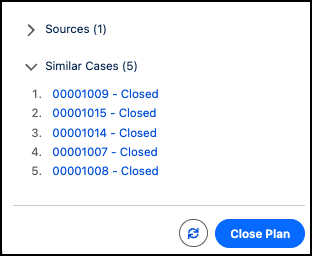
Service reps receive additional guidance when working a service plan with a list similar cases that’s displayed at the bottom of the component. This list serves only as a reference tool to provide extra context and support. The listed cases aren’t used as grounding sources for creating the service plan.
Configuring this feature requires several setup steps in Data 360. You must create a search index and data retriever to ingest and index your historical case data. We walk you through a general configuration that utilizes the subject and description fields to ensure Service Sssistant retrieves cases that are relevant to the active case the service rep is working. You can adjust our sample configuration to include custom case fields and limit the search to a particular date range. You can also use an existing retriever if it has you indexed case data.
To help ease your setup, each setup step has a video to demonstrate and guide you through the setup steps. The video’s don’t contain audio. Find the full video playlist here: Similar Cases Setup Videos. Hover over the top-left corner of the video to see the video library.
Add Service Plan Data to Case Communications
Reference Guide and Setup: Add Plan Data to Case Communications
Instead of manually writing emails and case summaries, Service Assistant supports two prompt templates that draft case communications that contain key details from both the Case and service plan.
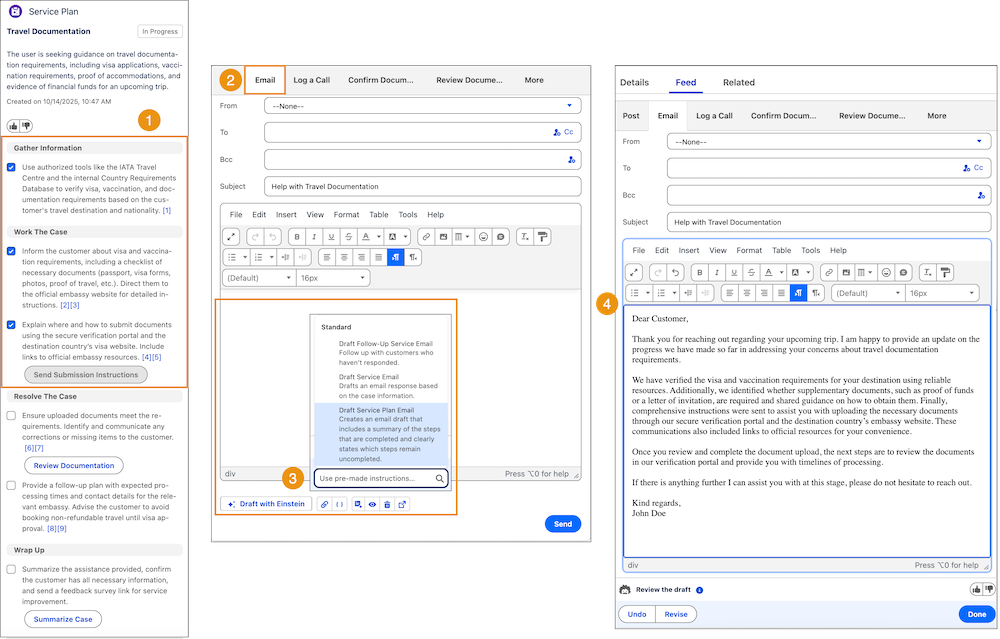
Draft Service Plan Email prompt template
To keep customers informed about the status of an active Case with a service plan, service reps can use the Draft Service Plan Email prompt template. The template drafts an email to provide the latest updates for an in-progress Case with key details from service plan, including the original issue, the completed service plan steps, and the next service plan steps to be taken for the Case. The template is accessible from either the Summarize Case quick actions or the Post tab of the Case feed using the Draft with Einstein feature.
The prompt template requires additional permissions for the Service Assistant admin and Service and service rep.
Summarize Case prompt template
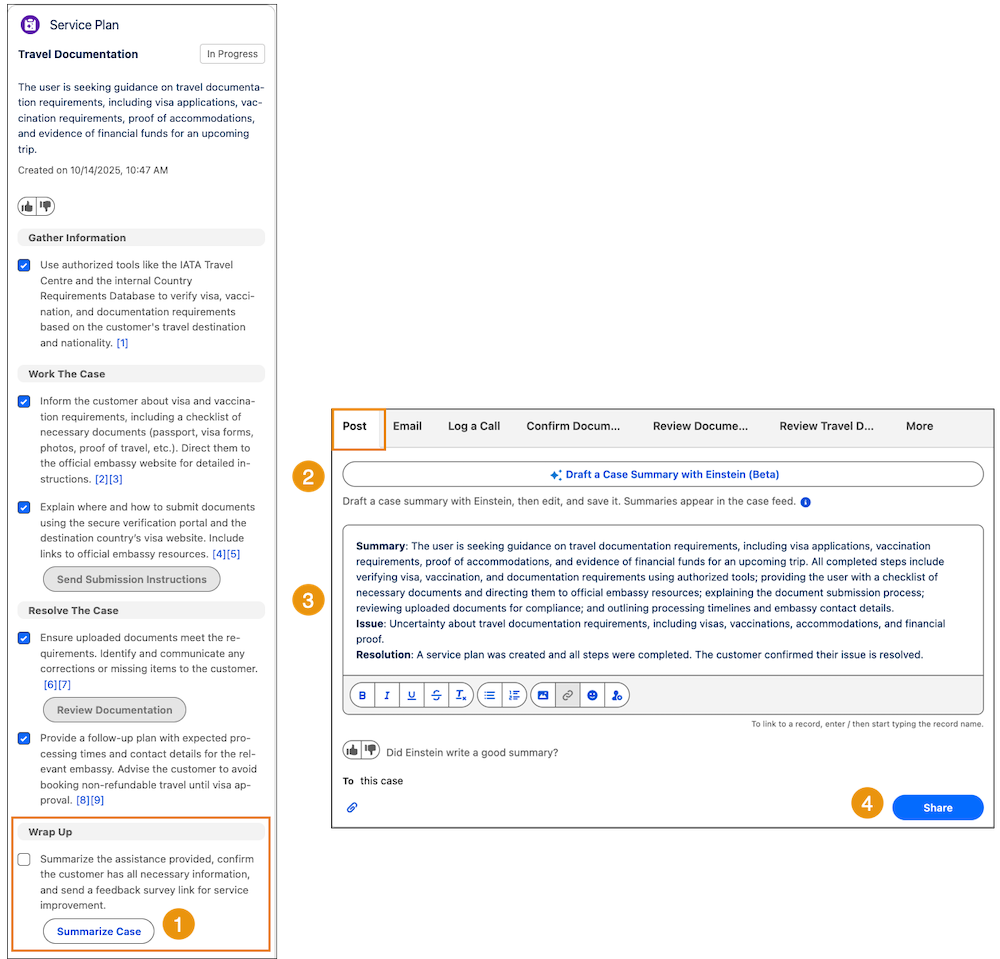
To automatically generate a complete case summary with service plan information, you can setup the Summarize Case prompt template. The template summarizes details from the service plan, including the initial problem, steps taken, and the final resolution.
To use this template, you must setup and enable Einstein Work Summaries for Case (beta). When setup, service reps can post the Case summary to the Case comments or Case feed. The case summary only includes the case resolution when the case is formally closed. If a summary is drafted while the case is open, the draft summary contains only the original issue and steps marked as complete.
The prompt template requires additional permissions for the Service Assistant admin, Service Planner User and service rep.
Work Cases Faster with Translated Service Plans
Reference Guide: Service Plan Translation | Setup Steps: Set Up Service Plan Translation
To provide service reps the ability to work with service plans in their preferred language, you can optionally turn on Real-Time Translations. When turned on, Service Assistant translates all text in the component from your company's preferred language into the service rep's preferred language in real-time. This means that all text is automatically translated when service reps:
- Open a new case and a case summary is drafted.
- Draft or redraft a service plan.
- Open a case that has a plan with either case summary or drafted service plan.
Service Assistant supports the same languages as real-time translations. See Real-Time Translations. This feature is only supported with the Agentforce for Service or Agentforce 1 licenses and service reps require the Service Plan Translation permission set.
- Set Up Service Plan Translation (Optional)
Turn on Real-Time Translations to translate service plans into service reps’ preferred language. - Set Up Quick Actions (Optional)
Integrate your quick actions with Service Assistant using the Quick Actions manager in the Agentforce Builder. - Set Up Related Record Grounding (Optional)
Ground service plans on messaging sessions and voice call records that are associated with the case. - Set Up Similar Cases (Optional)
Show a list of similar cases in a service plan that service reps can review for context while working on a case. - Set Up Similar Cases for Data Cloud One (Optional)
Show a list of similar Cases in Service Assistant when using a Data 360 companion org. - Add Service Plan Data to Case Emails and Summaries (Optional)
Use custom and standard prompt templates to include service plan information in Case emails, posts to the Case feed and comments, and Case summaries.
