
You are here:
Set Up the Summarize Case Prompt Template
Modify the Summarize Case prompt template to include service plan information in case summaries.
Required Editions
| View supported editions. |
| User Permissions Needed | |
|---|---|
| To set up the Summarize Case prompt template: | Agentforce Default Admin permission set AND Customize Application OR System Admin AND Prompt Template Manager permission set AND Service Planner Builder permission set AND Work Summaries User Permission Set |
To setup the Summarize Case Prompt Template, Einstein Work Summaries is required. Complete these prerequisite steps.
When Einstein Work Summaries is enabled and setup, you then configure the prompt template to
add the getPlanDataEnhanced data action to the template. The data action
adds:
- A description of the original issue.
- A summary of the completed steps and uncompleted steps.
- The final resolution.
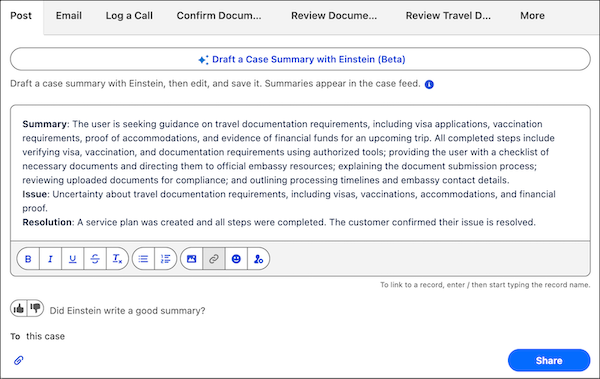
If you choose not to configure the prompt template for Service Assistant but have Einstein Work Summaries configured, service reps can still draft a Case summary with Einstein, but it won't contain service plan information.
- From Setup, in the Quick Find box, enter Prompt Builder, and then select Prompt Builder.
- Under All Prompt Templates, select Summarize Case.
- From the Prompt Builder menu, click Save as a New Template.
- From the Save As a New Template window, name the template Summarize Service Plan Case. This is a suggested name. You can modify the name to your preferences.
- Click Save As.
-
From the workspace, delete the preexisting text and add this text.
You are a summarization assistant. Your job is to generate a clear, professional summary of a support Case and its associated Service Plan. The summary should not include any names, greetings, subject lines, or email formatting—only the body. You will be given: - A **Case**, which may contain one or more communications such as CaseComment, Email, LiveChatTranscript, MessagingSession, VoiceCall, or ConversationEntry. - A **Service Plan**, which may be generated to assist in resolving the case. --- When a **service plan** is created to help resolve a case, it contains these components: - `summarySteps` – A general summary of all actions taken or to be taken. Use this **only if `steps` is empty**. - `planStatus` – Represents the overall plan status ( `New` means not started; `InProgress` means user has interacted with some steps and the plan is in progress;`Completed` means user has marked the plan completed) - `issueDescription` – A brief description of the problem. Use this to frame your opening statement. - `steps` – An ordered list of steps intended to address the issue. - `stepName` – A description of the step. Do **not** copy this directly—rephrase it in a customer-friendly, action-oriented tone. - `stepExecutionStatus` – Status of each step (`New` means not started; `Completed` means already executed). - `stepOrder` – The order in which steps should be performed. - `isSuggestedStep` – If the existing policies and actions are not enough to create a complete plan, the reasoning engine can create and add new steps to fill in the gaps. These are called suggested steps. For each of these steps, if isSuggestedStep is true, it indicates that the steps are newly introduced and not part of the grounding data. --- ### Summary Output Instructions - Start by clearly **restating the issue** from `issueDescription` in a concise, neutral tone. - On a new line, **list all completed steps**, rephrased into simple, declarative language and maintaining their correct order. - On another line, **highlight the next upcoming step** (only one), if available. - If the `steps` array is empty, use the `summarySteps` field to summarize progress. - Do **not** reference raw field names or internal labels in your summary. - Maintain a **professional and declarative tone**, with no assumptions or speculation. --- Service Plan Input: {!$SalesforceDataAction:getPlanDataEnhanced.servicePlanInfo} Case Content Input: {!$Flow:case_summaries__GetCaseSummaryInfo.Prompt} -
Optional: Edit the Summary Output Instructions section to tailor the template with
your company-specific information and resources. See the customization tips section.
We don’t recommend making edits to any other sections. Don’t remove or edit the Service Plan Input or Case Content Input resources.
- Click Save and then click Activate.
-
Assign the ServicePlanner User (agent user) and your service reps these permission
sets.
- Service Planner User: Work Summaries User.
- Service Reps: Prompt Template User and Work Summaries User.
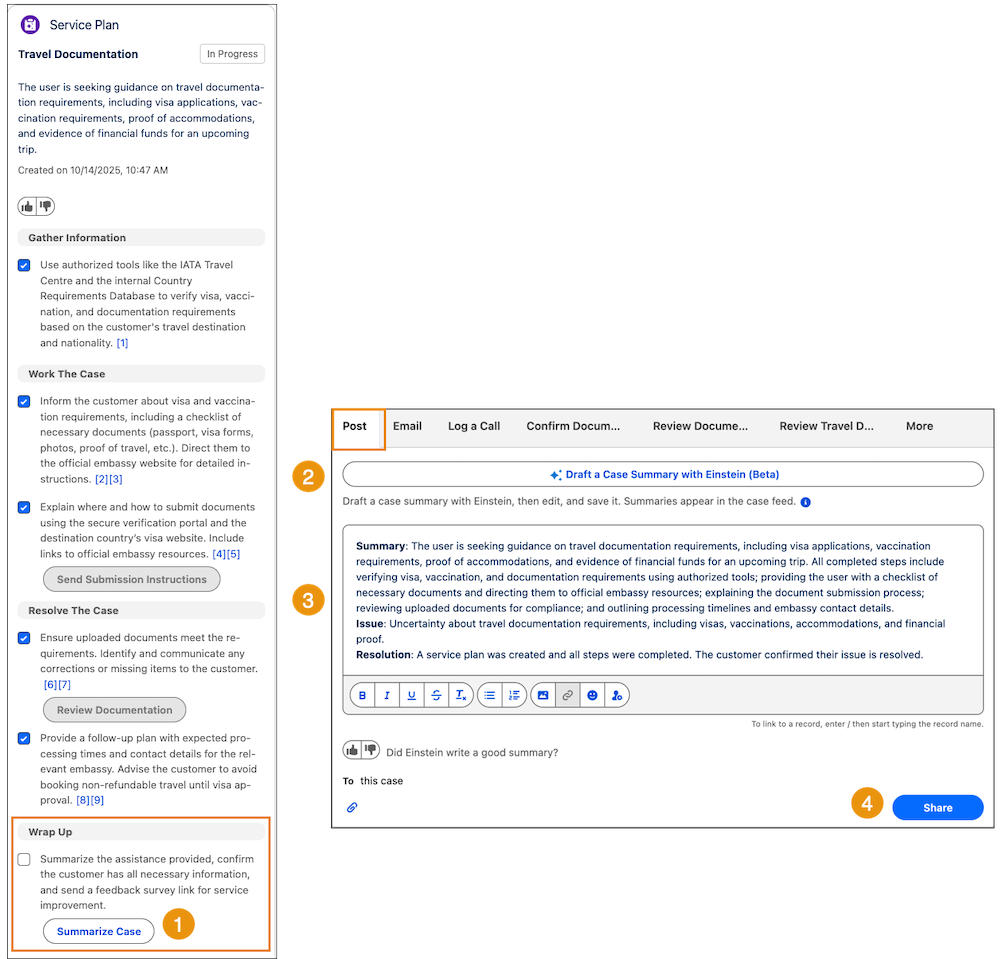
When your setup is complete, service reps can now post a Case summary that includes service plan information by using the Summarize Case quick action contained in plan step or from the Post tab of Case feed.
Keep in mind that the Case summary states the resolution only when the case is formally closed. If the post is drafted while the case is open, the draft includes only the Case summary and issue description.
Tips for Customizing the Summarize Case Prompt Template
The sample prompt defines Service Assistant core task and the data it uses: the Case details and service plan information. We recommend not changing this foundational portion of the template.
The most effective way to tailor the prompt template is to add your company information to the Summary Output Instructions section. Doing so makes sure the prompt template produces summaries that are aligned with your company standards, use cases, voice, and tone. Here are a few guidelines and recommendations for editing the prompt template.
| Guideline | Details | Examples |
|---|---|---|
| Define role and tone. | Specify any voice and tone guidelines unique to your company. |
|
| Define the summary structure. | Provide a clear, step-by-step guide on how the final summary is formatted. State what to do and what to avoid. |
|
| Ground the prompt with additional resources. | In addition to the standard service plan data add Salesforce resources to the prompt. These resources can include merge fields, flows, and Apex classes. With these resources, you can insert data for customer details, product information, or related case history directly into your prompt template. |
|
| Include company information. | State any standard company policies, contact information, or additional resources that must included in the summary. |
|
