You are here:
Troubleshoot Knowledge in Service Assistant
Check your data library configuration and complete troubleshooting steps for grounding Service Assistant in knowledge.
Required Editions
| View supported editions. |
When you don’t see any knowledge articles cited in your service plan, the cited articles aren’t relevant, or you see the listed general error messages, take the general knowledge troubleshooting steps.
If the general troubleshooting steps don’t resolve your issue, or you see the targeted error messages, try the more targeted troubleshooting tests. The targeted error messages indicate that there’s a technical error with your retriever. We guide you through performing a general check of your retriever and rebuilding your search index.

Knowledge Grounding Error Messages
General Error Messages
- "Something went wrong while creating a plan. Ask your Salesforce Admin to review the data library configuration."
- "We couldn't show any sources. Ask your Salesforce admin for help."
- "I couldn't find any sources to cite. Ask your Salesforce admin to check the data library configuration."
Targeted Error Messages
- "I couldn't find any sources to cite. Try redrafting the service plan. If the issue continues, ask your Salesforce admin to contact Salesforce Customer Support for help with the data library retriever."
- "I couldn't find any sources to cite. Ask your Salesforce admin to contact Salesforce Customer Support for help with the data library retriever."
General Knowledge Troubleshooting
Check Permissions and Data Access
- Confirm that your agent is activated.
- Confirm all users have the correct custom permissions for knowledge grounding. See Knowledge Grounding Best Practices and Permissions. Specifically, check that the ServicePlanner User (agent user) has the Data Cloud user permission set and that the user has access to any customer record types, fields, and data categories.
- Confirm that the admin, service reps, and the ServicePlanner User have access to the default data space on their permission sets. Generally, only the Service Assistant admin needs access to the default data space with the Data Cloud Architect permission set. However, providing service reps access to the default data space is recommended when your knowledge articles aren't included in your drafted plans or you experience any errors drafting service plans with knowledge grounding. You can grant default data space access through either the knowledge custom permission sets or the standard Service Assistant permission sets. See Default Data Space Access.
Check Your Data Library Setup
- Make sure you have Show Sources enabled in your data library configuration. Keep in mind that the Sources section show in a service plan based on whether Show Sources is enabled in your data library when the service plan is generated, not when you view it. If Show Sources isn't enabled during plan generation, the Sources section doesn't appear regardless if you later enable Show Sources. If you have existing service plans before Show Source is enabled, the Source sections won’t show.
- Make sure your articles are published and publicly available. Knowledge articles that are
publicly available have
IsVisibleInPkbset toTrue. - Double-check your data category settings and access. Ensure that your data categories are visible and any data categories set for your knowledge articles match the data category filtering set in the Knowledge tab of your data library.
- Review your articles to ensure the structure and format match the identifying and content
fields you've set in your data library. Identifying fields are used to search your knowledge
base to find relevant articles that match the case details. Content fields are used to extract
key information from the knowledge articles to create plan steps.
- Identifying fields only support TEXT (String) and TEXT AREA field types.
- Identifying fields are limited to 255 characters, which keeps content within the 512 token limit and results in faster data library build times. TEXT AREA fields cause the library to take longer to build.
- For identifying fields, select fields that provide a concise summary of the article. You must select two fields. We recommend one field as Title and the other as either Summary or Question.
- Avoid setting Rich Text Area fields as identifying fields. The HTML markup isn't stripped and it can reduce the quality of results.
- For content fields, select the fields that have the most content, like Answer and Detail.
- If you use custom knowledge fields in your configuration, confirm that the ServicePlanner User has access to those fields.
Perform a Review of Your Knowledge Articles
The inclusion of knowledge articles in service plans depends on how your articles are written and structured. Always review your knowledge articles before creating a data library to make sure that they:
- Have clear and specific titles and summaries.
- Are well-organized, specific, detailed, and easily parsed according to the guidelines provided in Prepare Source Content.
- Are up-to-date, including that any assigned data categories are correct.
- Don't contain information that conflicts with the topics you create for Service Assistant.
- Don't include duplicate or conflicting information.
- Include a summary that briefly describes each article and its scope. A clear summary improves search results.
While a comprehensive review isn't always feasible for companies with large knowledge bases, we recommend that you evaluate the Titles and Summaries of the articles you expect to show in service plans. While updating these fields can also be difficult at scale, they’re important for the search and retrieval of relevant knowledge articles.
Review the Case Content
- Review the case subject, description, and fields set in your Service AI Grounding configuration to confirm there's enough information in each field and that the information is relevant to the knowledge articles you expect to show. Make sure that the information doesn't conflict with the knowledge articles you expect to show.
- Review the case comments, case emails, and case feed if you've selected those as grounding sources. Make sure there is relevant information and the information doesn't conflict with the knowledge articles you expect to show.
Targeted Knowledge Troubleshooting
After the general setup check, run troubleshooting tests to investigate which articles Service Assistant references to create plan steps. If you find that the right articles aren’t referenced in a plan as indicated in the Sources section of the component, first confirm your retriever is active and then rebuild the search index. After, you can then use the Query Editor to investigate which articles are referenced by Service Assistant and their relevancy scores.
Check Your Retriever and Rebuild Your Search Index
When you create an Agentforce Data Library, a search index is created to break down your Knowledge base into chunks of information. A data retriever is also created to search through the chunks and add your knowledge content as steps in a service plan. This test requires you to confirm that your retriever is active and rebuild your search index to sync your data library with the latest information in your knowledge base. We recommend rebuilding your search index when you add, modify, or remove knowledge articles.
- From the App Launcher, enter and select Einstein Studio.
- Select the name of the retriever for your knowledge data library. The retriever name is the same name as your data library name.
- From the retriever detail page, confirm that your retriever is active. If it’s not active, contact Salesforce customer support.
- From the App Launcher, enter and select Data Cloud.
- From the Data Cloud App, go to the Search Index page and then select the name of your search index for your knowledge data library. The name of your search index is the same as your data library.
- From the search index detail page, rebuild the index. The rebuild time is based on the amount of articles in your data library.
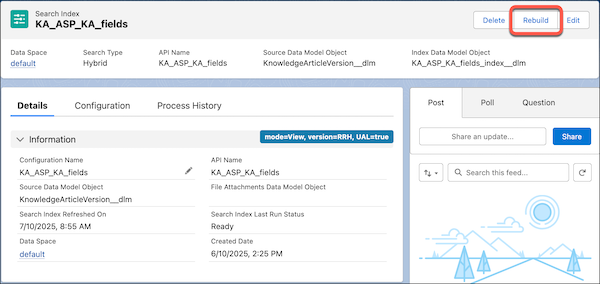
After the rebuild is complete, refresh your Case record page and then draft and evaluate several service plans by making any edits to the Subject or Description fields. Confirm that the plan steps reference information from your knowledge articles and whether the information is relevant based on the Case details.
Check Knowledge Retrieval
This test requires using the Data Cloud Query Editor to review what information from your articles is pulled into a service plan based on the content fields set in your data library.
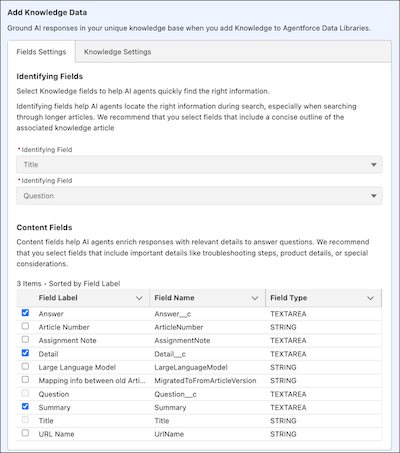
For example, here’s a data library with Answer, Detail, and Summary content fields set. In a service plan, it's possible that you sometimes see that the steps aren’t relevant based on the case details or the articles cited as sources in the plan aren’t relevant. To check what information is chosen, use the Data Cloud Query Editor to examine what parts of your knowledge content Service Assistant is sourcing and pulling into the service plan.
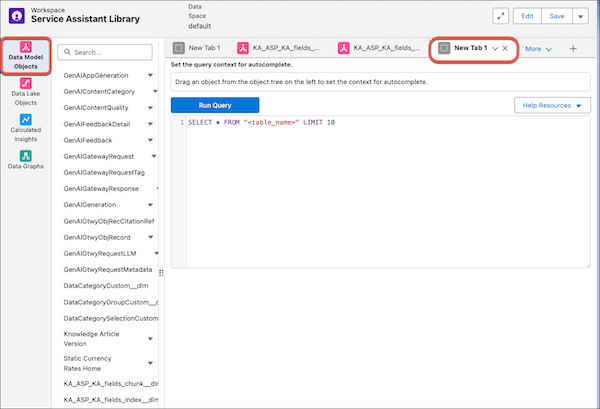
- From the Data Cloud app, create a workspace in the Query Editor.
-
Go to the Data Model object Tab and then click + to open a new tab.
-
In the query editor, enter this query.
SELECT v.Hybrid_score__c AS Score, c.Chunk__c AS Chunk, c.SourceRecordId__c AS SourceRecordId, c.DataSource__c AS DataSource, c.DataSourceObject__c AS DataSourceObject FROM hybrid_search( TABLE(KA_My_ADL_1754515206370_index__dlm), 'TV', 'KnowledgePublicationStatus__c = ''Online'' AND DataSource__c IN ( ''ssot__URL__c'', ''Detail_c__c'', ''Answer_c__c'', ''Question_c__c'' )', 30 ) v INNER JOIN KA_My_ADL_1754515206370_chunk__dlm c ON c.RecordId__c = v.RecordId__c INNER JOIN ssot__KnowledgeArticleVersion__dlm kav ON c.SourceRecordId__c = kav.ssot__Id__c ORDER BY Score DESC LIMIT 10; -
Edit the query with these modifications.
-
Replace KA_My_ADL_1754515206370_index__dlmandKA_My_ADL_1754515206370_chunk__dlmwith the name of your index and chunk DMOS or your data library. Find these names in the DMO lists on left hand-panel. - Replace ‘TV’ with a search team for your articles.
-
Replace
DataSource__c
         (''ssot__URL__c'',''Detail_c__c'',''Answer_c__c'',''Question_c__c'')
with the identifying and content fields you set in your data library. Data 360 adds an extra__cto custom fields. Make sure your custom fields have an extra__cat the end of the name.
Here’s an example query with the required edits highlighted.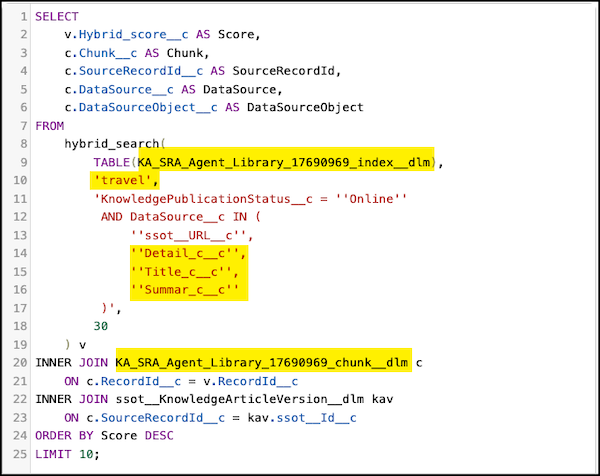
-
- Run the query and review your results.
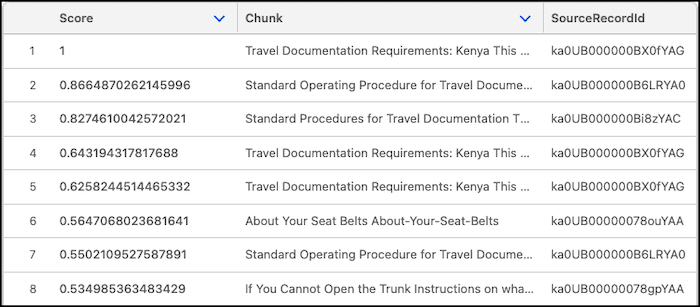
Here are example results. The chunks of information referenced in the search index by Service Assistant are from the Detail field. The Answer and Summary fields aren’t referenced. In this case, review the articles included in your library to verify that they have these fields completed and that the information is clear and specific.