
You are here:
Service Plan Translation
Understand how and when translation for service plans occurs.
Required Editions
| View supported editions. |
Service Assistant translates service plans into two different experiences: your company's preferred language and the service rep's preferred language. Each of these translation experiences comes with specific support requirements, language compatibility, and considerations.
Drafted Plan Language
By default, all service plans are always drafted in your company's default language, known as the drafted plan language. This is enabled automatically and requires no manual setup. Service reps only need the Service Planner User permission set.
Supported Languages
Although Salesforce offers a wide range of options for your company's default language, Service Assistant is limited to the specific subset of languages supported by Prompt Builder. See Supported Languages in Prompt Builder. If your company's preferred language isn’t supported by Prompt Builder, service plans are always shown in English.
Considerations
Service plans contain two different content elements: User interface text (buttons and headers) and service plan content (case summary, plan section headings, and plan steps). Each content type is translated separately.
- The UI text is always shown in each service rep's preferred language according to Service UI Supported Languages.
- The service plan content is always shown in your company's default language.
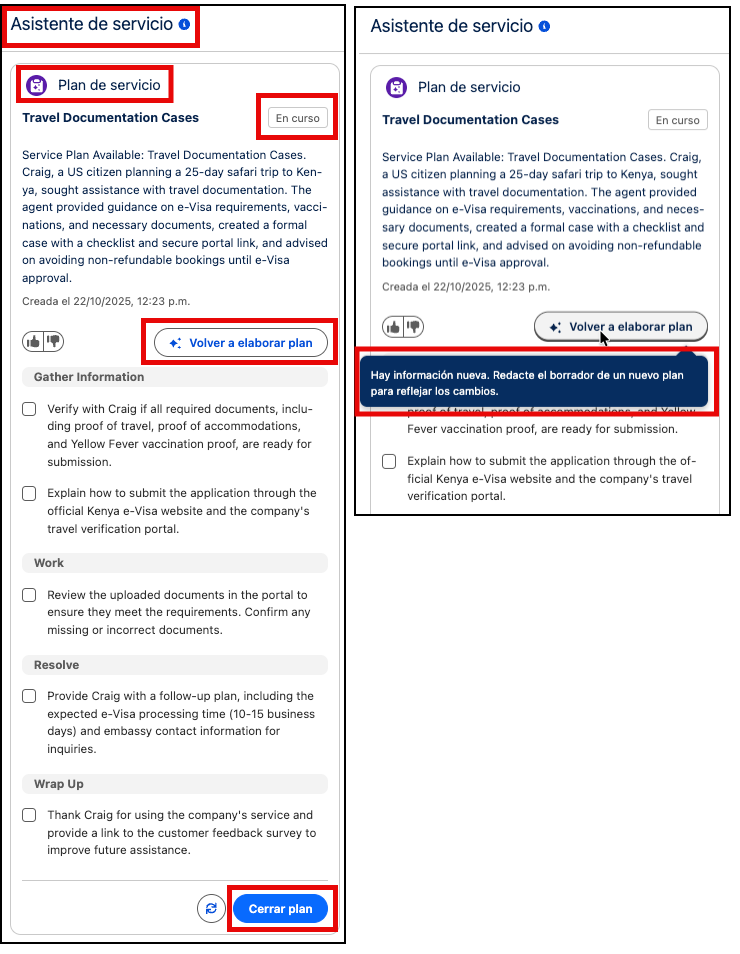
The difference in translations means that the component UI text is shown in the service rep's preferred language and the service plan content is shown in the company's preferred language. The following example shows a plan where the UI text is in Spanish, but the plan content is in English. Further details are provided in the Translation Scenarios section.
To avoid a mixed language experience, we recommend that you either:
- Use Real-Time Translations to have service plans fully translated into each service rep's preferred language. See the next section.
- Ensure that your service reps have their preferred language set to your company’s preferred language, if possible. If your company’s preferred language isn't supported by Prompt Builder, then make sure your service reps have their language set to English, if possible.
Service Rep Plan Language
To provide service reps the ability to work with service plans in their preferred language, you can optionally turn on Real-Time Translations. When turned on, Service Assistant translates all text in the component from your company's preferred language into the service rep's preferred language in real-time. This means that all text is automatically translated when service reps:
- Open a new case and a case summary is drafted.
- Draft or redraft a service plan.
- Open a case with a preexisting case summary or drafted service plan.
Supported Languages
Service Assistant supports the same languages as Real-Time Translations. The full list of languages is provided in Considerations for Real-Time Translations.
If a service rep's preferred language isn’t supported by Real-Time Translations, the service plan language is shown in your company’s default language. If your company’s preferred language isn’t supported by Prompt Builder, the plan is shown in English.
Requirements and Permissions
Translation of service plans using Real-Time Translations is only available with the Agentforce for Service or Agentforce 1 add-on licenses. If you have an Einstein for Service license and want to use Real-Time Translations, contact your Salesforce Account Executive.
For service reps to view plans in their preferred language, they need the Service Plan Translation permission set. The ServicePlanner User (the agent user) doesn’t require the permission set. The Service Assistant admin only needs the Service Planner Builder permission set to set up Real-Time Translations.
| Persona | User License | Permission Sets |
|---|---|---|
| Service Assistant Admin | Salesforce | Service Planner Builder |
| Service Rep | Salesforce |
|
| ServicePlanner User | Einstein Agent | None |
Translation Setup
To translate service plans in your rep’s preferred language, you must turn on Real-Time Translations for Service Assistant in the Real-Time Translations setup page. After, assign service reps the Service Plan Translation permission set. See Set Up Service Plan Translation (Optional).
When Real-Time Translations is enabled and service reps have the required permissions, Service Assistant automatically translates plans in the following scenarios.
- Each newly drafted service plan is first generated in your company's preferred language and then translated in real-time into the service rep's preferred language.
- Active service plans in either a summary or drafted state are translated when service reps open or refresh the Case record.
- Service plans that are closed before Real-Time Translations is turned on are presented in the service rep's preferred language when service reps open or refresh the Case record.
Considerations
The translation of service plans into a service rep's preferred language isn’t saved as a permanent version. Translated service plans are generated in real-time and are only visible to the service rep working the service plan.
If a different service rep opens the same case, a new real-time translation occurs and the plan is shown in their preferred language. When the service rep’s preferred language isn’t supported or they don’t have the required permission set, the plan language is shown in your company's default language or English when your company language isn’t supported in Prompt Builder.
Translation Scenarios
Service plans contain two text elements: user interface text and service plan content. The translation of these text elements is handled separately.
| Element | What It Is | Translation Behavior |
|---|---|---|
| User interface text | Fixed elements in the Service Assistant component: headers, buttons, tool tips, hover-over text. | Always displayed in the service rep's preferred language. The translation of user interface text always aligns with Service User Interface Language Support and is translated separately from the drafted plan language. |
| Service plan content | The text of the service plan: case summary, service plan steps, and plan headings, like “Gather Information” and “Work The Issue”. | Always drafted in your company's default language when supported by Prompt Builder. If Real-Time Translations is enabled, the plan content is then translated in real-time from the company language into the service rep's preferred language. |
Here are scenarios that outline the translation experiences for UI text and service plan content based on the enablement of Real-Time Translations.
Scenario 1: Real-Time Translations isn’t Turned On
Because the user interface text and the service plan content translations occur separately, a mixed language experience can occur. The component UI text is always shown in your service rep's preferred language and the service plan content remains in your company's default language.
| UI Text Translation | Plan Content Translation | Recommendation |
|---|---|---|
The user interface text (buttons, headings, hover-over text) is always translated into your service rep's preferred language according to Service UI supported languages. |
|
To ensure a consistent experience where both the user interface and service plan content are displayed in the same language, we recommend having service reps set their preferred language to one of the Prompt Builder supported languages or English. Alternatively, you can enable Real-Time Translations to align the plan content with the rep's preferred language. |
This example illustrates a mixed language experience where the company default language is set to English, and the service rep's language is Spanish. Because Real-Time Translations isn’t turned on, the UI text is translated according to the service rep’s set language but the service plan content remains in English.
Scenario 2: Real-Time Translations is Turned On
When Real-Time Translations is turned on, the component UI text and service plan content are shown in the service rep's preferred language. Here’s an outline of how the translations take place.
| UI Text Translation | Plan Content Translation | Recommendation |
|---|---|---|
| The user interface text is always translated into your service rep's preferred language. |
|
The UI text and service plan content languages are unified. However, there are considerations.
|
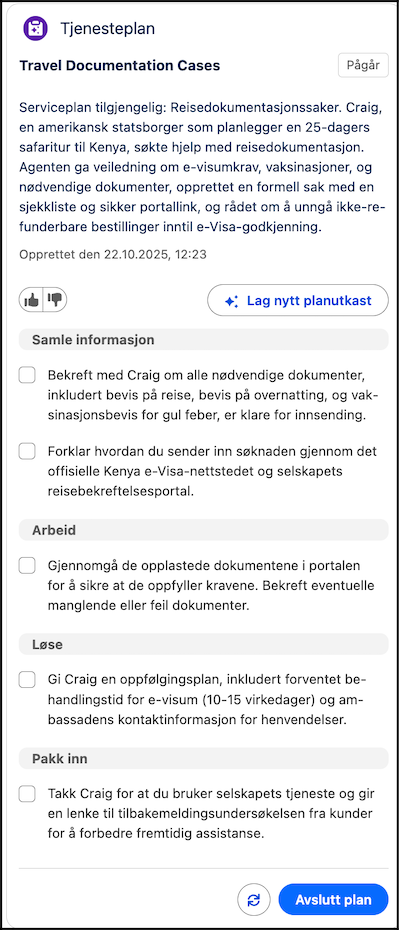
Here’s an example where the company default language is set to French, but the service rep’s preferred language is Norwegian (Bokmål). Keep in mind the name of the topic assigned to the case (Travel Documentation Cases) isn’t translated. The topic name is always shown in English.
Translation Considerations
- Translation of the topic name included in the Service Plan summary isn’t supported. The text is always shown in English. The topic name appears in two places: the start of the case summary and at the top of a drafted service plan.
- If you use Real-Time Translations for Messaging and provide a custom terminology file, the file isn’t available for use in Service Assistant.
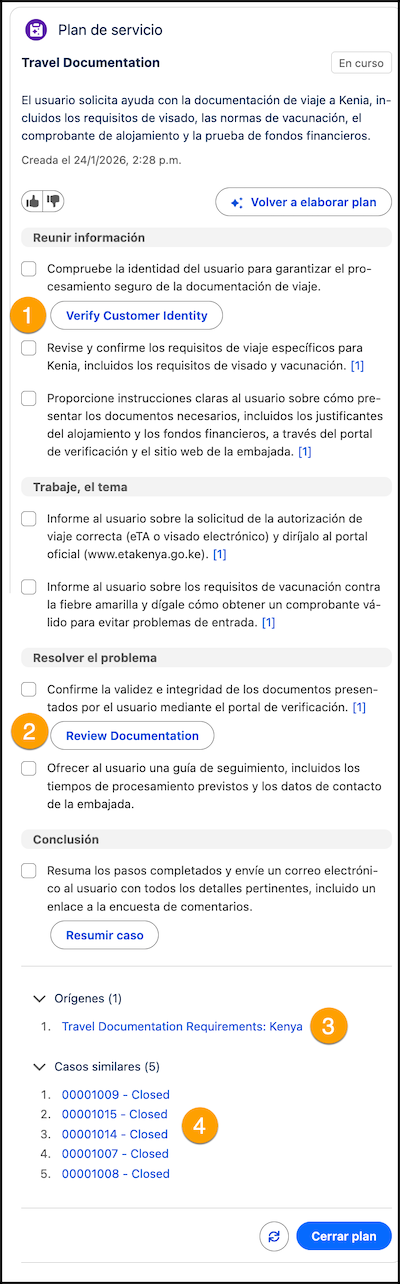
- If you ground Service Assistant with quick actions and use custom quick actions, the names of the quick actions surfaced in the plan steps aren’t translated (1-2). The names are shown in English. To translate the names of your custom quick actions, see Translate Metadata Labels.
- If you ground Service Assistant in your knowledge articles, translation of the knowledge article names listed in the Sources section isn’t supported (3). The names of the knowledge articles are always shown in English. The “Sources” heading is translated. See Knowledge Grounding.
- If you set up the similar cases feature, case statuses aren’t translated (4). By default, the list always shows the number and status. The “Similar Cases” heading name is translated. See Set Up Similar Cases.
Translation Consumption and Usage Type
Service plan translation consumes your flex credits. The following table outlines the details of how flex credits are consumed for Real-Time Translations.
- If you have the Agentforce for Service or Agentforce 1 license and choose not to enable Real-Time Translations, Flex Credits aren't consumed for generating service plans in your company's preferred language.
- If you have an Einstein for Service license, generating service plans in your company's preferred language doesn't consume additional Data Cloud credits or Einstein requests.
| Digital Card Wallet | Usage Type | Description | Details |
|---|---|---|---|
| Flex Credits | Translation | Translation converts text from one human language into text of another, a process executed by machine translation models. Translation usage is metered by the number of characters processed for the translation. | Translation usage includes a monthly allocation of 250,000 characters per user for every Agentforce add-on license. This monthly allocation is a single, shared pool across all features that utilize Real-Time Translations. It’s a per-feature limit. This limit refreshes monthly, and any unused characters do not roll over to the next month. When the 250,000 character limit is exceeded within a month, any further usage automatically draws down Flex Credits. |
