
You are here:
Email-to-Case Threading
Email threading ensures that outgoing emails and incoming responses related to a customer inquiry are associated with the same case in Salesforce. Threaded emails appear in the case feed so service reps and supervisors can quickly grasp an inquiry’s history and status.
Required Editions
| View supported editions. |
Email-to-Case previously used a threading method called Ref ID threading, and later added support for an alternative method called email header-based threading. Email-to-Case is now transitioning to Lightning threading, a more secure method that combines header-based and token-based threading.

Find Your Current Threading Method
If you’re not sure which threading method you’re using, go to the Email-to-Case page in Setup.
- If you see settings named Insert thread ID in the email subject and Insert thread ID in the email body, you’re using Ref ID threading. Enable the release update to switch to Lightning threading.
- If you don’t see those settings, you’re using Lightning threading or it’s available in
your org. To get the full case-matching benefits of Lightning threading, we recommend:
- Select Insert email threading token in email subject, Insert email threading token in email body, or both: This turns on the token-based component of Lightning threading. Verify that the settings you see contain the word “token”.
- Select Use email headers for threading: This turns on the header-based component of Lightning threading.
How Lightning Threading Works
In Salesforce, each incoming and outgoing email sent by a person or AI agent is represented by an EmailMessage record. To link incoming emails to related cases, Email-to-Case searches EmailMessage records for matching threading information. Outgoing emails sent from the case feed are automatically linked to the case.
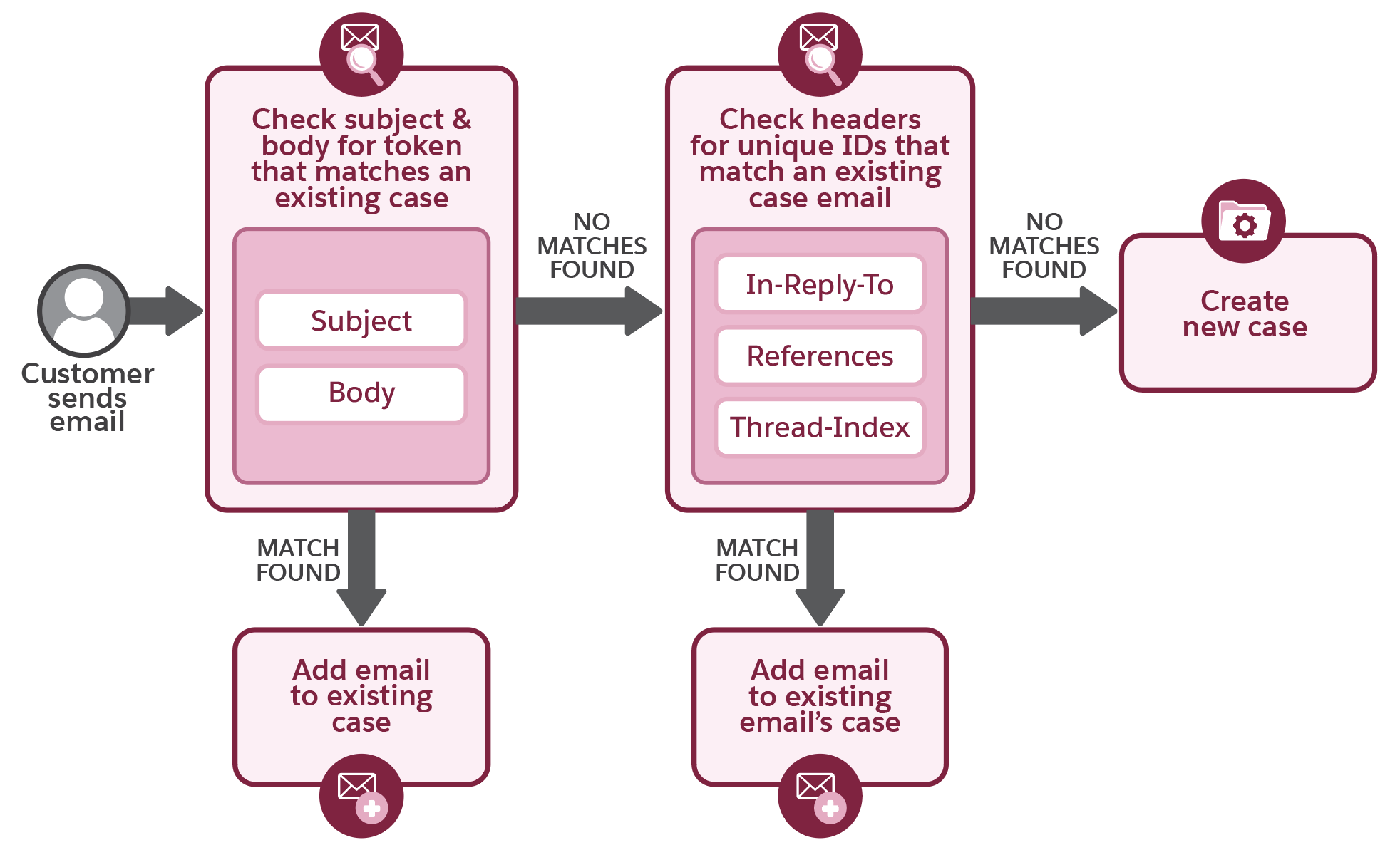
Lightning threading relies on tokens in the email subject and body as the primary threading method, and uses header-based threading as a fallback. The tokens and email header information serve as signposts that point Email-to-Case toward any related emails in Salesforce.
Email threading tokens are a unique 23-character string formatted with a prefix and suffix.
Here’s an example: thread::pp5XPGfmNf2hRZdRCWnrohc::. When Lightning
threading is in use, threading tokens are added to the email subject, body, or both of all
outgoing case emails. Threading tokens and Ref IDs aren’t shown in the case feed, but reps
can see them on the email message detail page or in the composer.
When a customer sends your business an email, Email-To-Case follows these steps to try to find a related case:
- First, Email-to-Case looks for an EmailMessage record in Salesforce whose token matches the token in the incoming email’s subject or body. If a matching email is found, the customer’s email is linked to the matching email’s related case.
- If Email-to-Case can’t find a matching email thread using tokens, it switches to
header-based threading.
- Email-to-Case searches for an EmailMessage in Salesforce whose Message-ID, stored in the MessageIdentifier field, appears in the incoming email's In-Reply-To header. As of Summer ’20, Salesforce automatically saves the Message-ID of all Email-to-Case emails sent from the case feed. If a match is found, the customer’s email is linked to the matching EmailMessage’s related case.
- If no match is found, Email-to-Case uses the References header to search for a match. The References header is a list of Message-IDs from previous emails in a thread. If one or more Message-IDs in References matches an EmailMessage record’s Message-ID, the customer’s email is linked to the most recently created matching EmailMessage's related case.
- If no match is found using the In-Reply-To or References headers, Email-to-Case checks the incoming email for an Outlook-specific header called Thread-Index. Thread-Index values are hexadecimal coded when stored to allow for faster database searches. The first 22 bytes of this header uniquely identify the thread. A Thread-Index header on the incoming email longer than 22 bytes means it’s a reply email. In that case, Email-to-Case looks for matching information in the ClientThreadIdentifier field in EmailMessage records. If a match is found, the customer’s reply email is linked to the related case. Thread-Index is stored in ClientThreadIdentifier only when it’s 22 bytes in length, meaning it’s the first email in the thread. This storage policy minimizes the chances of unrelated emails threading to the same case.
- If Email-to-Case still can’t find an email with matching information, a new case is created to track the customer’s inquiry.
Apex Support for Threading
In Apex code, you can take advantage of Lightning threading in Email-to-Case.
- For incoming emails, include the EmailMessages.getRecordIdFromEmail or Cases.getCaseIdFromEmailHeaders methods in your custom email services to retrieve case identifiers from email tokens or email headers, respectively. These methods replace the deprecated getCaseIdFromEmailThreadId method.
- For outgoing emails, use the EmailMessages.getFormattedThreadingToken or Cases.generateThreadingMessageId method to include a threading token or email header-based threading information, respectively, in outgoing emails. Email-to-Case can then thread replies to the right cases.
Learn More
If you like learning via audio, this podcast-style audio tour explains how email threading works in Salesforce and how to upgrade to Lightning threading. The audio features an AI-generated conversation between two Salesforce admins.
- Email-to-Case Threading Limitations & Considerations
Review limitations and considerations related to email threading in Email-to-Case. - Threading Automated Case Emails
When Lightning threading is enabled, the case feed shows case emails sent by service reps or AI agents, and incoming responses to those emails. You can also configure Email-to-Case so the case feed includes certain automated case emails, such as emails sent by auto-response rules or Apex. - Update to Lightning Threading for Email-to-Case
Lightning threading is a secure method used by Email-to-Case to associate emails with related cases. To switch to Lightning threading from Ref ID threading, you’ll enable a release update, update your Email-to-Case settings, and update any email templates and custom code that rely on older threading methods.
