
You are here:
Create a Location Trust Measure
A trust measure tells your customers a step that you take to keep them safe during COVID. You must be the owner of a trust card location to create a trust measure.
Required Editions
| Available in: Lightning Experience |
| Available in: Enterprise, Unlimited, and Performance Editions |
| User Permissions Needed | |
|---|---|
| To view locations; create, read, edit, and delete trust measures; and preview your location’s trust card: | Trust Card Manager permission set |
A trust card consists of one location and one or more trust measures.

The location represents a retail store, hotel, or other physical space that your business occupies. A trust measure represents a step you take to keep your customers safe when they visit a particular location. We recommend that you create 4–6 trust measures per location.
To create a trust measure:
- Launch Trust Cards from the App Launcher.
- Click the Location Trust Measures tab.
- Click New.
-
Fill in the required fields:
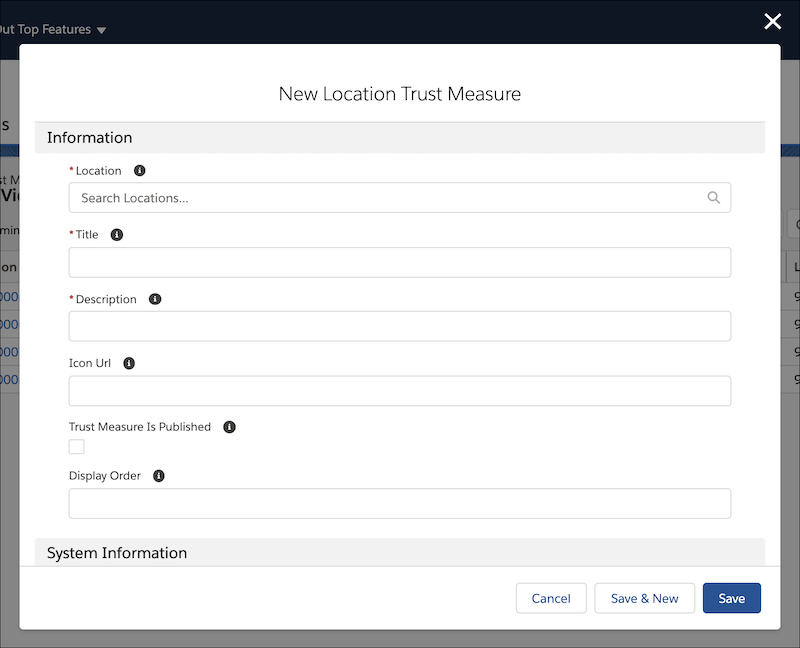
- Location: Choose the location where you want this trust measure to display. The field isn't customer-facing.
- Title: Summarize a step you take to keep customers safe. The field is visible to customers. In this example, we enter Mask Enforcement. You’re limited to 40 characters when writing a trust measure’s title.
- Description: To clarify the title, add additional information here. The field is also customer-facing. In this example, we enter Employees and Customers must wear a mask at all times. You’re limited to 255 characters when writing a trust measure’s description.
-
Fill in any non-required fields you want:
- Icon URL: To illustrate your trust measure with a branded icon (recommended), create the icon, host it on your own site, and add the URL to this field.
- Trust Measure is Published: To make this trust measure appear live on your trust card for this location, check this box.
- Display Order: Choose where this trust measure appears in your one-column, two-column, banner, or custom trust card layout. In this example, we use a two-column layout and set this trust measure as Display Order 1. That means it’s the first trust measure displayed, from left to right, in the banner.
- Save your changes.
- To create more trust measures for this location, repeat these steps. We recommend creating 4–6 trust measures.
Did this article solve your issue?
Let us know so we can improve!
