Listen to and Collaborate on Voice Call Recordings
To review a voice call, ensure compliance, and collaborate on customer issues, listen to
call recordings in the Call Audio Player. To share information, ask questions, like and reply to
comment threads, and mention colleagues and groups, comment directly on the recording. After a
comment is created, you can respond in the Call Audio Player component or Chatter
Feed.
Required Editions
This article applies to:
Salesforce Voice with Amazon Connect
Salesforce Voice with Partner Telephony
Salesforce Voice with Partner Telephony from Amazon Connect
If you don’t see the recording for a voice call, contact your admin to get access
to the recordings. To listen to a voice call recording, you must belong to the contact
center from which the recording originated unless Universal Call Recording Access is
enabled.
Important For data protection reasons, all users with access
to Salesforce Voice call recordings must agree to being recorded. The first time a user tries
to listen to a call recording or make or receive a call, they see a message asking them to agree
to being recorded. If the user doesn’t agree, they can’t make or receive calls or listen to call
recordings, and they’re prompted again the next time they log in.
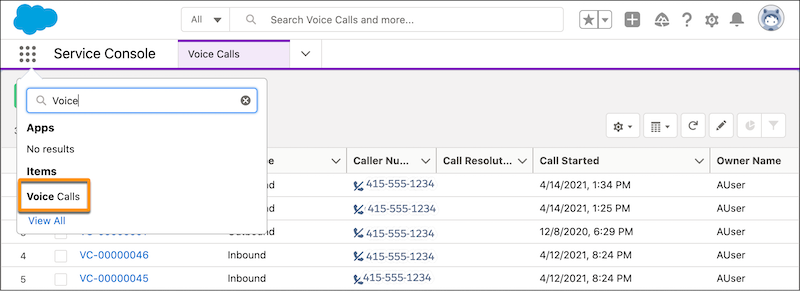
To view the Voice Call list, open the Voice Calls tab.
Alternatively, open the App Launcher, enter Voice, and select
Voice Calls.
Click the Voice Call record for the call that you want to listen to.
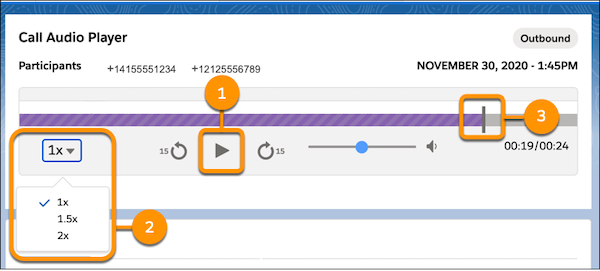
To listen to the recording, click the Play icon on the Call Audio Player [1].
To fast forward or rewind by 15 seconds, click the circular arrows.
To change the playback speed, click the 1x [2].
To skip to a different part of the call recording, click the audio indicator [3].
To comment, click the white space above the progression bar on the call recording and enter
your comment.
To view a comment, click the diamond above the progression bar.
To follow a comment thread, click Like.
To respond, click Reply.
To mention a colleague or group, enter “@” and the name.
You can also view, reply to, edit, and delete comments on a call recording in the Chatter
Feed.
Comments are created in plain text. You can’t insert or attach images, file attachments, and
rich text in the comments. You can insert emoji if you reply in the Chatter Feed, but not if
you reply in the Call Audio Player.
To enable Salesforce and contact center users to listen to call recordings in the Call Audio
Player, ensure that they have access to the recordings. If they don't have access, the Call
Recording Player in the Service Console doesn’t appear. If you see the “You don’t have access to
this content” error, ask your admin to check if single sign-on (SSO) is failing or timing out
for you. See Voice Call Recordings.
We use three kinds of cookies on our websites: required, functional, and advertising. You can choose whether functional and advertising cookies apply. Click on the different cookie categories to find out more about each category and to change the default settings.
Privacy Statement
Required Cookies
Always Active
Required cookies are necessary for basic website functionality. Some examples include: session cookies needed to transmit the website, authentication cookies, and security cookies.
Functional Cookies
Functional cookies enhance functions, performance, and services on the website. Some examples include: cookies used to analyze site traffic, cookies used for market research, and cookies used to display advertising that is not directed to a particular individual.
Advertising Cookies
Advertising cookies track activity across websites in order to understand a viewer’s interests, and direct them specific marketing. Some examples include: cookies used for remarketing, or interest-based advertising.