
You are here:
Answer and Make Calls
Answer incoming calls in the Omni-Channel utility. Call customers by dialing their phone number in the Omni-Channel utility. The Phone tab in the Omni-Channel utility and the Phone component provide common call functions such as mute, hold, transfer, and more.
Required Editions
This article applies to:
- Service Cloud Voice with Amazon Connect
- Service Cloud Voice with Partner Telephony
- Service Cloud Voice with Partner Telephony from Amazon Connect
| View supported editions. |
| User Permissions Needed | |
|---|---|
| To answer and make calls and to view Voice records: | Contact Center Agent permission set |
The Phone component must be added to the Voice Call page layout. The Phone component displays on the page only when the rep is on a call. So that you don't unintentionally end a call, you receive a confirmation if you try to close a Voice Call record that has the Phone component.
The Add Caller and Keypad buttons are available only on the Phone tab in the Omni-Channel utility.
Voice is supported only on the latest stable browser version of Google Chrome, Mozilla Firefox, and Microsoft Edge (Chromium). Cookies must be enabled to allow single sign-on (SSO).
Don’t open Service Cloud Voice in multiple browser tabs. Opening Voice in multiple tabs causes the rep's status to become out of sync.
-
In the Omni-Channel utility, set your availability (that is, your presence status) so you
can make and receive calls.
When you set your presence status and have an Amazon contact center, Salesforce uses single sign-on (SSO) to connect you to your company’s Amazon Connect instance. It can take a few seconds to complete the SSO. After SSO is completed, you can make and receive calls on the Phone tab in the Omni-Channel utility.
-
To answer a call, click the checkmark button.
Depending on your telephony provider and configuration, each call can have a timeout period for answering the call. If you don’t answer the call in time, the call is marked as missed and routed to another rep.
When you answer a call, the Omni-Channel utility shows a timer. If the call is routed using Amazon Connect routing, the timer shows the duration since you accepted the call. If the call is routed by an Omni-Channel flow, the timer shows the duration since the call was first enqueued in the telephony system, which can be seconds before you accept the call. For example, when you first answer a call, the timer can start at 10 seconds.
If the phone tab shows a component reading "Dialing __ : __ : __ | Inbound," it means the browser was refreshed while the call was assigned but not yet connected. It doesn’t mean another call was generated.
-
To dial an outbound call, enter the number that you want to call and click
Call. You can also make outbound calls by clicking a phone number
hyperlink in Service Cloud.
Avoid ambiguous phone number formatting by using country codes when dialing phone numbers or linking phone numbers from inbound calls. Use the E.164 format [+] [country code] [subscriber number including area code], for example, +12345678901. If an E.164 country code isn’t provided, Salesforce appends the country code specified in the call center settings. The lack of a country code can prevent Salesforce from locating records, such as contact records that are associated with the phone number.
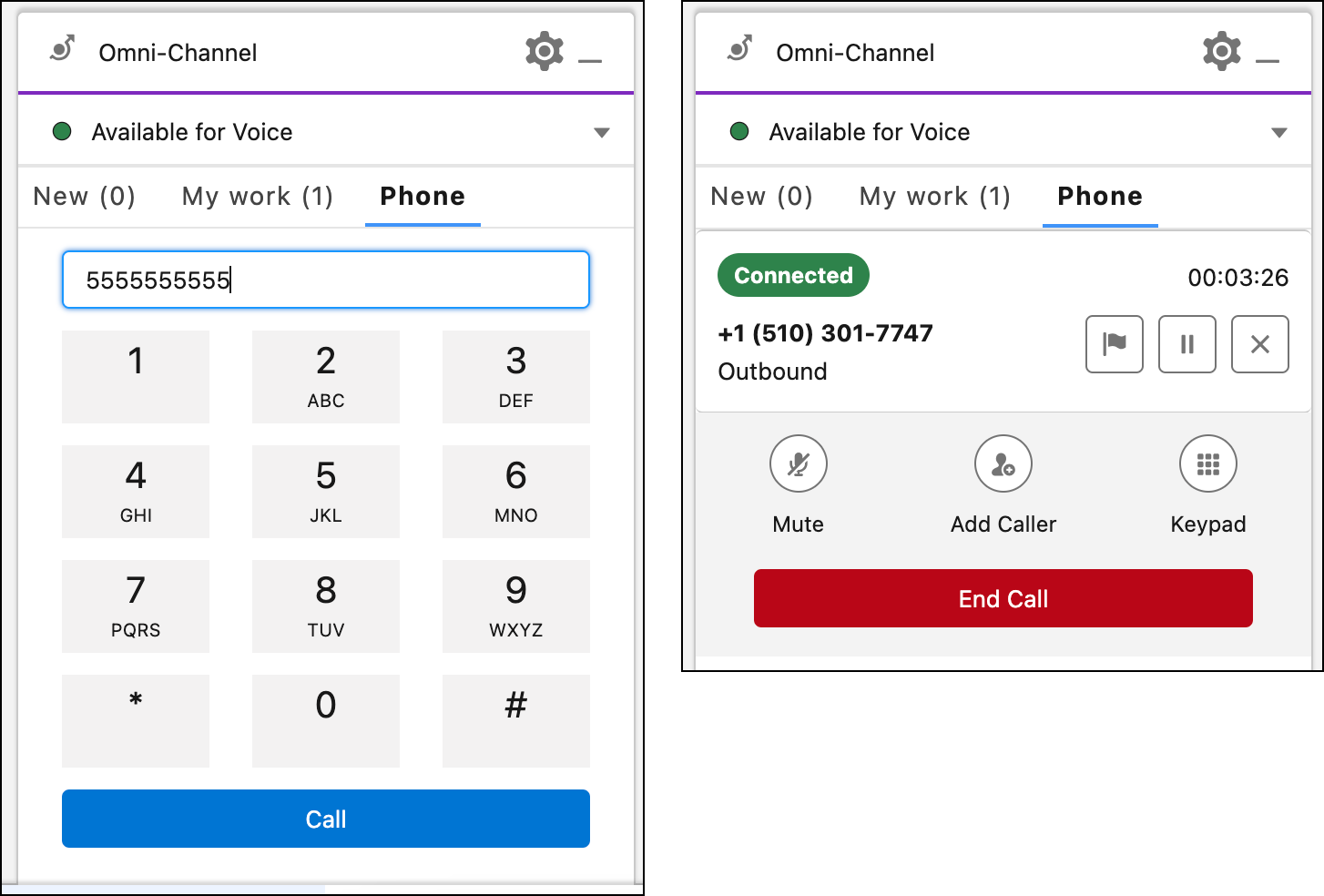
- To change the speaker or microphone you use to take calls, go to Omni-Channel settings and select the audio devices. Selections made in Omni-Channel settings don’t impact the default speaker or microphone of the system device.
-
Put the caller on hold by clicking the Pause button. When you’re
ready to resume the call, click the Play button.
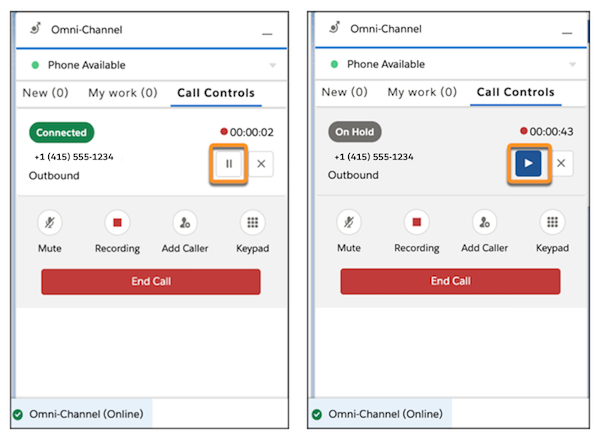
- To end the call, click the X button or click End Call.
- Silence your line by clicking Mute. When you’re ready to speak, click the button again.
- Pause a call recording by clicking Recording. To resume the recording, click the button again.
- Transfer the call or add another caller by clicking Add Caller.
- Access a dial pad while on a call by clicking Keypad. The dial pad is useful for navigating a phone menu or an interactive voice response (IVR) system.
-
When you end your workday, log out of Omni-Channel by updating your presence status. Then
log out of Salesforce and close the browser.
When the rep logs out of Omni-Channel, their status is synced with Amazon Connect so that calls aren’t pushed to the rep. If you close the browser tab before logging out of Omni-Channel, the rep's status isn’t synced between Omni-Channel and Amazon Connect. Omni-Channel thinks the rep is offline, but Amazon Connect thinks the rep is still available and keeps pushing calls to them.
You can also use keyboard shortcuts for quick call actions such as accept, mute, unmute, hang-up, or decline calls. See Keyboard Shortcuts for Quick Controls.

