
You are here:
Voice Call Recordings
To be trained, ensure compliance, and collaborate on customer issues, reps and others can listen to and comment on call recordings. Ensure the right users can listen to, pause, and resume the call recordings.
Required Editions
This article applies to:
- Service Cloud Voice with Amazon Connect
- Service Cloud Voice with Partner Telephony
- Service Cloud Voice with Partner Telephony from Amazon Connect
| View supported editions. |
Requirements to Access Voice Call Recordings
By default, only the voice call owner can listen to a call recording. You can also choose to grant access to other users.
For example, grant access to contact center users, such as reps, supervisors, and admins. You can also grant access to Salesforce users who aren’t contact center users. To grant the right users access to the voice call recordings, review these requirements for each user type.
| Salesforce | Salesforce Requirements | Telephony System Requirements | ||
|---|---|---|---|---|
| User Type | Permission Set | VoiceCall Object Access | Universal Call Recording Access | Recording Access |
| VoiceCall record owner | Contact Center Agent | Owner | For Amazon Connect: Agent security profile | |
| Contact center user | Contact Center Agent | Public or shared with user | For Amazon Connect: Agent security profile | |
| Non-contact-center user | Owner, Public, or shared with user | Enabled | ||
This table provides more information about each requirement.
| Requirement | Description |
|---|---|
| Salesforce Permission Set | All Salesforce contact center users must be assigned the Contact Center Agent permission set. See Assign Contact Center Permission Sets. |
| VoiceCall Object Access | Regardless of the user type, the user must have access to the VoiceCall object. By default, the VoiceCall record owner has access. To grant others access to the VoiceCall records, set the organization-wide default for the VoiceCall object to Public or use sharing settings. See Organization-Wide Default Access Settings. |
| Universal Call Recording Access | If the user isn’t a member of the contact center, enable Universal Call Recording Access. For an Amazon Connect contact center, see Voice Call Recordings. For a partner telephony contact center, see Universal Call Recording Playback. |
| Recording Access | In your telephony system, verify that the user has access to the voice call recordings. For example, for an Amazon Connect contact center, verify that the Agent Security Profile is assigned to the user. When you add a user to a contact center in Salesforce, the same user is added to AWS and assigned the Agent Security Profile, by default. See Voice Call Recordings. |
Turn on Universal Call Recording Access
To give Salesforce users who aren't contact center members access to voice call recordings, turn on universal call recording access.
This procedure is for an Amazon Connect contact center. For a partner telephony contact center, see Universal Call Recording Playback.
- From Setup, in the Quick Find box, enter Contact Centers, and select Amazon Contact Centers.
- Open your contact center.
-
Edit your contact center details, select Let any Salesforce user listen to this
contact center’s recordings, and then Save.
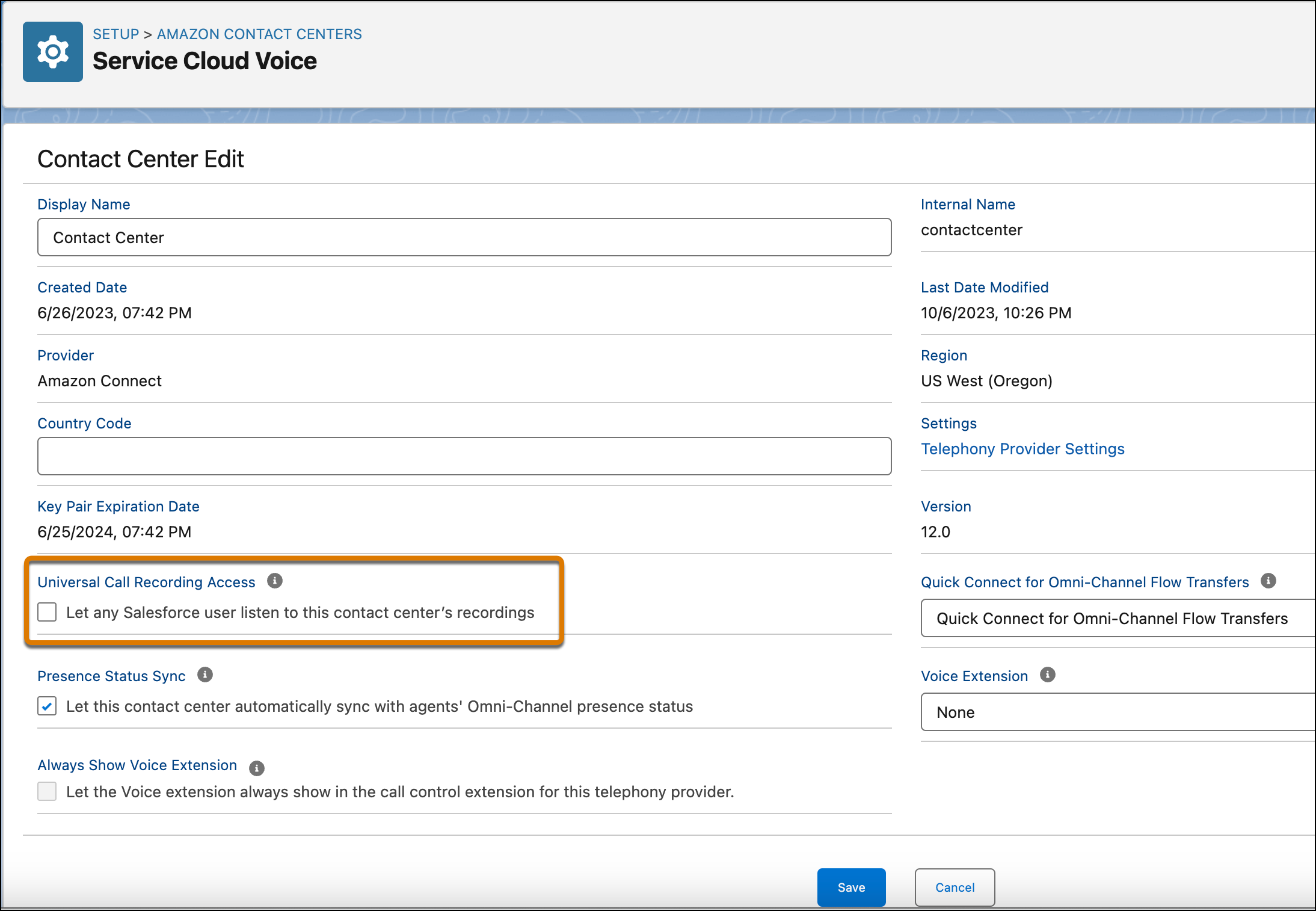
- Allow access when prompted to continue with the box checked. If this box is unchecked, users outside of the contact center can open a voice call record, but can’t listen to the associated recording.
Verify Voice Call Recording Access in Amazon Connect
If you have an Amazon Connect contact center, verify that users can access voice call recordings stored in Amazon Connect. Without this access, users can’t listen to the recordings in Salesforce.
When you add a user to a contact center in Salesforce, the user is added to AWS and assigned the Agent Security Profile, by default. If you change the default access settings, assign the Agent security profile to allow them to access the recordings.
- Log in to the AWS Management Console, click Services, and then click Amazon Connect.
- Click the Amazon Connect instance that matches the name of your Service Cloud Voice contact center.
- Click Users | User Management.
- Select one or more users and choose Edit.
-
For Security Profile, verify that Agent is selected.
The default Agent security profile has the required permissions to access voice call recordings. To learn which permissions are required, see Assign Permissions to Review Recordings of Past Conversations.
- Choose Save.
