
You are here:
Analyze Call Recordings for Insights
Give supervisors the data they need to coach reps on interactions with customers. Einstein Conversation Insights identifies key moments in conversation recordings to provide insight into call structure, rep talk/listen ratios, how and when customized keywords like product names are mentioned, and more.
Required Editions
This article applies to:
- Service Cloud Voice with Amazon Connect
- Service Cloud Voice with Partner Telephony
- Service Cloud Voice with Partner Telephony from Amazon Connect
| View supported editions. |
Start Using Einstein Conversation Insights
- From Setup, in the Quick Find box, enter Einstein Conversation Insights, and select General Settings under Einstein Conversation Insights.
- Turn on the feature. Conversation Insights Readiness can take some time to switch to Ready to use. Continue with the next steps in the meantime.
- Connect a recording provider. Amazon Connect can be connected if Service Cloud Voice with Amazon Connect is enabled, and Sales Dialer can be connected if Sales Dialer is enabled. You can disable or update your chosen recording provider at any time.
- Click Add Assignments to give users—typically, managers or supervisors—access to the Conversation Insights dashboard and daily insight summary emails.
Choose Insights to Focus On
Let Conversation Insights know which keywords to look for in call recordings. When a call participant utters a keyword, it’s flagged so reviewers can quickly jump to its location in the recording. If you’re focusing on service calls, customize your keywords to understand, among other things:
- How reps describe your products
- What questions customers ask about your products
- Which competitors come up in conversations, and how often
- How reps talk about common customer issues
- Which factors contribute to a successful support call
- On the same General Settings page in Setup, click Set Up to set up your call insights. Or, in the Quick Find box, enter Call Insights and select Call Insights.
- Einstein Conversation Insights comes with two out-of-the-box keyword categories, or
insights: one for identifying product mentions, and one for competitor mentions. Click
Product Mentioned to customize it.
- Add up to 25 products that are likely to come up in support calls.
- Under Category, choose the category of calls to scan for the keywords: sales, service, or both.
- Optionally, specify which side of conversation to analyze (Said By).
- Activate and save the insight. When Einstein Conversation Insights processes call recordings, it looks only for keywords from active insights.
 Note Salesforce also provides several automatic service insights that can’t be customized, such as Escalation, Payments, and Attrition Mentioned. You can view them on the Automatic tab of the Call Insights page.
 - Click the Competitor Mentioned insight and repeat the previous step, listing any competitor names that can arise in calls.
- Optionally, click New Custom Insight to define more insights. For
each custom insight, add keywords, choose one or more categories, and optionally, select a
speaker. Then, activate and save it.
 Tip Custom insights are a great way to tailor Conversation Insights’ analysis to your business priorities and terminology. For example, use custom insights to identify calls in which callers mention issues related to delivery, billing, or compliance.
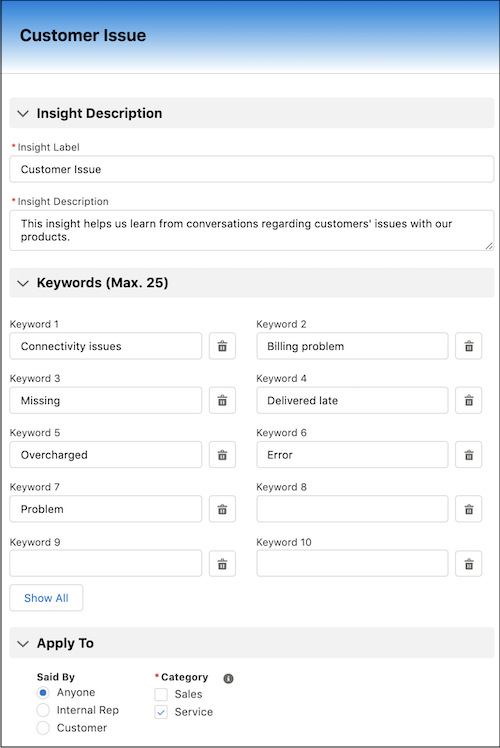
View Einstein Conversation Insights Data
After you set up your insights, start reviewing call trends and daily stats related to those insights.
- View individual call data: Use the call audio player on the Voice Call record page to analyze conversations and review call specifics such as keyword mentions, speaker tracks, participants, and duration.
- View team-wide data: Visit the Conversation Insights dashboard for a summary of your team’s calls. In the Service or Sales Console, click the Conversation Insights tab to view the dashboard. If a role hierarchy is set up, Conversation Insights users also receive daily emails with call stats. In the Service Console, the dashboard shows only voice calls made by users with the Conversation Insights for Service permission set.
For more tips on viewing and acting on insights data, see Einstein Conversation Insights.
- Compare Einstein Conversation Insights for Sales and Service
If you have Einstein Conversation Insights for Service, you also have Einstein Conversation Insights for Sales. Here’s a summary of the two features.
Compare Einstein Conversation Insights for Sales and Service
If you have Einstein Conversation Insights for Service, you also have Einstein Conversation Insights for Sales. Here’s a summary of the two features.
| Topic | Sales | Service |
|---|---|---|
| How do users access it? | Conversation Insights for Sales permission set OR Sales Engagement Conversation Insights permission set OR Einstein Conversation Insights Included permission set | Conversation Insights for Service permission set |
| What does user access provide? |
|
|
| Which recording providers can I use? | Sales Dialer, Aircall, Amazon Connect, Dialpad, RingCentral | Sales Dialer or Service Cloud Voice with Amazon Connect |
| Which out-of-the-box insights are provided? | Standard insights:
Automatic insights (no configuration needed):
Generative Conversation Insights |
Standard insights:
Automatic insights (no configuration needed):
|
| What are examples of custom insights I can create? | Discounts Promotions |
Customer Issues |
| Which calls are analyzed for insights? | Sales call recordings are scanned for mentions of standard and custom sales insights. A call is a sales call if the call owner has the Conversation Insights for Sales, Sales Engagement Conversation Insights, or Einstein Conversation Insights Included permission set. If they also have the Conversation Insights for Service permission set, it’s still considered a sales call. All video calls are considered sales calls. An insight is a sales insight if Sales is selected in the Category field. |
Service call recordings are scanned for mentions of standard and custom service insights. A call is a service call if the call owner has the Conversation Insights for Service permission set. An insight is a service insight if Service is selected in the Category field. |
