Loading
Salesforce now sends email only from verified domains. Read More
Service
Table of Contents
Select Filters

          No results
          No results
          Here are some search tips

          Check the spelling of your keywords.
          Use more general search terms.
          Select fewer filters to broaden your search.

          Search all of Salesforce Help
          Create a Conversation Intelligence Rule to Trigger an Action

          Create a Conversation Intelligence Rule to Trigger an Action

          To subscribe to intelligence signals defined in your telephony system and trigger actions based on those signals, create a rule based on a Next Best Action or autolaunched flow. For example, create an action that recommends that the support rep offer a discount if the customer asks to cancel the service due to a poor customer experience. To create the rule for this example, pass the detected signal to a Recommendation Strategy flow and link the flow to the Einstein Next Best Action component in a Lightning page.
          Required Editions

          View supported editions.
          User Permissions Needed
          To create a Conversation Intelligence rule Customize Application
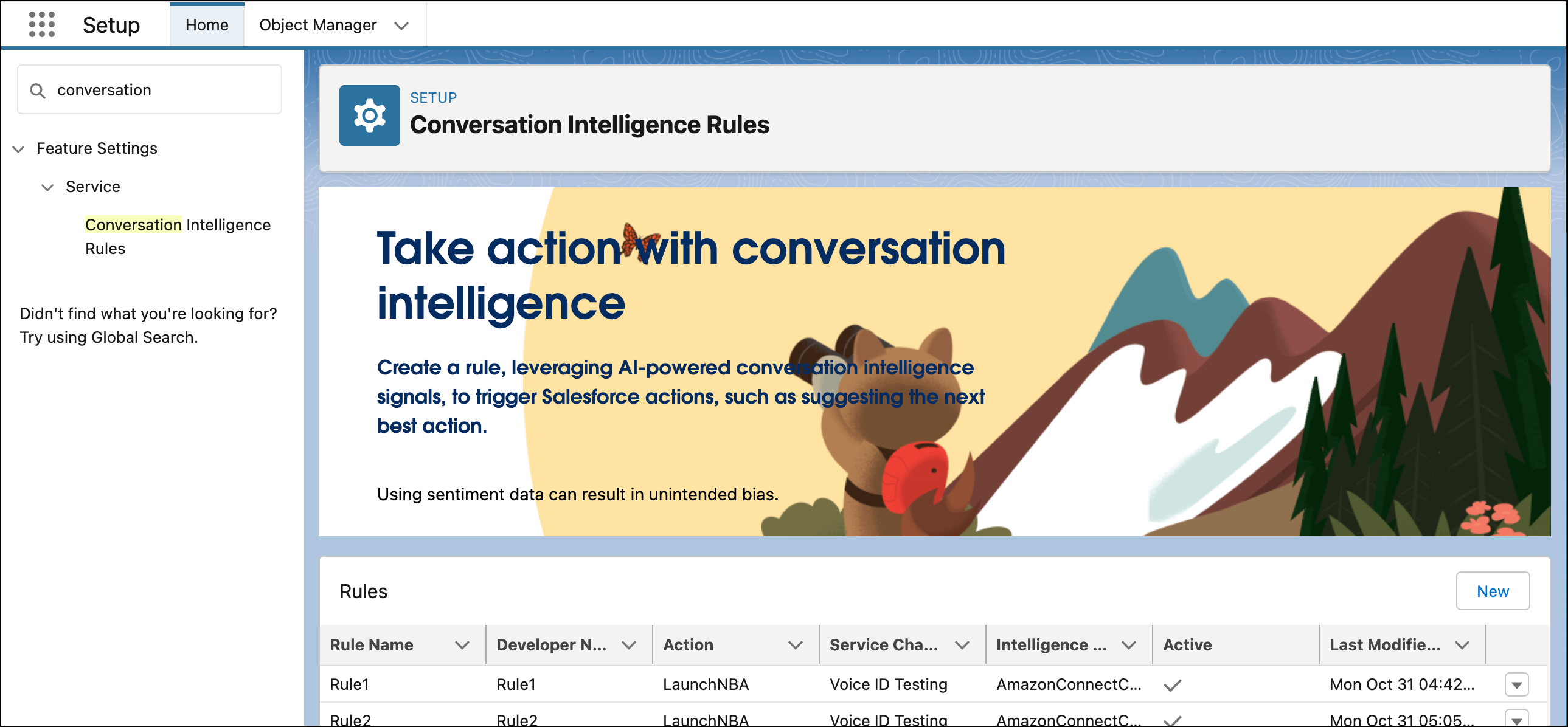
          1. From Setup, in the Quick Find box, enter Conversation Intelligence Rules, and then select Conversation Intelligence Rules.
            Rules page
          2. To create a rule, click New.
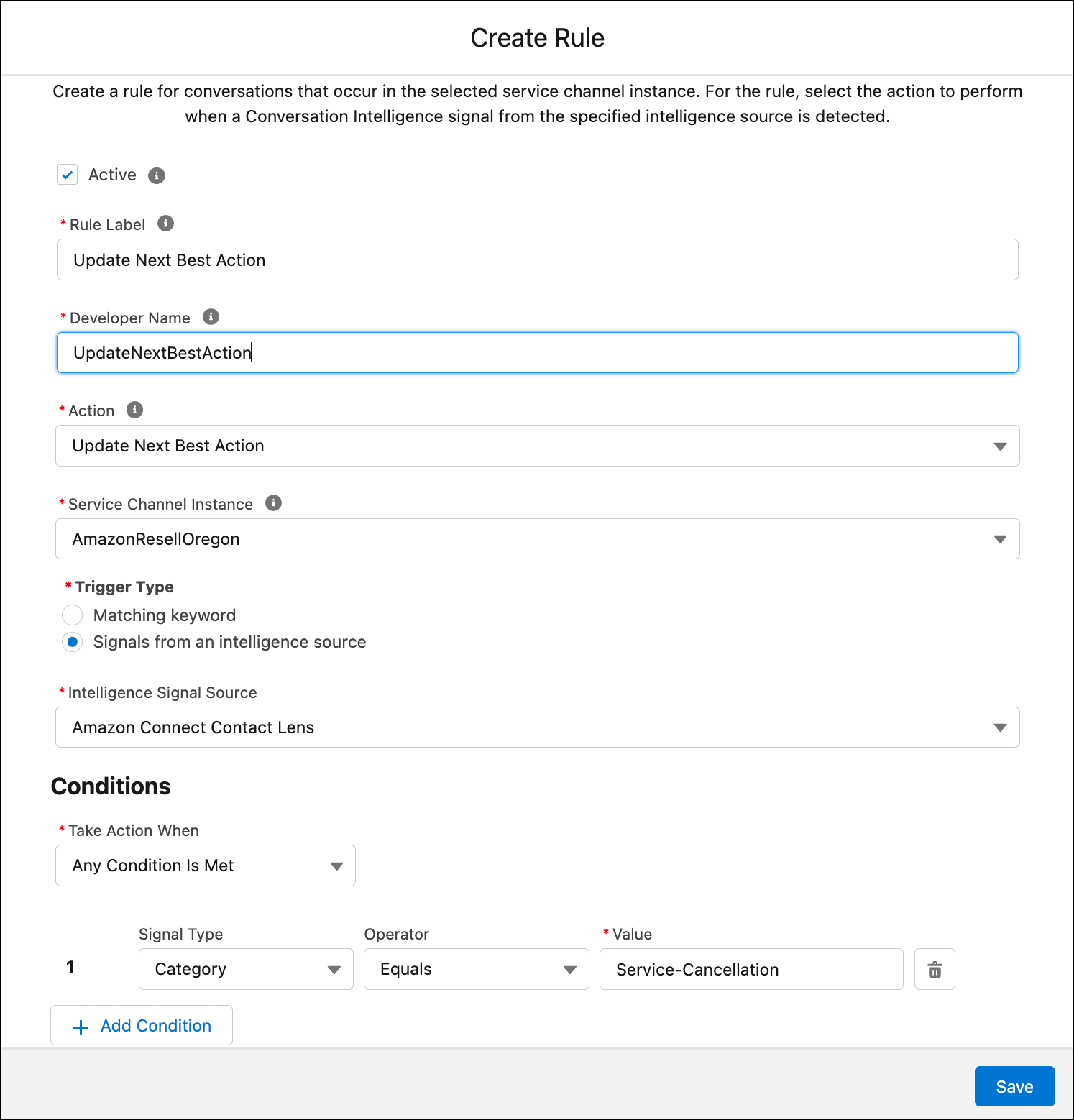
          3. Enter the rule details.
          4. Select one of these actions.
            Action Description
            Update Next Best Action Recommend the next best action to the service rep. See Set Up a Next Best Action.
            Run Autolaunched Flow If you choose Run Autolaunched Flow, you must select an autolaunched flow. Only active autolaunched flows appear in the selection dropdown. If an autolaunched flow is deactivated or deleted after creating the rule, the flow is removed from the rule. No action will be taken until you update the rule with another flow. See Set Up an Autolaunched Flow.
            Alert Supervisor Send an alert to the supervisor.
            Alert Support Rep and Supervisor Send an alert to the support rep and the supervisor.
          5. In the Trigger Type field, select Signals from an intelligence source.
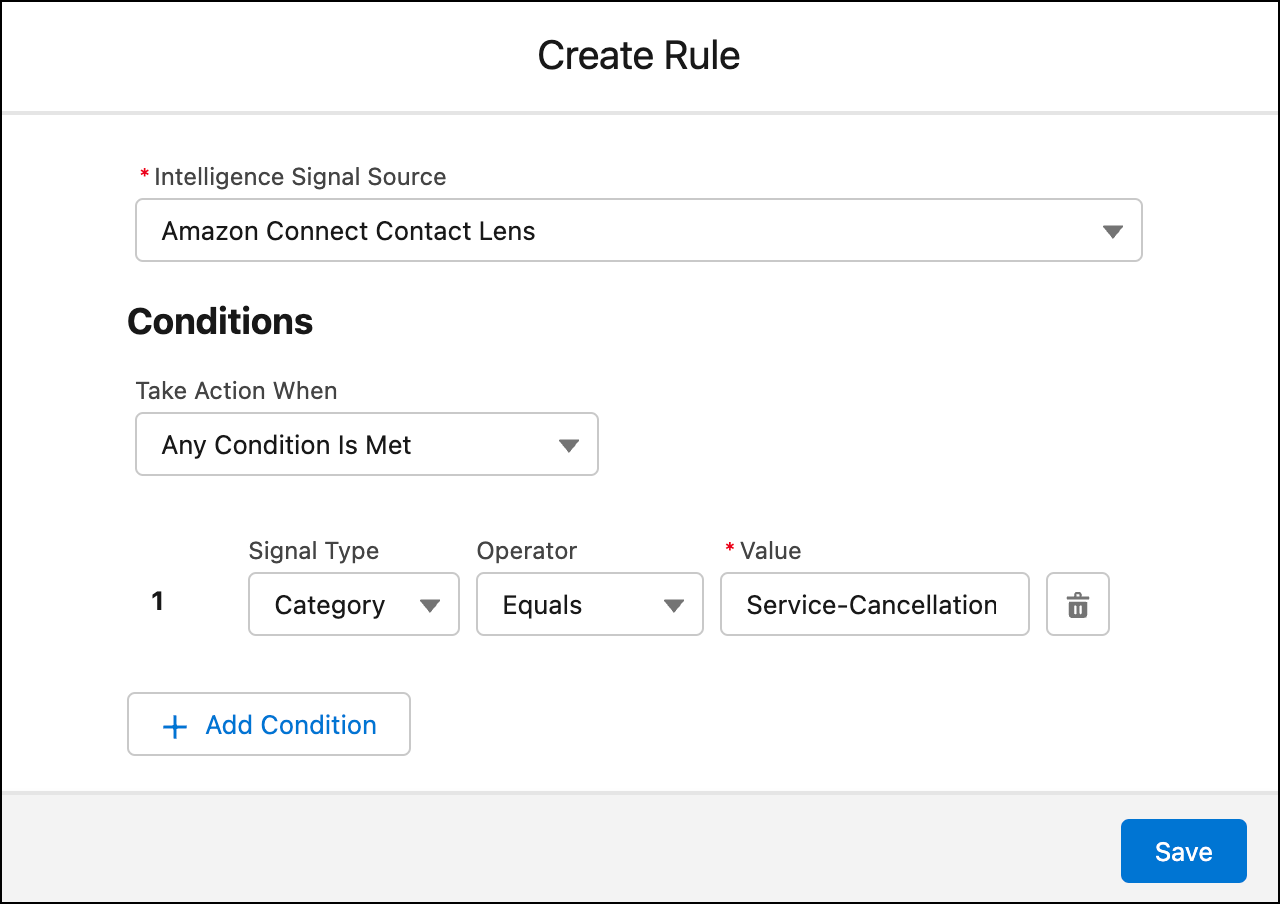
            Conditions in the Create Rule page
          6. Specify the signal value for each condition.
            This value must match the category name that you defined in your telephony system. You can add up to 5 conditions.
            Conditions in the Create Rule page

          Whenever the signal is detected during a phone conversation, the action defined in the rule is triggered. In this example, it triggers the next best action if the category name is Service-Cancellation.

           
          Loading
          Salesforce Help | Article