
You are here:
Set Up Voice ID
Stop asking endless security questions to authenticate your customers over the phone. Instead, use Voice ID powered by Amazon Connect. Using a caller’s voice biometrics, Voice ID verifies the identity of the caller and detects fraud risk. An individual’s unique voice properties make it difficult to spoof.
Required Editions
This article applies to:
- Service Cloud Voice with Amazon Connect
- Service Cloud Voice with Partner Telephony from Amazon Connect
| View supported editions. |
To use Voice ID with Service Cloud Voice with Amazon Connect, you must have the Service Cloud Voice Additional AWS Services add-on license. This license isn’t required for Service Cloud Voice with Partner Telephony from Amazon Connect.
- Enable Voice ID in Amazon Connect
To use Amazon Connect’s Voice ID feature, you must first enable it. - Enable Reps to Use Voice ID
By default, only Amazon Connect admins can use Voice ID. To grant reps permission to use it, enable Voice ID in the Agent security profile in Amazon Connect. - Add the Voice ID Component to the Rep’s Work Area
To enable reps to enroll customers in Voice ID, add the Voice ID component to the Omni-Channel widget, Voice Call record page, or both–wherever the reps work. - Create an Amazon Connect Contact Flow with Voice ID
To ask callers if they would like to use voice authentication, create a contact flow. Create a contact flow for all call types for which you want to use Voice ID. You can use Voice ID with inbound, outbound, and transfer calls.
Enable Voice ID in Amazon Connect
To use Amazon Connect’s Voice ID feature, you must first enable it.
- Log in to Amazon Connect console at https://console.aws.amazon.com/connect/.
- On the instances page, choose the instance alias.
- In the navigation pane, select Voice ID.
- Read the BIPA Consent Acknowledgment, and accept if you agree.
-
In the Domain Setup section, enter the domain.
You can create a one or use an existing domain.
- Under Encryption, create or enter your AWS KMS key for encrypting your Voice ID domain.
- Choose Enable Voice ID.
Enable Reps to Use Voice ID
By default, only Amazon Connect admins can use Voice ID. To grant reps permission to use it, enable Voice ID in the Agent security profile in Amazon Connect.
- Log in to Amazon Connect console at https://console.aws.amazon.com/connect/.
- Go to Users | Security Profiles.
- Edit the Agent security profile.
- Under the Contact Control Panel (CCP) section, select Voice ID.
- Save your changes.
Add the Voice ID Component to the Rep’s Work Area
To enable reps to enroll customers in Voice ID, add the Voice ID component to the Omni-Channel widget, Voice Call record page, or both–wherever the reps work.
Add to the Omni-Channel Widget
Let reps enroll customers in Voice ID directly from the Omni-Channel widget.
- From Setup in the Quick Find box, enter Amazon Contact Center, and then select Amazon Contact Center.
- To view your contact center details, click your contact center link.
- To show Voice ID in the Omni-Channel widget drawer even when the call is disconnected, select Let the Voice extension always show in the call control extension for this telephony provider.
-
To enable Voice ID, select Enable for the Voice ID field.
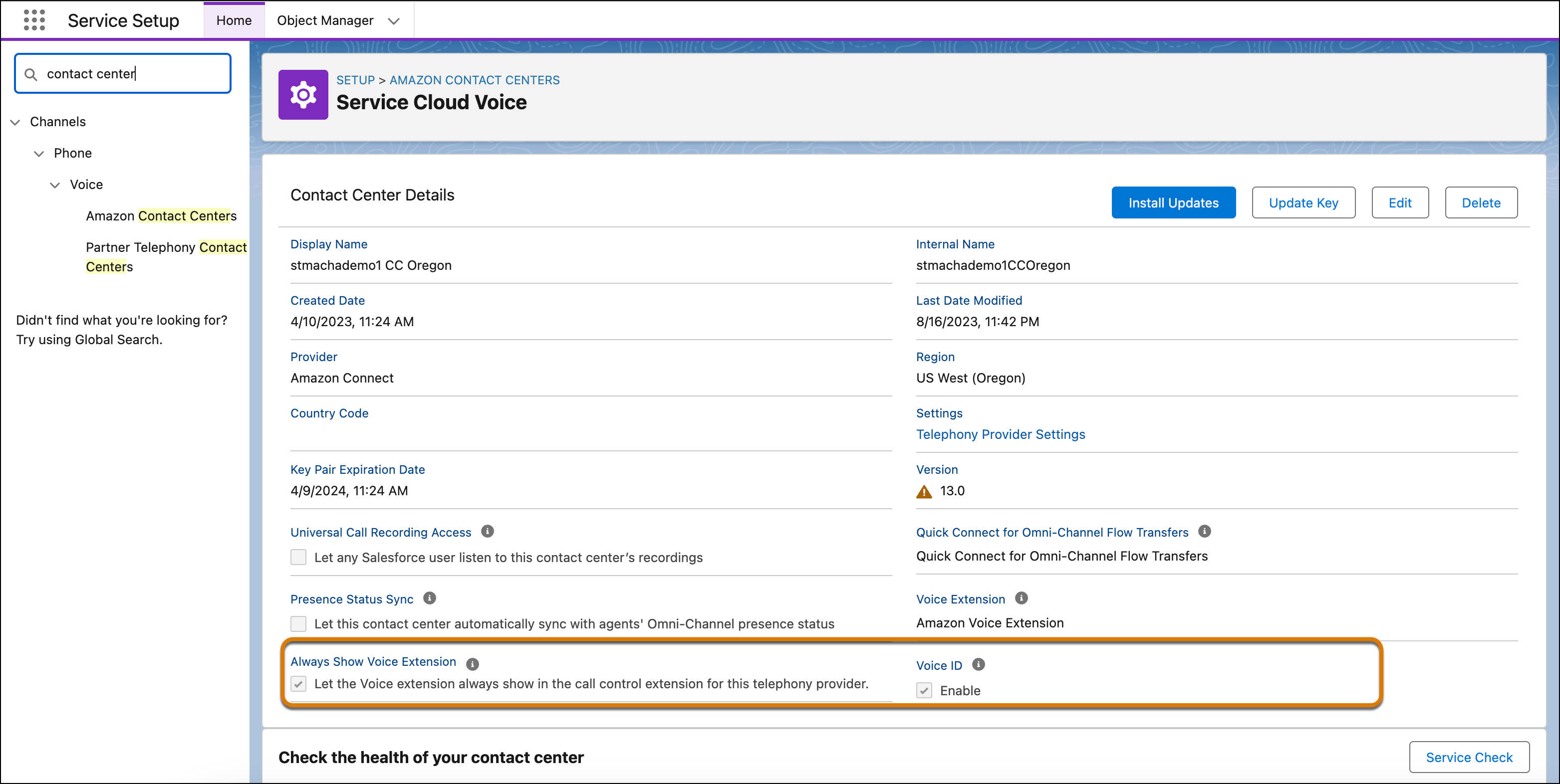
 Tip If you don’t see the Voice ID field, add the Service Cloud Voice Additional AWS Services add-on license to your org. Also, we provide the default voice extension for Amazon, named Amazon Voice Extension. To create or edit a voice extension, go Setup | Lightning | Lightning App Builder. Select Voice Extension | Next, and then follow the prompts.
 -
Click Save.
The voice extension items show in the Omni-Channel widget drawer when a rep is on a call.
Add to the Voice Call Record Page
Let reps enroll customers in Voice ID directly from the Voice Call record page.
-
Using the Lightning App Builder, drag the Voice ID component onto the Voice Call Record
page.
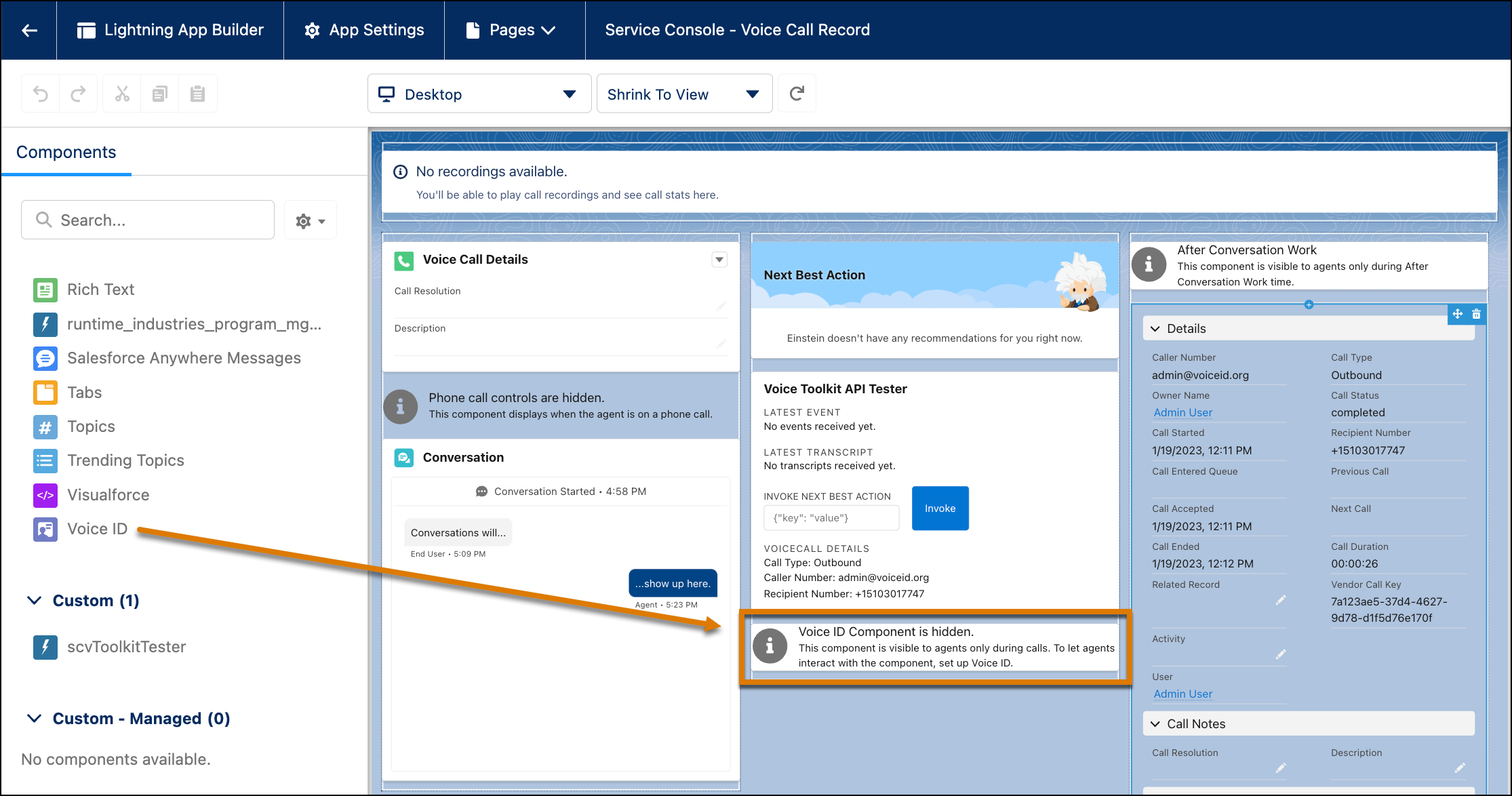
- If you don’t see the Voice ID component, add the Service Cloud Voice Additional AWS Services add-on license to your org.
Create an Amazon Connect Contact Flow with Voice ID
To ask callers if they would like to use voice authentication, create a contact flow. Create a contact flow for all call types for which you want to use Voice ID. You can use Voice ID with inbound, outbound, and transfer calls.
To help you design a contact flow with Voice ID, check out sample contact flow Sample SCV Inbound Flow with Voice ID. This contact flow contains the required Voice ID blocks.
After setting up your contact flow, when the caller calls, they’re prompted to specify whether they'd like to enroll in Voice ID. If they agree, the rep can enroll them.
