
You are here:
Route Voice Calls to a Skill with Omni-Channel Unified Routing
Using Unified Routing with Omni-Channel, route voice calls with Omni-Channel skills. Make sure that a rep who has the correct skills to solve the problem takes the call.
Required Editions
This article applies to:
- Service Cloud Voice with Amazon Connect
- Service Cloud Voice with Partner Telephony from Amazon Connect
| View supported editions. |
| User Permissions Needed | |
|---|---|
| To view the Amazon Contact Centers page: | Customize Application AND Manage Call Centers |
| To create and manage a contact center: | Contact Center Admin |
| To set up Omni-Channel: | Customize Application |
| To assign skills to service resources: | Edit on service resources |
Before you begin:
- Configure Omni-Channel
Unified Routing for a contact center.
- For skill-based routing, your contact center must have a holding queue in Salesforce that’s mapped to a working queue in Amazon Connect. This holding queue is required because Amazon requires a working queue, even though executeOmniFlow only returns a rep’s ARN for skill-based routing.
To set up routing to a skill, define logic that determines the skills needed to route work items and then assign skills to reps. To assign a skill to a rep, assign the skill to a service resource and then assign the service resource to the rep. Set up an Omni-Channel flow in Salesforce to route work items to reps based on the required skills. Then finish configuration in Amazon Connect.
Configure Skills-Based Routing with Omni-Channel Unified Routing in Salesforce
-
Prepare to route to skills.
- Enable skills-based routing in Omni-Channel Settings.
- Create skills. For example, create skills that correspond to languages used for voice calls. Skills can’t be deleted after they are created.
- Create service resources and assign skills to service resources. This configuration assigns skills to reps.
-
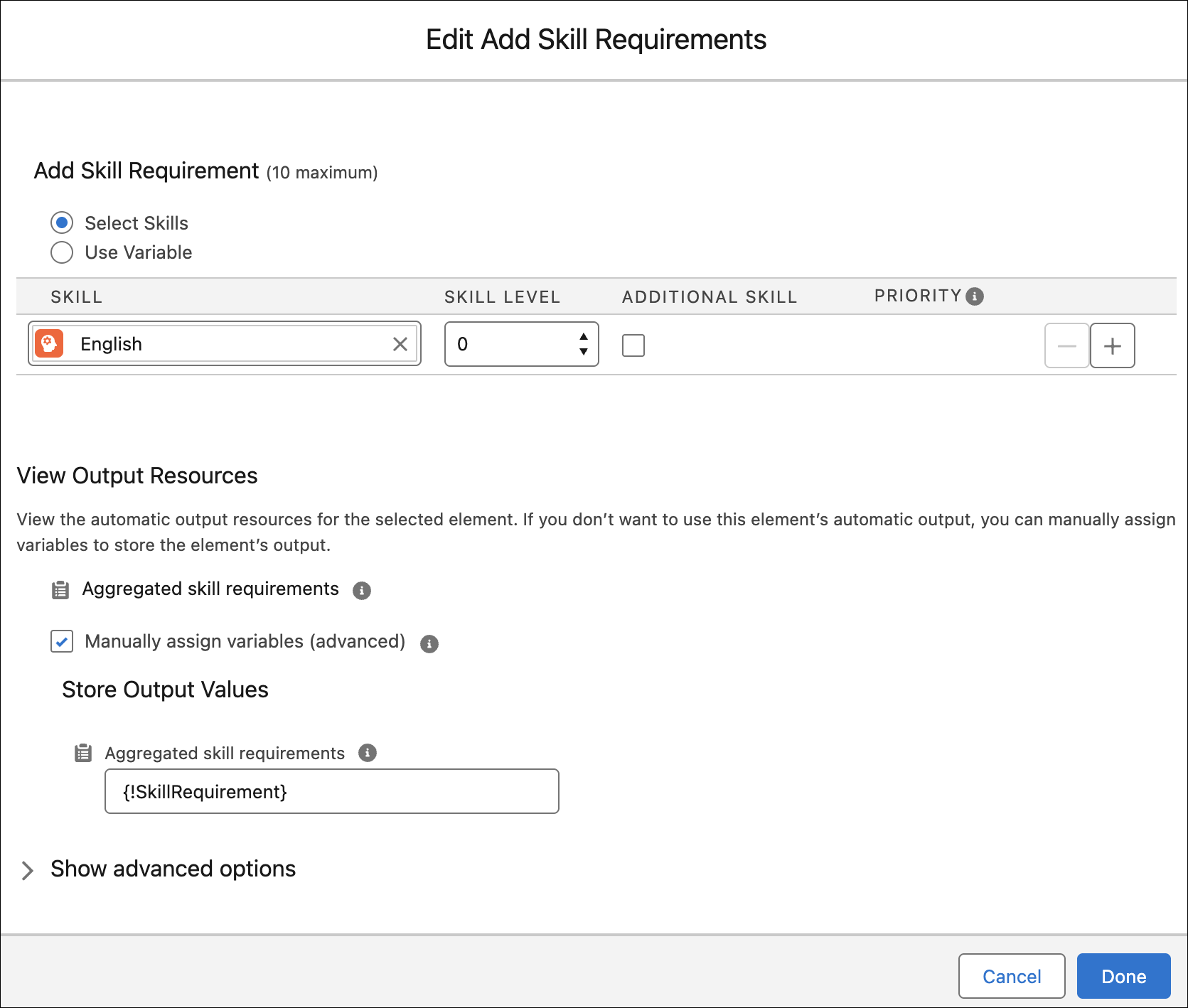
Create an Omni-Channel flow with an Add Skill Requirements action.
- Store the output value in a variable that the Route Work action will use.
-
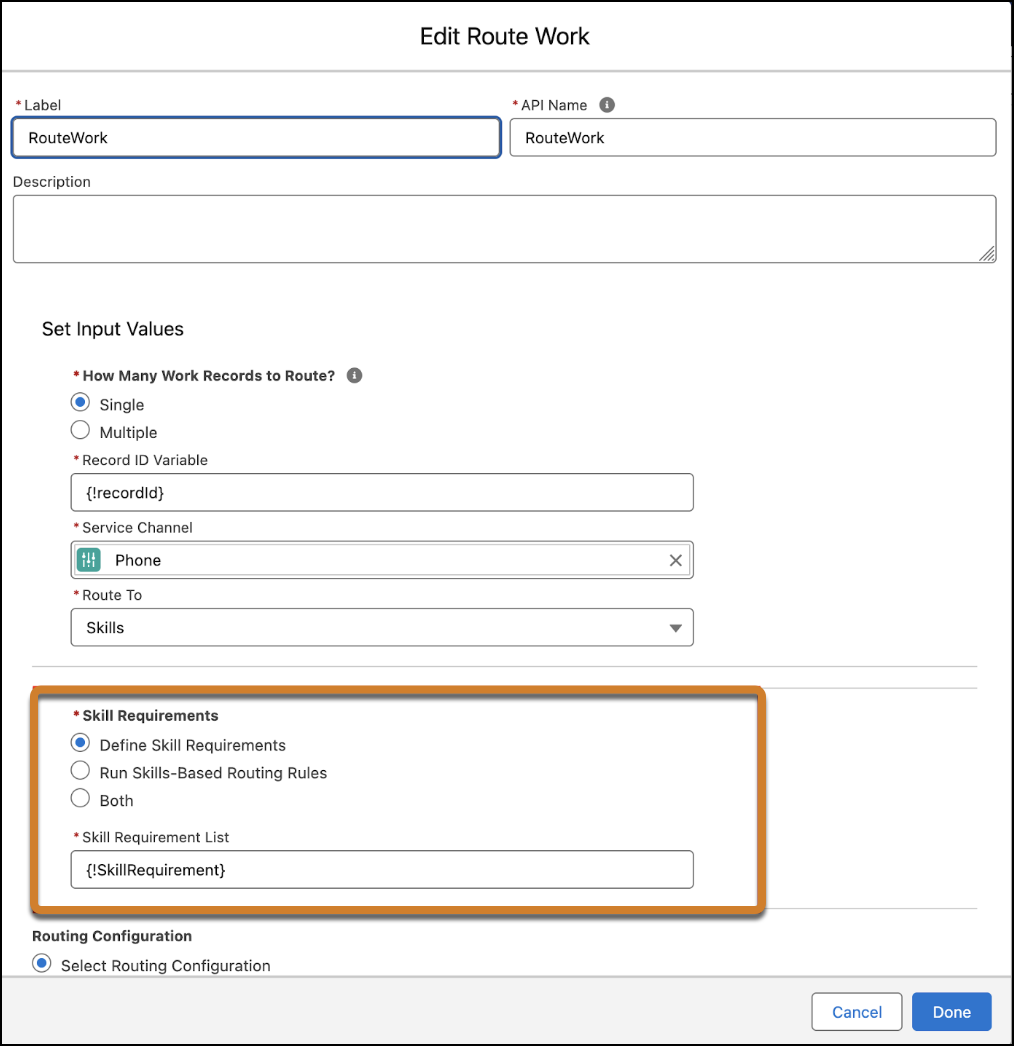
Add a Route Work action to the flow.
- Route to Skills.
- For Skill Requirements, select Define Skill Requirements.
-
From Setup, enter and select
Amazon Contact Centers. Select your Amazon Connect Contact Center and go to the Contact Center Channels section. Create a Contact Center Channel or edit a channel to use it for skills-based routing.- Under Call Routing, set Call Routing Type to Omni-Channel Flow and select the Omni-Channel flow you defined.
- Set the fallback queue to a queue you created when setting up Unified Routing.

Note For an alternative to using an Omni-Channel flow with an Add Skill Requirements action,
see Routing with Skills-Based Routing Rules.
Configure Skills-Based Routing with Omni-Channel Unified Routing in Amazon Connect
- To go to the Amazon Connect Admin Dashboard associated with your contact center, navigate to the Contact Center Details section in Salesforce and click Telephony Provider Settings.
-
In Amazon Connect, select Routing and then select
Flows.
Note
- These instructions reference sample Amazon Connect flows for admins setting up Omni-Channel Unified Routing in a brand new contact center. For a contact center with preexisting flows, interpret the steps and referenced flows according to your current setup. For example, edit your inbound flow to meet the requirements below.
- If you’re using our sample flows end-to-end, edit the Sample SCV Inbound Flow to transfer to the Sample SCV Omni-Channel Subflow - Omni Routing for Skills flow.
-
Edit the Sample SCV Omni-Channel Subflow - Omni Routing for Skills flow or your
preexisting inbound flow that’s connected to a phone number according to your business
needs.
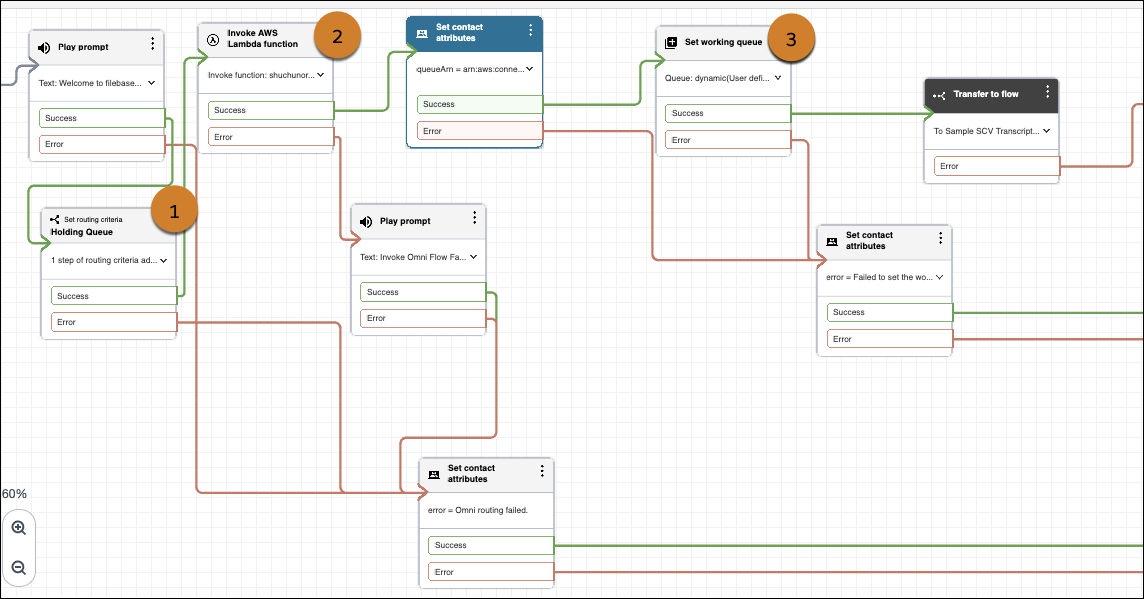
While Salesforce provides sample Amazon Connect flows as a reference, each organization usually adds unique business logic to their flow implementations. If you are updating an Amazon Connect flow to enable Omni-Channel Unified Routing to skills, reference the example flow (Sample SCV Omni-Channel Subflow - Omni Routing for Skills) and keep these considerations and requirements in mind.
-
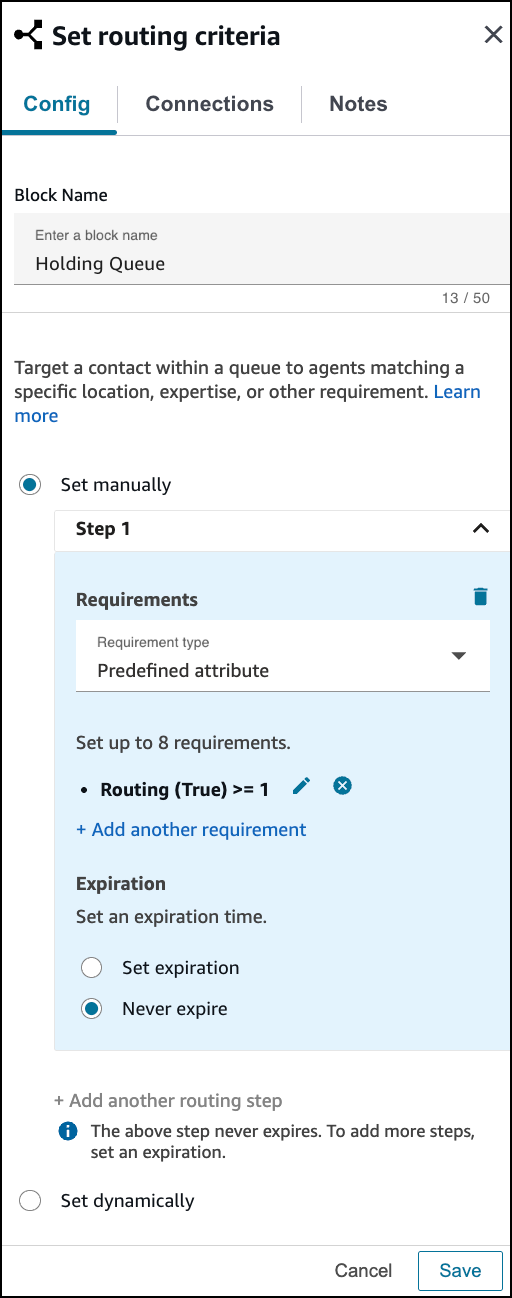
Include a Set routing criteria block (1) before the Invoke AWS
Lambda function block that invokes the executeOmniFlow method.
-
In the Invoke AWS Lambda function block that calls
executeOmniFlow (2), add a Function input parameter with the Destination
Key of
flowDevName. For Value, select Set manually, and set the value to the API name of the Omni-Channel flow used to route to skills. For additional options including fallbackQueue and flowInput parameters, see InvokeTelephonyIntegrationApiFunction Lambda Function for details. -
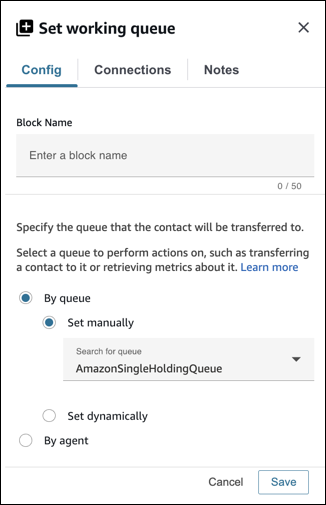
If you’re using the holding queue approach that we recommend, the Set working
queue block (3) should be set By Queue manually to the
working (holding) queue.
-
Include a Set routing criteria block (1) before the Invoke AWS
Lambda function block that invokes the executeOmniFlow method.
- Save your work and publish the flow.
Did this article solve your issue?
Let us know so we can improve!
