
You are here:
Locations and Filtering
The Location filter at the top of Workplace Command Center is a completion search box. After you type three characters of a location workplace, suggested matches appear as dropdown options.
Find the locations available to you. In the Location Status component, click List View to see your locations.

Enter an available location in the Location filter at the top of Workplace Command Center. This filter sets the scope for all the installed components to a single location. The filtering persists until you choose another location, or until you clear the filter.

To clear the filter, click the X. Clearing the filter resets the view to All Locations.
By default, you can search the level 1 locations only, not sublocations. However, a Salesforce Admin can enable location search filtering for all levels.
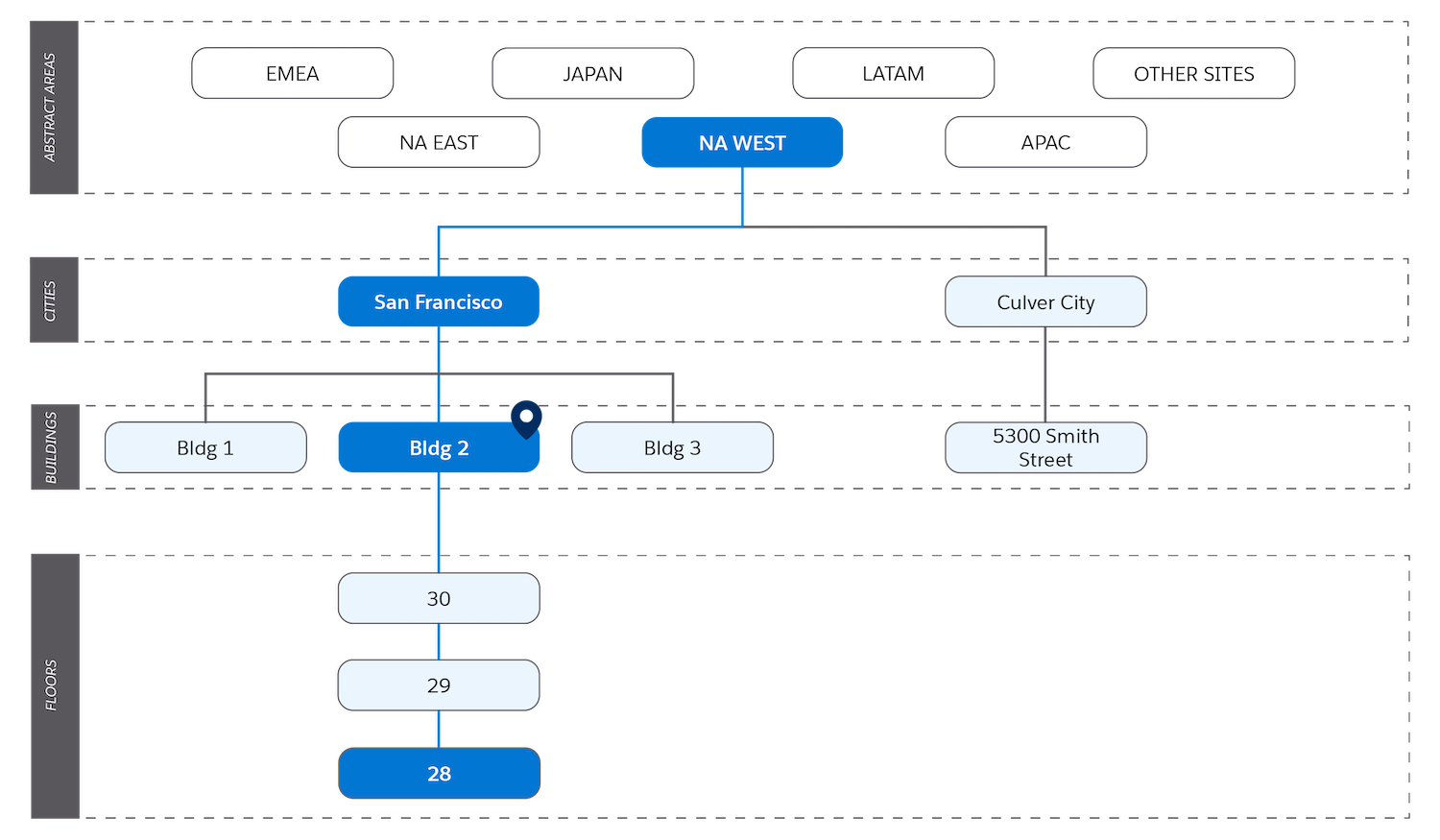
If location search filtering at all levels is enabled, the one location in the path with a visitor address doesn't have to be the level 1 location. Instead, level 1 locations can be abstractions that help you group sublocations with a shared characteristic. For example, in this hierarchy the level 1 location is the abstract location NA WEST, representing company offices in western North America. The path from NA WEST down to the sublocation at the lowest level, representing the 28th floor, has exactly one location with a visitor address, the building designated Bldg 2.
- Reduce Batch Size to Support Large-Scale Direct Child Locations
A single location in a Work.com data model can have many or even thousands of direct child locations. But when a single location has an extremely large number of direct children, the error messageFirst error: wkcc: Too many query rows: 50001can appear. If you see this error message, your data is still reaggregated. Consider reducing the location wellness fact batch size until the error no longer appears.
