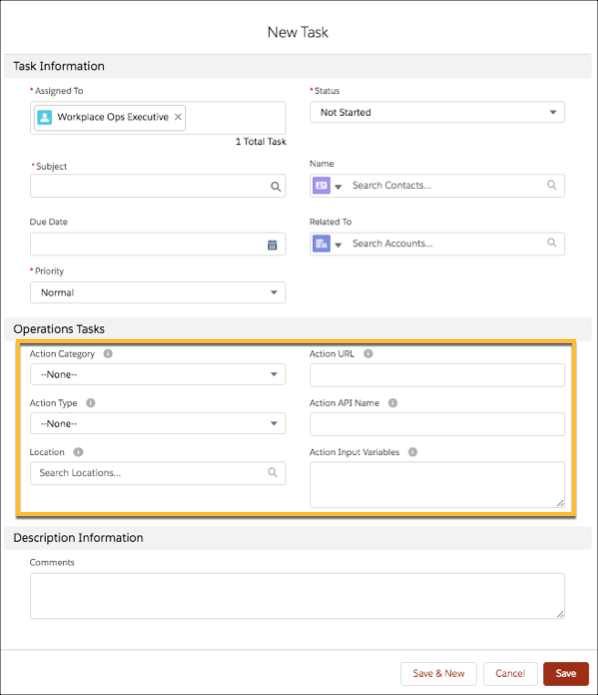
We recommend that a Workplace admin create most tasks for the Operations Feed
automatically and in response to another process or trigger in your org. Talk to your
administrator if you want to set up tasks that can be created or run automatically.
Required Editions
Available in: Lightning Experience
Available in: Enterprise and Unlimited Editions
Workplace Command Center is available as an add-on
license.
User Permissions Needed
To create tasks
Edit Task
From the App Launcher, choose Tasks.
From the dropdown menu on the Tasks listview, select New Task.
Assign the task to a person.
Set the Status, Subject, and Priority.
To display the task in the Operations Feed, it must have an Action Category. The task needs a value in this field to appear in the Operations Feed. The icon on the task in the Operations Feed matches the Action Category.
Select an Action Type.
To create a simple task, select None. This action creates a task with a View Task button, which leads to the task record.
To create a task with an associated record detail page or URL, click URL. Enter a target URL for the task in the Action URL field. The URL can include parameters and can be absolute or relative to your Salesforce instance. This action creates a task with a Take Action button in the Operations Feed, which leads to the associated URL.
To create a task associated with a flow created by the admin, select
Flow. Enter the Action API Name set when creating the flow.
To relate a task to a location, specify a location in the Location field.
Click Save.
Note If you select the Action Type URL, you must enter a value in the Action URL field for the task
to be associated with a new target page. If you select the Action Type Flow, you must also enter
a value in the Action API Name for the task to run the associated automation. Contact your
Salesforce admin for more information and values for this field.
Did this article solve your issue?
Let us know so we can improve!
Loading
Salesforce Help | Article
Cookie Consent Manager
Cookie Consent Manager
General Information
Required Cookies
Functional Cookies
Advertising Cookies
General Information
We use three kinds of cookies on our websites: required, functional, and advertising. You can choose whether functional and advertising cookies apply. Click on the different cookie categories to find out more about each category and to change the default settings.
Privacy Statement
Required Cookies
Always Active
Required cookies are necessary for basic website functionality. Some examples include: session cookies needed to transmit the website, authentication cookies, and security cookies.
Functional Cookies
Functional cookies enhance functions, performance, and services on the website. Some examples include: cookies used to analyze site traffic, cookies used for market research, and cookies used to display advertising that is not directed to a particular individual.
Advertising Cookies
Advertising cookies track activity across websites in order to understand a viewer’s interests, and direct them specific marketing. Some examples include: cookies used for remarketing, or interest-based advertising.