
You are here:
Schedule Shifts for Your Team
Review and confirm the schedule for your team. Use the Shift Schedules tab to see available employees and match them to open occupancy at your location.
Required Editions
| Available in: Lightning Experience |
| Available in: Enterprise and Unlimited Editions |
| Shift Management is available as an add-on license with Work.com and Workplace Command Center. |
| User Permissions Needed | |
|---|---|
| To schedule and assign shifts: | Workplace Shifts Shift Planner custom permission set |
| To manage facility plans and service territory locations: | Workplace Shifts Workplace Manager custom permission set |

- From App Launcher
 ,
select Shift Schedules.
,
select Shift Schedules.
Open shifts, also called service appointments, are shown on the left. The service appointments represent open shifts based on the planned occupancy. For example, if the planned occupancy in a workspace on the 10th floor of the Denver office is 15, then 15 service appointments are created for each day in the facility plan.
Available employees, called service resources in the Gantt, appear as rows in the chart. You can see which employees are available by looking at the shifts on the schedule. Tentative shifts are assigned to an employee, and the days they say they're available are marked Confirmed.
If the schedule optimization job is turned on, a tentative schedule is automatically created. You can fine-tune the schedule and check on shifts or employees that weren't matched by the scheduling engine. You can also choose to run scheduling optimization manually.
- To automatically match employees to open time slots, click Optimize.
- To assign a shift to an employee, drag the service appointment onto the Gantt.
- To reassign a shift to someone else, you can drag an appointment between rows.
Finalize the Schedule
To let employees know about the shift schedule, dispatch the service appointments. Shifts that you assign to employees are dispatched hourly by a scheduled job. Another way to dispatch appointments is to select them in the list (1) and then click Dispatch (2).
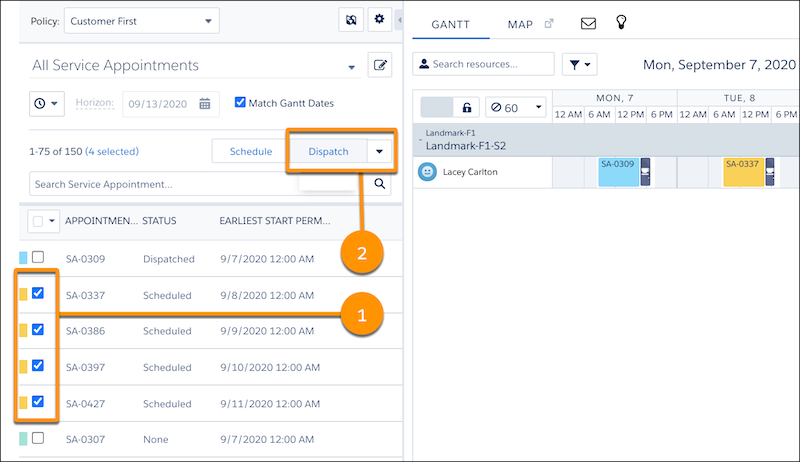
When shifts are dispatched, employees receive a mobile app notification that they have shifts to confirm. When an employee rejects a shift, the status is reflected in the Gantt.
An employee’s wellness status determines whether they can use the shift management app and accept shifts. When the status is Available to Work, employees can use the app and accept shifts. If the status changes to unavailable or unknown, previously accepted shifts are canceled. The system creates resource absences for one month to mark the schedule. If the wellness status changes to unavailable on the same day as a previously scheduled shift, the shift isn't canceled. When a previously unavailable employee becomes available for work, the system deletes the service resource absences and employees can accept shifts.
