Customize the Work Summaries for Case Prompt Template
Specify the information Einstein must include or tweak the response voice and tone to
get Case summaries that better align with your business needs. Add custom instructions to the
prompt without building a template from scratch by creating a version of the standard Work
Summaries prompt templates.
To create and manage prompt templates in Prompt Builder:
Prompt Template Manager permission set
To create and manage retrievers:
Data Cloud permission set
To run prompts with Einstein Search:
Data Cloud User permission set
For Case Summary template types, the LLM drafts responses based on Case ID.
To customize the Summarize Case prompt template, we recommend you edit the standard prompt
templates and save a new version. In the standard prompt template we’ve added the key pieces of
a successful prompt, including instructions for the LLM, data resources, and relevant inputs
like the Case ID. You can still add and test your own instructions if you save a new version of
the template.
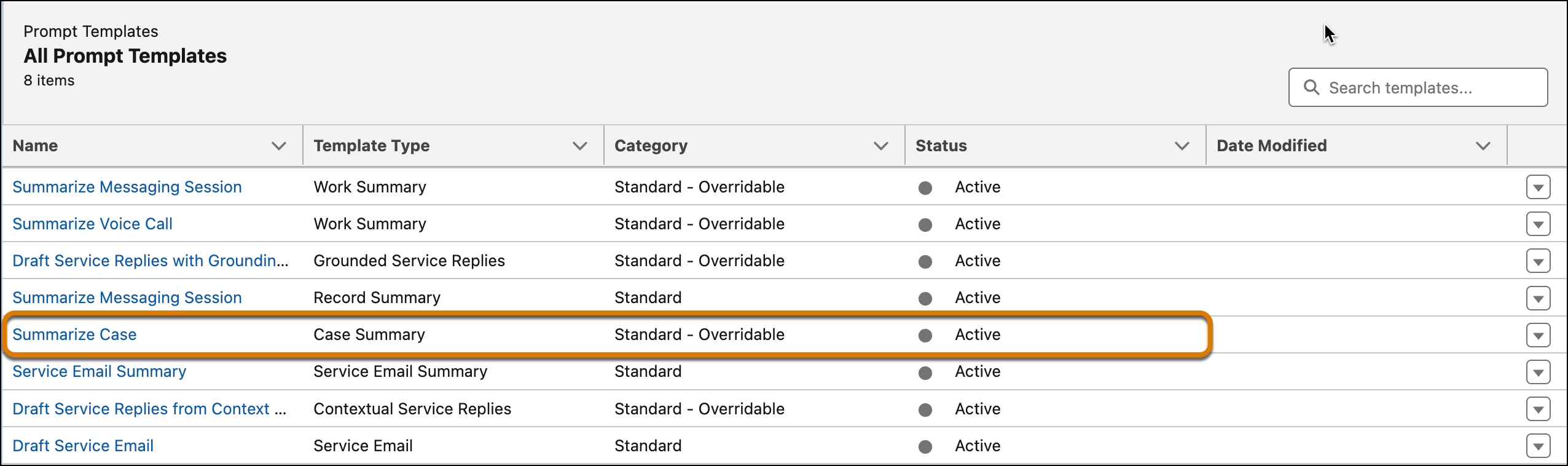
From Setup, in the Quick Find box, search for and select Prompt
Builder. Under Prompt Templates are is the Summarize Case prompt template with the
Case Summary template type.
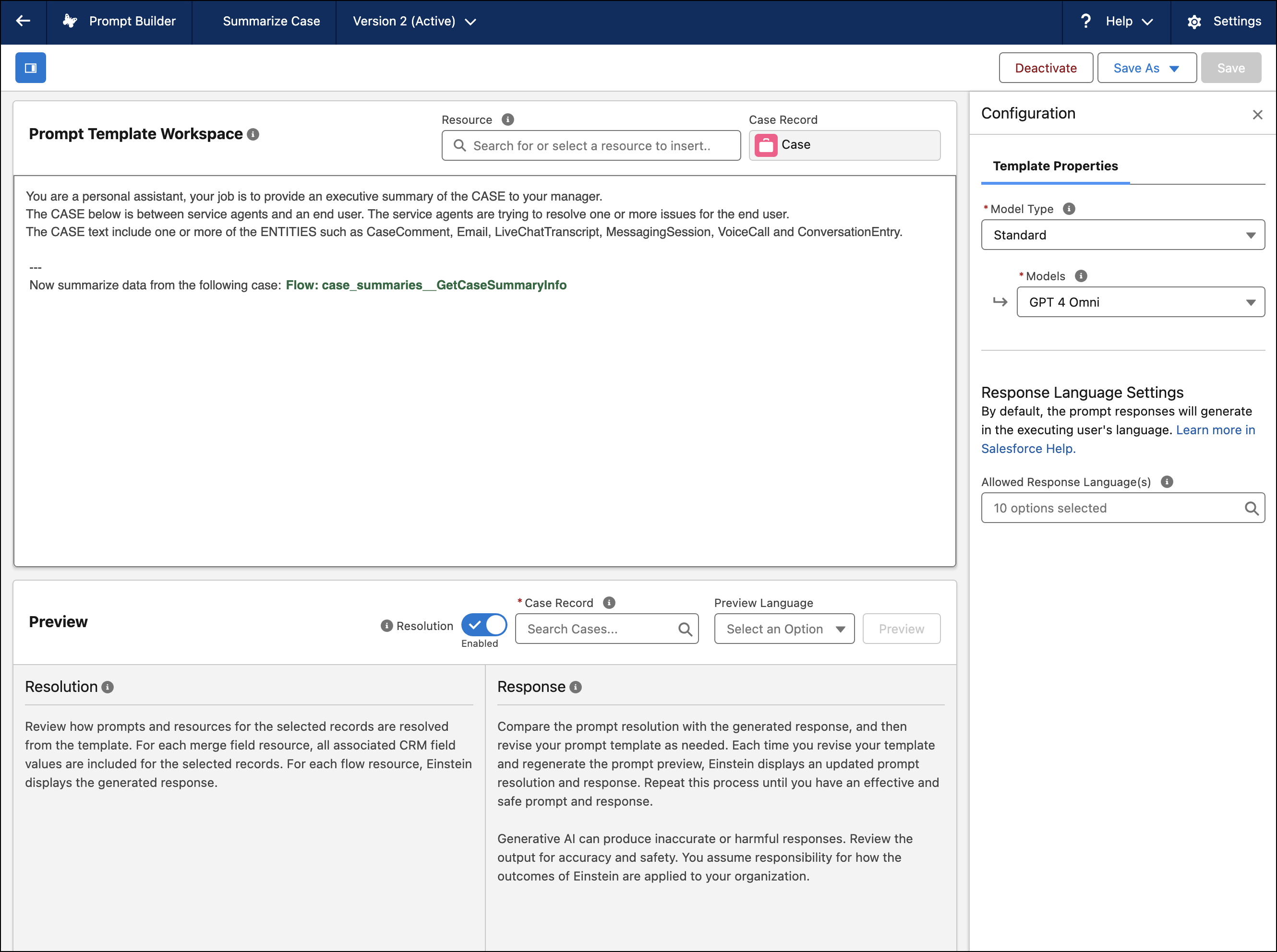
To edit the standard prompt template, select it and you're redirected to the Prompt
Template Workspace. Click Save As. A new version of the prompt template
opens in the workspace.
For the Case Summary template type, the standard prompt template user instructions
include the task for the LLM, Case ID, and any response limits.
To test the Summarize Case prompt template, under Case Record, enter the Case ID. Click
Preview to see how your changes to the prompt template impact the LLM
response. See Review, Revise, and Repeat: Ensure That a Prompt Template Is
Effective. Review your custom prompt carefully before you activate it.
When you’re satisfied with the outputs, click Activate.
If there are multiple available templates, Work Summaries for Case uses the most recently
modified active template version when recommending responses to users.
We use three kinds of cookies on our websites: required, functional, and advertising. You can choose whether functional and advertising cookies apply. Click on the different cookie categories to find out more about each category and to change the default settings.
Privacy Statement
Required Cookies
Always Active
Required cookies are necessary for basic website functionality. Some examples include: session cookies needed to transmit the website, authentication cookies, and security cookies.
Functional Cookies
Functional cookies enhance functions, performance, and services on the website. Some examples include: cookies used to analyze site traffic, cookies used for market research, and cookies used to display advertising that is not directed to a particular individual.
Advertising Cookies
Advertising cookies track activity across websites in order to understand a viewer’s interests, and direct them specific marketing. Some examples include: cookies used for remarketing, or interest-based advertising.