
You are here:
Data in a Non-Omni Workflow
Workforce Engagement analyzes past customer interactions to help you staff for future workloads. If you’re not using Omni-Channel queues, Workforce Engagement extracts interaction data from standard or custom channel objects and region, skill, and custom fields.
Required Editions

| View supported editions. |
Data in a Workload History or Intelligent Forecast
Your past customer interactions are the key ingredients in a workload history. Because a forecast is based on a workload history, your past interactions also help Workforce Engagement predict future work volumes.
For each interaction in your contact center, Workforce Engagement considers these factors.
- How—The channel in which the interaction occurred
- Where—The region or location of the interaction
- Who—The type of agent and agent skills required
- When—The interaction's date and time
- How long—The interaction’s duration
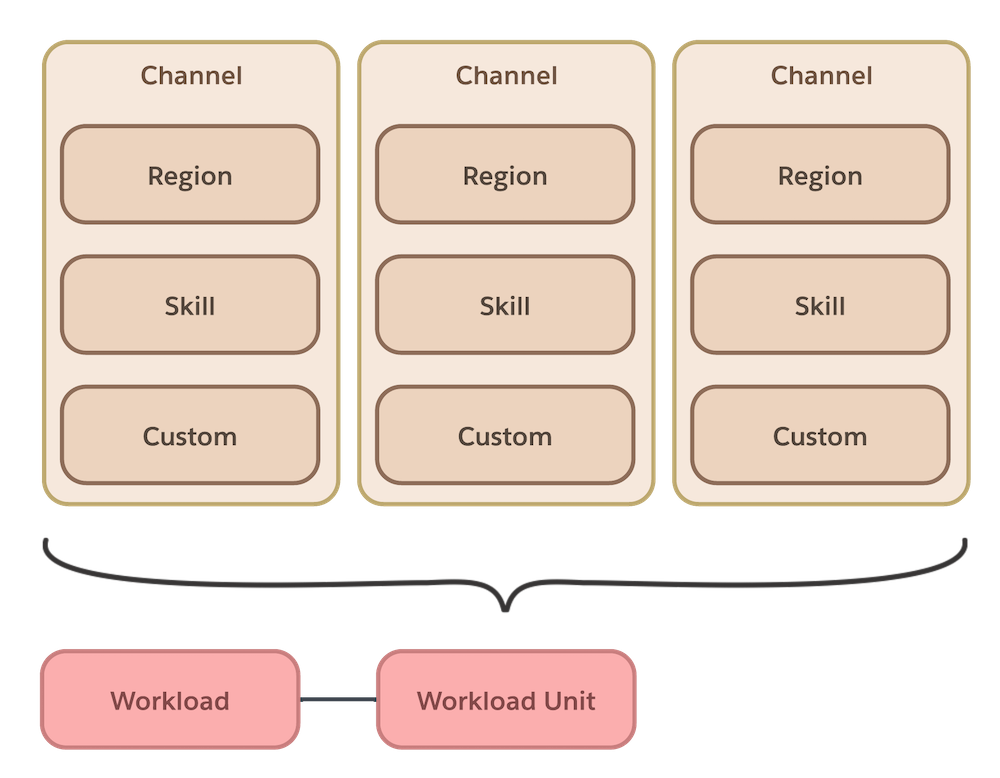
To create a workload history or forecast when you're not using Omni-Channel, you specify channel objects and region, skill, and custom fields. These elements also become filters for workload history and forecast results.
| Data Needed | Description |
|---|---|
| Channel | A standard or custom object that stores your workload data. Objects currently supported are case, chat transcript, conversation entry, messaging session, and voice call, or any custom object. To use the standard Salesforce objects for chat, messaging, or voice call, you must have the corresponding license. |
| Region | A field that describes the geographic location of your business. |
| Skill | A field that describes a skill that agents require for the work. |
| Custom | Any custom data to use to filter your workload history. For example, to filter by case priorities, specify case priorities as a custom field. |
Workforce Engagement considers each region-skill-custom combination for a channel as a data slice. When you create a workload history, you can add up to 198 slices. For example, if you define 3 regions, 4 agent skills, and 5 custom values for a channel, there are 3x4x5 or 60 data slices.
To load more slices into a workload history, use Attach to existing workload. For example, you can add more data slices to the same channel. To create a forecast for multiple channels, you can specify a different channel. Keep in mind that more data means more processing time to build your forecast, and analysts see a busier dashboard when there are many slice combinations.
Consider using a custom object if your interaction data is external to Salesforce. For example, if you use a non-Salesforce application for chat conversations, you can load data into a custom object or into the Salesforce standard chat transcript object. In a custom object you can define the fields for region, skill, and custom filter criteria, or specify fields to use from other objects. If you import data, make sure that your data is in the right format. For example, timestamps in Salesforce are dateTime fields in Coordinated Universal Time (UTC) time zone format.
Aggregation
When you create a workload history or forecast, Workforce Engagement aggregates slices within the specified date range. We use the Salesforce Analytics app to accumulate volumes for past and future workloads and to calculate average handle times. To speed time-to-results, the app processes multiple chunks of data simultaneously. For example, given multiple weeks of channel data, the app can analyze a week’s data for a slice in parallel with other weeks’ slices. When aggregation is completed, Workforce Engagement displays results for the full timespan and your slice combinations. The results reflect the time zone of the service territory that you specify in the workload history.
Workforce Engagement stores aggregation results in the Workload and WorkloadUnit objects. A Workload record is a time series that represents aggregated work volumes and average handle times. WorkloadUnit records contain counts for past or predicted interactions and average handle times in a time interval. You can access Workload and WorkloadUnit objects programmatically, but not through the object manager.
Data in a Capacity Plan
A capacity plan predicts coverage that you need in a service territory in a given timeframe. It uses Workload records to retrieve forecasted work volumes and average handle times.
To create a capacity plan, you associate channel-skill-custom combinations with each job profile and map the region to a service territory. For each job profile, you specify these characteristics for each channel-skill-custom combination.
- The maximum work units that an agent can handle at one time and how the units are distributed between channel-skill-custom slices.
- A shrinkage percentage that represents non-working time such as breaks or training.
- Service level agreement goals. You specify the percentage of requests to be completed in a given time period.
- Default average handle times. If your workload history includes average handle times, they’re used to build the capacity plan. If your workload history lacks average handle times, the default values that you set for each channel-skill-custom combination are used.
Workforce Engagement uses WorkDemographic and other internal object records to describe the slices and job profile characteristics.
Before you create a capacity plan, define shift templates for the time periods when agents are at work in your call center. Then you can create a plan to predict how many shifts are necessary to meet service level goals in the plan's date range.
Workforce Engagement iteratively calculates staffing requirements using the forecasted volume, average handle times, job profile work characteristics, and shift templates. This simplified data model shows the object records that go into creating a capacity plan.
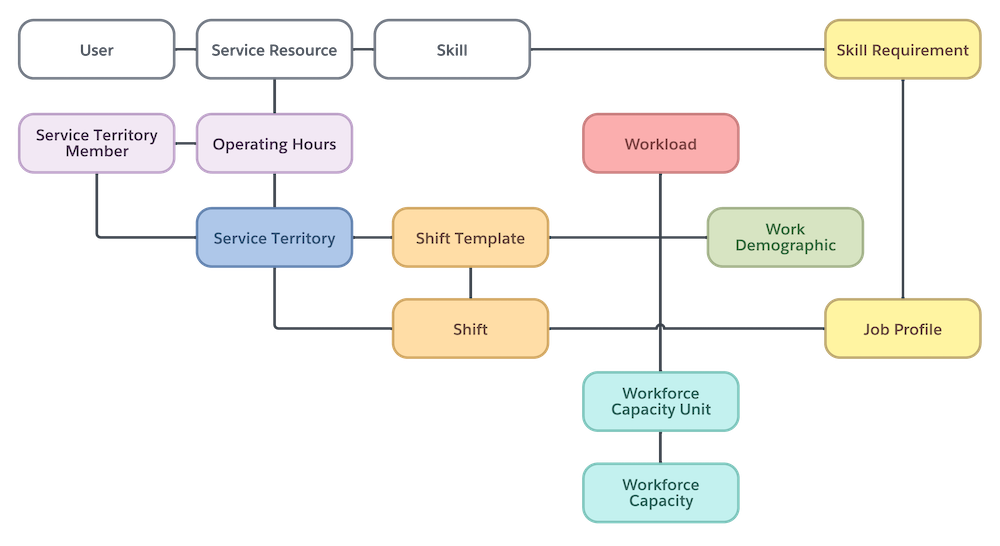
| Element | Object and Description |
|---|---|
| Forecast results |
|
| Who (Agents) |
|
| Where |
|
| What type of expertise is needed |
|
| When work takes place |
|
Capacity plan results are available in the public objects WorkforceCapacity and WorkforceCapacityUnit. WorkforceCapacity records represent a time series that describes capacity needed in the specified date range. WorkforceCapacityUnit records describe how many resources are allocated or needed for forecasted work in a given time interval.
Data Used in Shift Creation and Scheduling
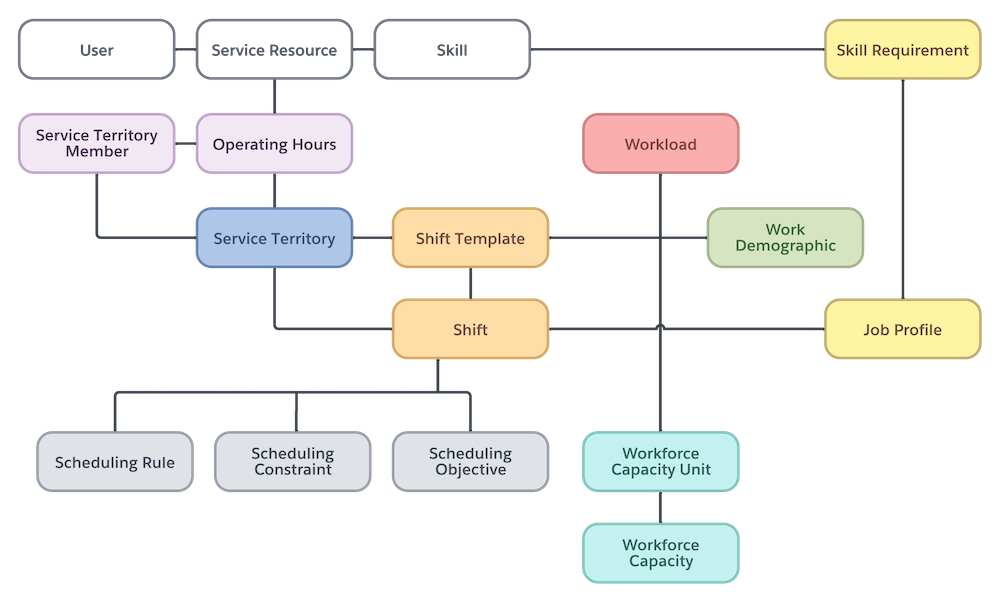
If you create a capacity plan, you can create shifts in bulk directly from it. To add shifts in bulk, Workforce Engagement uses the capacity plan in a WorkforceCapacity record. It also uses shift templates and information about your call centers, agents, and the work to be done.
The object records used in shift creation and scheduling are similar to records used in a capacity plan. This similarity exists because a capacity plan estimates the number of shifts needed but doesn't create them.
Scheduling Criteria
The scheduling tools—batch assignment, get candidates, and mass shift update—identify service resources for shifts based on scheduling rules, constraints, and objectives. Scheduling rules and constraints impose hard limits when matching candidates to shifts. Objectives are guidelines that the scheduling logic considers.
| Object Name | Description |
|---|---|
| SchedulingRule | The scheduling logic uses scheduling rules to match agents to shifts. A Match Territory rule is always required. If you’re not using a queue-based workflow, create a Match Skills rule. Scheduling considers a shift’s job profile and its skill requirements, and matches it to service resources with those skills. |
| SchedulingConstraint | Scheduling constraints limit when work happens and how much work is done. For example, a MaxWorkingHoursPerDay constraint restricts how many hours an agent can work daily. You can set constraints on service resources or on service territories. |
| SchedulingObjective | Scheduling objectives apply business goals to the scheduling logic. For example, a scheduling objective of type Balance Shifts tries to balance the number of shifts in a time period across all agents. |
| ServiceResourcePreference | You can set a scheduling objective that considers a user’s preference for when they work. A Service Resource Preference record stores a user’s preferred operating hours. |

If you’re not using a queue-based workflow, set a Match Territory and a Match Skills rule. Add an Availability rule to check if agents have shift assignments or absences, or if operating hours in their primary territory don't cover shift durations.
You can also create a Work Limit rule that restricts agents to a maximum of 40 hours per week. Define two scheduling constraints.On Service Resource records, specify the appropriate constraint for full-time and part-time agents.
- Full-Time to set the maximum working hours per day to eight hours.
- Part-Time to set the limit to four hours per day.
Then set a Balance Shifts scheduling objective so that scheduling distributes shifts evenly across your agents within a timeframe, such as 15 days before and after a shift.
